
Report State is an important feature which lets the
Google Home Action proactively report the latest status of the
user's device back to Google Home Graph rather than waiting for a
QUERY intent.
Report State reports to Google the states of user devices
with the specified agentUserId associated with them (sent in the original
SYNC request). When Google Assistant wants to take an action
that requires understanding the current state of a device, it can simply look
up the state information in the Home Graph instead
of issuing a QUERY intent to various third-party clouds prior to issuing the
EXECUTE intent.
Without Report State, given lights from multiple providers in
a living room, the command Ok Google, brighten my living room requires
resolving multiple QUERY intents sent to multiple clouds, as opposed to
simply looking up the current brightness values based on what has been
previously reported. For the best user experience,
Assistant needs to have the current state of a device,
without requiring a round-trip to the device.
Following the initial SYNC for a device, the platform sends a QUERY intent
that gathers the state of the device to populate Home Graph.
After that point, Home Graph only stores the state that is
sent with Report State.
When calling Report State, make sure to provide complete
state data for a given trait. Home Graph updates states on a
per-trait basis and overwrites all data for that trait when a
Report State call is made. For example, if you are reporting
state for the StartStop trait, the payload
needs to include values for both isRunning and isPaused.
Get started
To implement Report State, follow these steps:
Enable the Google HomeGraph API
-
In the Google Cloud Console, go to the HomeGraph API page.
Go to the HomeGraph API page - Select the project that matches your smart home project ID.
- Click ENABLE.
Create a Service Account Key
Follow these instructions to generate a service account key from the Google Cloud Console:
-
In the Google Cloud Console, go to the Service accounts page.
Go to the Service Accounts page.You may need to select a project before you're taken to the Service Accounts page.
Click Create service account.
In the Service account name field, enter a name.
In the Service account ID field, enter a ID.
In the Service account description field, enter a description.
Click Create and continue.
From the Role dropdown, select Service Accounts > Service Account OpenID Connect Identity Token Creator.
Click Continue.
Click Done.
Select the service account you just created from the list of service accounts and select Manage keys from the Actions menu.
Select Add key > Create new key.
For the Key type, select the JSON option.
Click Create. A JSON file that contains your key downloads to your computer.
Call the API
Select an option from the tabs below:
HTTP
The Home Graph provides an HTTP endpoint
- Use the downloaded service account JSON file to create a JSON Web Token (JWT). For more information, see Authenticating Using a Service Account.
- Obtain an OAuth 2.0 access token with the
https://www.googleapis.com/auth/homegraphscope using oauth2l: - Create the JSON request with the
agentUserId. Here's a sample JSON request for Report State and Notification: - Combine the Report State and Notification JSON and the token in your HTTP POST
request to the Google Home Graph endpoint. Here's an example of how
to make the request in the command line using
curl, as a test:
oauth2l fetch --credentials service-account.json \
  --scope https://www.googleapis.com/auth/homegraph
{
  "requestId": "123ABC",
  "agentUserId": "user-123",
  "payload": {
    "devices": {
      "states": {
        "light-123": {
          "on": true
        }
      }
    }
  }
}
curl -X POST -H "Authorization: Bearer ACCESS_TOKEN" \
  -H "Content-Type: application/json" \
  -d @request-body.json \
  "https://homegraph.googleapis.com/v1/devices:reportStateAndNotification"
gRPC
The Home Graph provides a gRPC endpoint
- Get the protocol buffers service definition for the Home Graph API.
- Follow the gRPC developer documentation to generate client stubs for one of the supported languages.
- Call the ReportStateAndNotification method.
Node.js
The Google APIs Node.js Client provides bindings for the Home Graph API.
- Initialize the
google.homegraphservice using Application Default Credentials. - Call the
reportStateAndNotificationmethod with the ReportStateAndNotificationRequest. It returns aPromisewith the ReportStateAndNotificationResponse.
const homegraphClient = homegraph({
  version: 'v1',
  auth: new GoogleAuth({
    scopes: 'https://www.googleapis.com/auth/homegraph'
  })
});

const res = await homegraphClient.devices.reportStateAndNotification({
  requestBody: {
    agentUserId: 'PLACEHOLDER-USER-ID',
    requestId: 'PLACEHOLDER-REQUEST-ID',
    payload: {
      devices: {
        states: {
          "PLACEHOLDER-DEVICE-ID": {
            on: true
          }
        }
      }
    }
  }
});
Java
The HomeGraph API Client Library for Java provides bindings for the Home Graph API.
- Initialize the
HomeGraphApiServiceusing Application Default Credentials. - Call the
reportStateAndNotificationmethod with theReportStateAndNotificationRequest. It returns aReportStateAndNotificationResponse.
  // Get Application Default credentials.
  GoogleCredentials credentials =
      GoogleCredentials.getApplicationDefault()
          .createScoped(List.of("https://www.googleapis.com/auth/homegraph"));

  // Create Home Graph service client.
  HomeGraphService homegraphService =
      new HomeGraphService.Builder(
              GoogleNetHttpTransport.newTrustedTransport(),
              GsonFactory.getDefaultInstance(),
              new HttpCredentialsAdapter(credentials))
          .setApplicationName("HomeGraphExample/1.0")
          .build();

  // Build device state payload.
  Map<?, ?> states = Map.of("on", true);

  // Report device state.
  ReportStateAndNotificationRequest request =
      new ReportStateAndNotificationRequest()
          .setRequestId("PLACEHOLDER-REQUEST-ID")
          .setAgentUserId("PLACEHOLDER-USER-ID")
          .setPayload(
              new StateAndNotificationPayload()
                  .setDevices(
                      new ReportStateAndNotificationDevice()
                          .setStates(Map.of("PLACEHOLDER-DEVICE-ID", states))));
  homegraphService.devices().reportStateAndNotification(request).execute();
}
Test Report State
In order to get your Cloud-to-cloud integration ready for certification, it is important to test Report State.
To do this, we recommend using the Home Graph Viewer tool, which is a standalone web app that doesn't require downloading or deployment.
The Report State Dashboard is still available, but is deprecated and no longer supported.
Report State Dashboard
Prerequisites
Before being able to test your Cloud-to-cloud integration, you need
your Service Account Key and your agentUserId. If you already have your
Service Account Key and agentUserId see Deploy the
Report State Dashboard.
How to retrieve your agentUserId
Follow these steps to retrieve your agentUserId:
- Open the OAuth Playground tool.
- Click on the gear icon in the upper right corner to open the OAuth 2.0 configuration dialog.
- In the OAuth endpoints field, select Custom.
- Specify the following account linking parameters, using the values you set in the
Actions console when you created the smart home project. Click Close to save your changes.
- Authorization endpoint: Set this parameter to the Authorization URL in the console.
- Token endpoint: Set this parameter to the Token URL in the console.
- OAuth client ID: Set this parameter to the same value as in the console.
- OAuth client secret: Set this parameter to the same value as in the console.
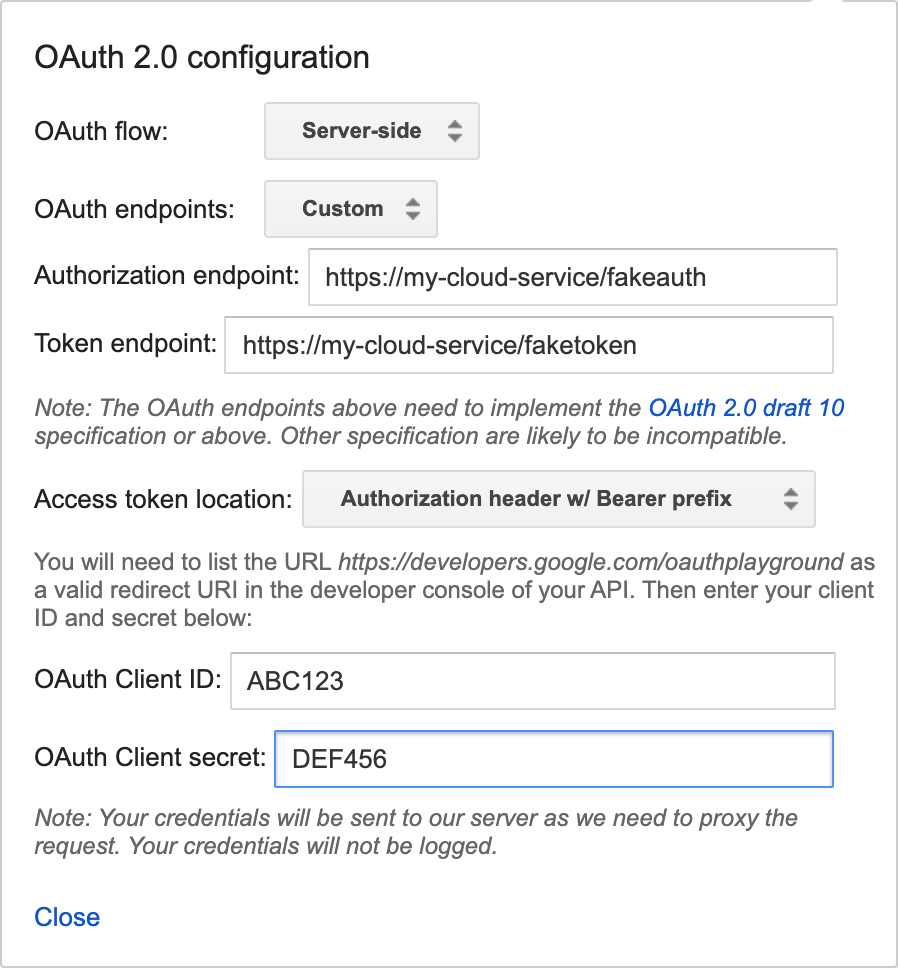
Figure 1: Setting the OAuth 2.0 configuration. - Expand Step 1 - Select & authorize APIs. In the text field that says "Input your own scopes", enter "devices" and click Authorize APIs.
- If the previous step was successful, you will be redirected to your OAuth endpoint. Log in using the user account you want to test. After successfully logging in, you will be redirected back to the OAuth Playground with Step 2 expanded and filled with an authorization code generated for you.
- Click Exchange authorized code for tokens to get a refresh token and access token.
- In Step 3 - Configure request to API, follow these steps:
- Set HTTP Method to POST.
- Set Request URI to your fulfillment URL.
Click Enter request body and add this sample input:
{ "requestId": "ff36a3cc-ec34-11e6-b1a0-64510650abcf", "inputs": [{ "intent": "action.devices.SYNC" }] }- Click Send the request.
- Find the value of the "agentUserId" field in the response.
Deploy the Report State dashboard
Once you have the Service Account Key and Agent User ID for your project,
download and deploy the latest version from
Report State
Dashboard.
Once you have downloaded the latest version, follow the instructions from the
included README.MD file.
After you have deployed the Report State dashboard, access the dashboard from the following URL (replace your_project_id with your project ID):
http://<your-project-id>.appspot.com
On the dashboard, do the following:
- Choose your Account Key File
- Add your agentUserId
Then, click List.
All of your devices are listed. Once the list is populated, you can use the Refresh button to update device states. If there is a device state change, the row is highlighted in green.
Report State Discrepancy
The query-based report state accuracy measures how well the latest report state for a device matches the device's status when a user queries for it. This value is expected to be at 99.5%. For more details about the current status of the Report State Accuracy of your project, see Device Health - State accuracy. You can also see the details of Report State Discrepancy Log from the Logs Explorer.
Here is an example of a Report State Discrepancy Log:
{
  "insertId": "abcdefgh",
  "jsonPayload": {
    "reportStateLog": {
      "result": "INACCURATE",
      "detailedAccuracyResult": "DETAILED_ACCURACY_RESULT_INACCURATE",
      "isOffline": false,
      "queriedTime": "2026-01-17T03:22:01.732938Z",
      "reportedTime": "2024-11-30T15:24:34.052751Z",
      "agentId": "google-smart-home-agent-id-example",
      "requestId": "84920571364829501736",
      "queryReportStateDifferences": {
        "queryState": "on_off \t {\n  on: true\n}\n",
        "reportState": "on_off \t {\n  on: false\n}\n"
      },
      "traitName": "TRAIT_ON_OFF",
      "snapshotTime": "2026-01-17T03:22:01.732938Z",
      "isMissingField": false,
      "deviceType": "action.devices.types.OUTLET",
      "stateName": "on",
      "deviceId": "sample-device-id",
      "accuracy": "INACCURATE"
    }
  },
  "resource": {
    "type": "assistant_action_project",
    "labels": {
      "project_id": "google-smart-home-agent-id-example"
    }
  },
  "timestamp": "2026-01-17T07:16:13.712708257Z",
  "severity": "ERROR",
  "logName": "projects/google-smart-home-agent-id-example/logs/assistant_smarthome%2Fassistant_smarthome_logs",
  "receiveTimestamp": "2026-01-17T07:16:13.712708257Z"
}
Report State Discrepancy Log field definitions
| Field Name | Definition |
|---|---|
detailedAccuracyResult |
A diagnostic summary explaining the specific discrepancy between the Report State payload and the QUERY intent response. |
queriedTime |
The precise timestamp when Google received the QUERY response from the fulfillment provider. |
reportedTime |
The precise timestamp when the Report State notification was successfully received by Google. |
agentId |
The unique identifier for your project (typically the Project ID in the Google Home Developer Console). |
requestId |
The unique correlation ID associated with the specific QUERY intent response. |
queryReportStateDifferences |
An object or list highlighting the specific device state attributes that differ between the QUERY response and the Report State data. |
Error Responses
You may receive one of the following error responses when calling Report State. These responses come in the form of HTTP status codes.
400 Bad Request
The server was unable to process the request sent by the client due to
invalid syntax. Common causes include malformed JSON or using null
instead of "" for a string value.
404 Not Found
The requested resource could not be found but may be available in the future.
Typically, this means that we cannot find the requested device. It may also mean
that the user account is not linked with Google or we received an invalid
agentUserId. Ensure that the agentUserId matches the value provided in your
SYNC response, and you are properly handling
DISCONNECT intents.
hen a ReportState call fails with a 404 NOT_FOUND error, it indicates a
synchronization mismatch between your cloud and Home Graph.
This can happen if a device is removed from Home Graph, or if
a user unlinks their account.
To handle 404 errors from Report State, use the following procedure:
- Check user account status: Call
devices.syncfor theagentUserIdthat returned a 404 error. This helps determine if the error is for the entire user account or a specific device.- If
SYNCreturns a 404 error, the user account is no longer linked with Google. Stop sending Report State and Request Sync for this user's devices. - If
SYNCreturns 200 OK, the user account is still linked, meaning the 404 error is device-specific.
- If
- Reconcile device list: If
SYNCreturns 200 OK, you need to identify which device(s) are no longer known to Google. We recommend you compare the list of devices Google has for the user against your device database, and identify devices in your system that are absent from Google's list. If a device should be synced to Google but it's not yet shared with Google, useSYNCto make sure the device is synced with Google. If a device should be unlinked from Google, stop reporting state for that specific device and continue reporting for other valid devices under thatagentUserId.
Online and offline state reporting
When a device is offline, you should reportreportStateAndNotification API.
This example shows that a light device type is online, and reports
all current device states.
"requestId": "test-request-id",
  "agentUserId": "agent-user-1",
    "payload":{
      "devices": {
        "states": {
          "device-id-1": {
            "brightness": 65,
            "on": true,
            "online": true
          }
          "notifications": {},
        }
      }
    }