

Sobald Sie eine OAuth 2.0-Implementierung haben, können Sie optional App Flip auf OAuth-Basis App Flip konfigurieren. So können Ihre Android Nutzer ihre Konten in Ihrem Authentifizierungssystem schneller mit ihren Google-Konten verknüpfen. In den folgenden Abschnitten wird beschrieben, wie Sie App Flip für Ihre Cloud-to-cloud Integration entwerfen und implementieren.
Gestaltungsrichtlinien
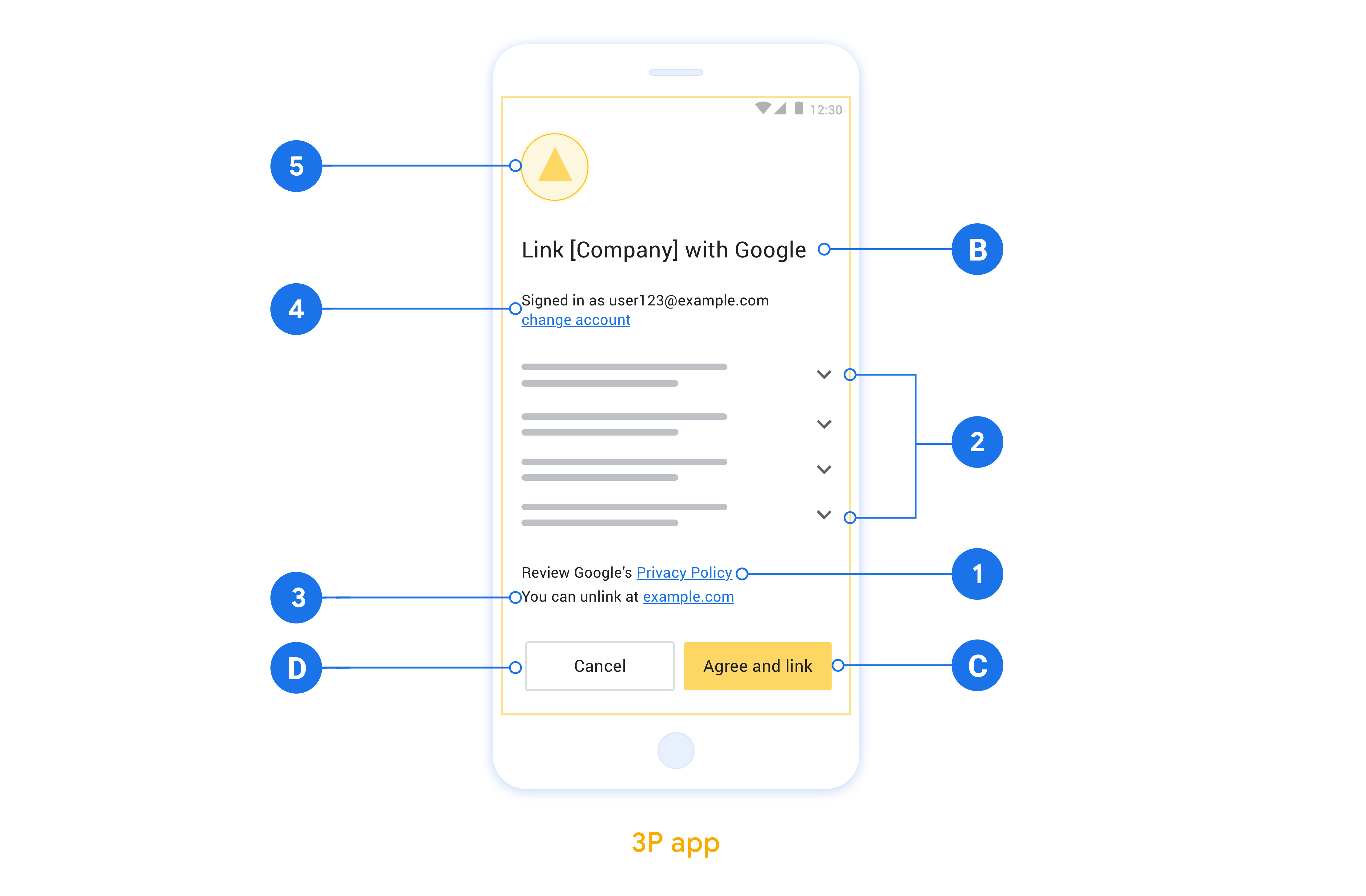
In diesem Abschnitt werden die Designanforderungen und ‑empfehlungen für den Zustimmungsbildschirm für die App-Flip-Kontoverknüpfung beschrieben. Nachdem Google Ihre App aufgerufen hat, zeigt Ihre App dem Nutzer den Zustimmungsbildschirm an.
Voraussetzungen
- Du musst über eine Google-Autorisierungserklärung verfügen, z. B. „Nach der Verknüpfung hat Google die Berechtigung, deine Geräte zu steuern.“
- Sie müssen dem Nutzer mitteilen, dass sein Konto mit Google verknüpft wird, nicht mit einem bestimmten Google-Produkt wie Google Home oder Google Assistant.
- Sie müssen auf dem Einwilligungsbildschirm einen klaren Call-to-Action angeben und für die Verknüpfungsaktion die Formulierung „Zustimmen und verknüpfen“ verwenden. Das liegt daran, dass Nutzer wissen müssen, welche Daten sie mit Google teilen müssen, um ihre Konten zu verknüpfen.
- Sie müssen Nutzern die Möglichkeit geben, zurückzugehen, die Verknüpfung abzulehnen oder zu kündigen, wenn sie sich gegen eine Verknüpfung entscheiden. Verwenden Sie die Formulierung „Abbrechen“ für die Aktion zum Abbrechen.
- Sie müssen diesen Ablauf implementieren: Nachdem der Nutzer auf „Zustimmen und verknüpfen“ geklickt hat, müssen Sie ihm anzeigen, dass die Verknüpfung erfolgreich war, und ihn automatisch zur Google Home App zurückleiten. Der Nutzer sollte das verknüpfte Gerät jetzt in der Google Home App mit Ihrer Aktion sehen. Nachdem der Nutzer auf „Abbrechen“ geklickt hat, solltest du ihn zur Google Home App zurückleiten.
Empfehlungen
Wir empfehlen Folgendes:
Datenschutzerklärung von Google anzeigen Fügen Sie auf dem Zustimmungsbildschirm einen Link zur Datenschutzerklärung von Google ein.
Zu teilende Daten: Verwenden Sie eine klare und prägnante Sprache, um dem Nutzer mitzuteilen, welche seiner Daten Google benötigt und warum.
Möglichkeit, die Verknüpfung aufzuheben: Bieten Sie Nutzern eine Möglichkeit, die Verknüpfung aufzuheben, z. B. eine URL zu ihren Kontoeinstellungen auf Ihrer Plattform. Alternativ können Sie einen Link zu Google-Konto einfügen, über den Nutzer ihr verknüpftes Konto verwalten können.
Nutzerkonto ändern: Schlagen Sie Nutzern eine Methode vor, mit der sie ihr(e) Konto(s) wechseln können. Das ist besonders dann von Vorteil, wenn Nutzer mehrere Konten haben.
- Wenn ein Nutzer den Zustimmungsbildschirm schließen muss, um das Konto zu wechseln, senden Sie einen behebaren Fehler an Google, damit sich der Nutzer mit OAuth-Verknüpfung und dem impliziten Ablauf im gewünschten Konto anmelden kann.
Fügen Sie Ihr Logo ein. Ihr Unternehmenslogo auf dem Zustimmungsbildschirm anzeigen Platzieren Sie Ihr Logo gemäß Ihren Style-Richtlinien. Wenn Sie auch das Google-Logo anzeigen möchten, lesen Sie den Abschnitt Logos und Marken.
Für OAuth-Basis einrichten App Flip
In den folgenden Abschnitten werden die Voraussetzungen für App Flip auf OAuth-Basis und die Konfiguration Ihres App Flip-Projekts in der Google Home Developer Console beschrieben.
Cloud-zu-Cloud-Integration erstellen und OAuth 2.0-Server einrichten
Bevor Sie App Flip konfigurieren können, müssen Sie Folgendes tun:
- OAuth 2.0-Server einrichten Weitere Informationen zum Einrichten eines OAuth Servers finden Sie unter OAuth 2.0-Server implementieren.
- Cloud-zu-Cloud-Integration erstellen Folgen Sie der Anleitung unter Cloud-zu-Cloud-Integration erstellen, um eine Integration zu erstellen.
App Flip in der Developer Console konfigurieren
Im folgenden Abschnitt wird beschrieben, wie Sie App Flip in der Developer Console konfigurieren.
- Füllen Sie alle Felder unter OAuth-Clientinformationen aus. Wenn App Flip nicht unterstützt wird, wird reguläres OAuth als Fallback verwendet.
- Aktivieren Sie unter Ihre App für die Kontoverknüpfung verwenden(optional) die Option Für iOS aktivieren.
- Füllen Sie das Feld Universeller Link aus. Weitere Informationen zu universellen Links finden Sie unter Apps und Websites erlauben, auf Ihre Inhalte zu verlinken.
- Wenn Sie Ihren Client optional konfigurieren möchten, fügen Sie Bereiche hinzu und klicken Sie unter Client konfigurieren (optional) auf Bereich hinzufügen.
- Klicken Sie auf Speichern.
Sie können jetzt mit dem nächsten Abschnitt fortfahren, um App Flip in Ihrer iOS- oder Android App zu implementieren.
App Flip in nativen Apps implementieren
Wenn Sie App Flip implementieren möchten, müssen Sie den Autorisierungscode des Nutzers in Ihrer App so ändern, dass ein Deeplink von Google akzeptiert wird.
App Flip auf Ihrem Gerät testen
Nachdem Sie eine Cloud-zu-Cloud-Integration erstellt und App Flip in der Console und in Ihrer App konfiguriert haben, können Sie App Flip auf Ihrem Mobilgerät testen. Sie können die Google Home App verwenden, um App Flip zu testen.
So testen Sie App Flip über die Google Home App:
- Rufen Sie die Developer Console auf und wählen Sie Ihr Projekt aus.
- Rufen Sie Cloud-zu-Cloud > Testen auf.
- Lösen Sie den Kontoverknüpfungsvorgang über die Home App aus:
- Öffnen Sie die Google Home app (GHA).
- Klicken Sie auf die Schaltfläche +.
- Klicken Sie auf Gerät einrichten.
- Klicken Sie auf Du hast bereits Geräte eingerichtet?.
- Wählen Sie Ihre Cloud-zu-Cloud-Integration aus der Liste der Anbieter aus. In der Liste wird ihr das Präfix „[Test]“ vorangestellt. Wenn Sie Ihre [Test]-Integration aus der Liste auswählen, sollte Ihre App geöffnet werden.
- Prüfen Sie, ob Ihre App gestartet wurde, und beginnen Sie mit dem Testen Ihres Autorisierungsvorgangs.