

เมื่อติดตั้งใช้งาน OAuth 2.0 แล้ว คุณจะกำหนดค่า App Flip ที่อิงตาม OAuth ได้ (ไม่บังคับ) ซึ่งจะช่วยให้ผู้ใช้ Android ลิงก์บัญชีในระบบการตรวจสอบสิทธิ์กับบัญชี Google ได้เร็วขึ้น ส่วนต่อไปนี้ อธิบายวิธีออกแบบและติดตั้งใช้งาน App Flip สำหรับการผสานรวม Cloud-to-cloud
Design guidelines
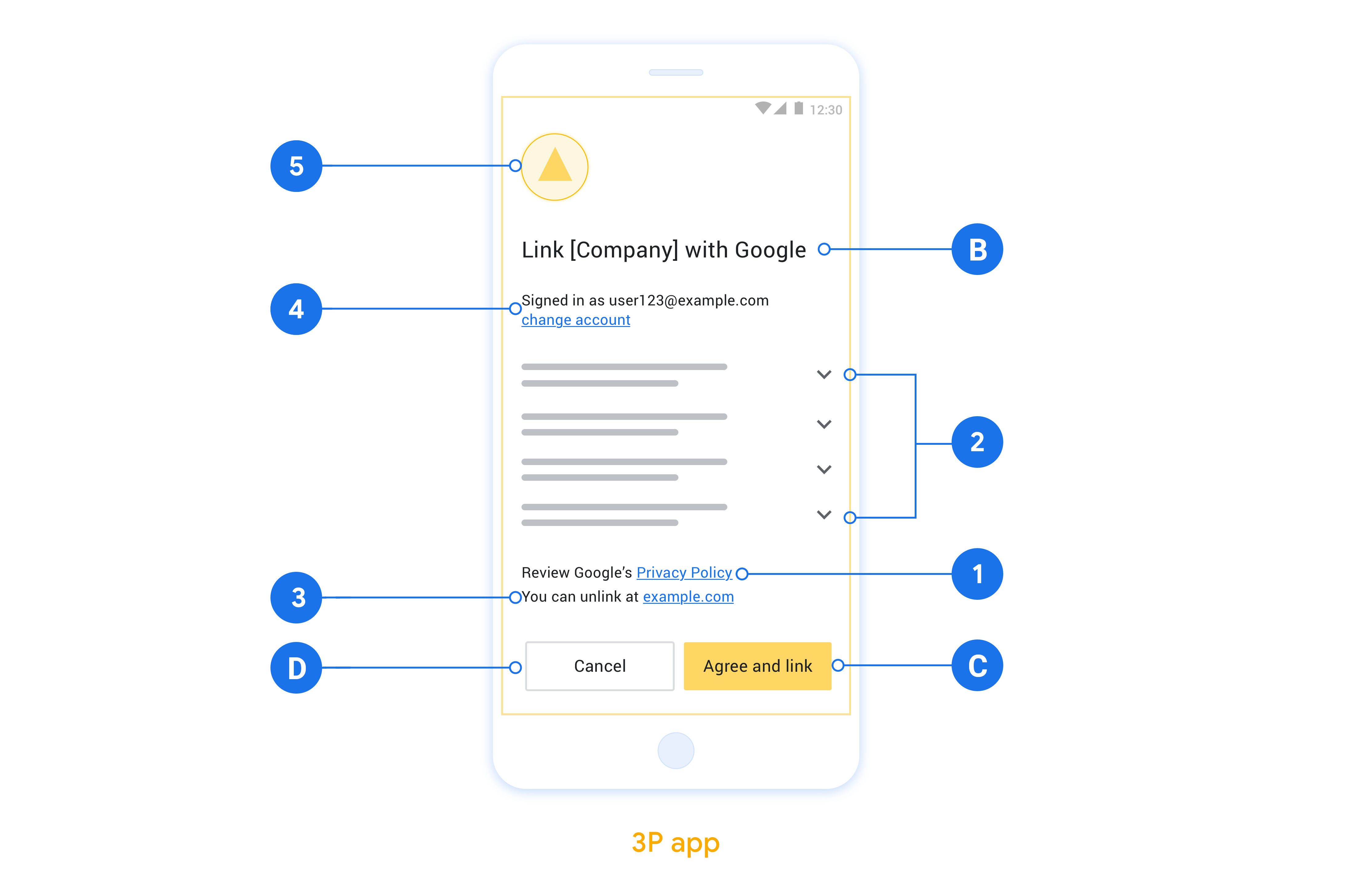
This section describes the design requirements and recommendations for the App Flip account linking consent screen. After Google calls your app, your app displays the consent screen to the user.
Requirements
- You must have a Google authorization statement such as "Once linked, Google will have permission to control your devices."
- You must communicate that the user's account is being linked to Google, not to a specific Google product, such as Google Home or Google Assistant.
- You must state a clear call-to-action on your consent screen and use the wording "Agree and link" for linking action. This is because users need to understand what data they're required to share with Google to link their accounts.
- You must provide a way for users to go back or cancel, if they choose not to link. Use the wording "Cancel" for the cancel action.
- You must implement this workflow: After clicking "Agree and link", you must show linking success and redirect the user back to the Google Home app automatically. The user should now see the linked device on the Google Home app with your action. After clicking "Cancel" you should redirect the user back to the Google Home app.
Recommendations
We recommend that you do the following:
Display Google's Privacy Policy. Include a link to Google's Privacy Policy on the consent screen.
Data to be shared. Use clear and concise language to tell the user what data of theirs Google requires and why.
Ability to unlink. Offer a mechanism for users to unlink, such as a URL to their account settings on your platform. Alternatively, you can include a link to Google Account where users can manage their linked account.
Ability to change user account. Suggest a method for users to switch their account(s). This is especially beneficial if users tend to have multiple accounts.
- If a user must close the consent screen to switch accounts, send a recoverable error to Google so the user can sign in to the desired account with OAuth linking and the implicit flow.
Include your logo. Display your company logo on the consent screen. Use your style guidelines to place your logo. If you wish to also display Google's logo, see Logos and trademarks.
ตั้งค่าสำหรับ App Flip ที่ใช้ OAuth
ส่วนต่อไปนี้จะอธิบายข้อกำหนดเบื้องต้นสำหรับ App Flip ที่อิงตาม OAuth และวิธีกำหนดค่าโปรเจ็กต์ App Flip ใน Google Home Developer Console
สร้างการผสานรวมแบบคลาวด์ต่อคลาวด์และตั้งค่าเซิร์ฟเวอร์ OAuth 2.0
คุณต้องทำสิ่งต่อไปนี้ก่อนจึงจะกำหนดค่า App Flip ได้
- ตั้งค่าเซิร์ฟเวอร์ OAuth 2.0 ดูข้อมูลเพิ่มเติมเกี่ยวกับการตั้งค่าเซิร์ฟเวอร์ OAuth ได้ที่ติดตั้งใช้งานเซิร์ฟเวอร์ OAuth 2.0
- สร้างการผสานรวมแบบคลาวด์ต่อคลาวด์ หากต้องการสร้างการผสานรวม ให้ทำตามวิธีการใน สร้างการผสานรวมแบบคลาวด์ต่อคลาวด์
กำหนดค่า App Flip ใน Developer Console
ส่วนต่อไปนี้จะอธิบายวิธีกำหนดค่า App Flip ใน Developer Console
- กรอกข้อมูลในช่องทั้งหมดในส่วนข้อมูลไคลเอ็นต์ OAuth (หากไม่รองรับ App Flip ระบบจะใช้ OAuth ปกติเป็นข้อมูลสำรอง)
- ในส่วนใช้แอปของคุณสำหรับการลิงก์บัญชี(ไม่บังคับ) ให้เลือกเปิดใช้สำหรับ iOS
- กรอกข้อมูลในช่อง Universal Link ดูข้อมูลเพิ่มเติม เกี่ยวกับ Universal Link ได้ที่ การอนุญาตให้แอปและเว็บไซต์ลิงก์ไปยังเนื้อหาของคุณ
- หากต้องการกำหนดค่าไคลเอ็นต์โดยไม่บังคับ ให้เพิ่มขอบเขต แล้วคลิกเพิ่มขอบเขตในส่วนกำหนดค่าไคลเอ็นต์ (ไม่บังคับ)
- คลิกบันทึก
ตอนนี้คุณก็ไปที่ส่วนถัดไปเพื่อใช้ App Flip ในแอป iOS หรือ Android ได้แล้ว
ติดตั้งใช้งาน App Flip ในแอปที่มาพร้อมเครื่อง
หากต้องการใช้ App Flip คุณต้องแก้ไขรหัสการให้สิทธิ์ผู้ใช้ในแอป เพื่อยอมรับ Deep Link จาก Google
ทดสอบ App Flip ในอุปกรณ์
ตอนนี้คุณได้สร้างการผสานรวมแบบคลาวด์ต่อคลาวด์และกำหนดค่า App Flip ในคอนโซลและ ในแอปแล้ว คุณก็สามารถทดสอบ App Flip ในอุปกรณ์เคลื่อนที่ได้ คุณใช้แอป Google Home เพื่อ ทดสอบ App Flip ได้
หากต้องการทดสอบ App Flip จากแอป Google Home ให้ทำตามขั้นตอนต่อไปนี้
- ไปที่ Developer Console แล้วเลือกโปรเจ็กต์
- ไปที่ระบบคลาวด์ต่อระบบคลาวด์ > ทดสอบ
- ทริกเกอร์ขั้นตอนการลิงก์บัญชีจากแอป Home โดยทำดังนี้
- เปิด Google Home app (GHA)
- คลิกปุ่ม +
- คลิกตั้งค่าอุปกรณ์
- คลิกมีการตั้งค่าบ้างแล้วหรือยัง
- เลือกการผสานรวมแบบคลาวด์ต่อคลาวด์จากรายชื่อผู้ให้บริการ โดยจะมีคำว่า "[ทดสอบ]" นำหน้าในรายการ เมื่อคุณเลือกการผสานรวม [test] จากรายการ ระบบควรเปิดแอปของคุณ
- ตรวจสอบว่าแอปเปิดตัวแล้วและเริ่มทดสอบขั้นตอนการให้สิทธิ์