

拥有 OAuth 2.0 实现后,你可以选择配置 基于 OAuth 的 App Flip,这可让你的 Android 用户更快地将其在你的 身份验证系统中的账号关联到他们的 Google 账号。以下部分 介绍了如何为您的 Cloud-to-cloud集成设计和实现 App Flip。
设计准则
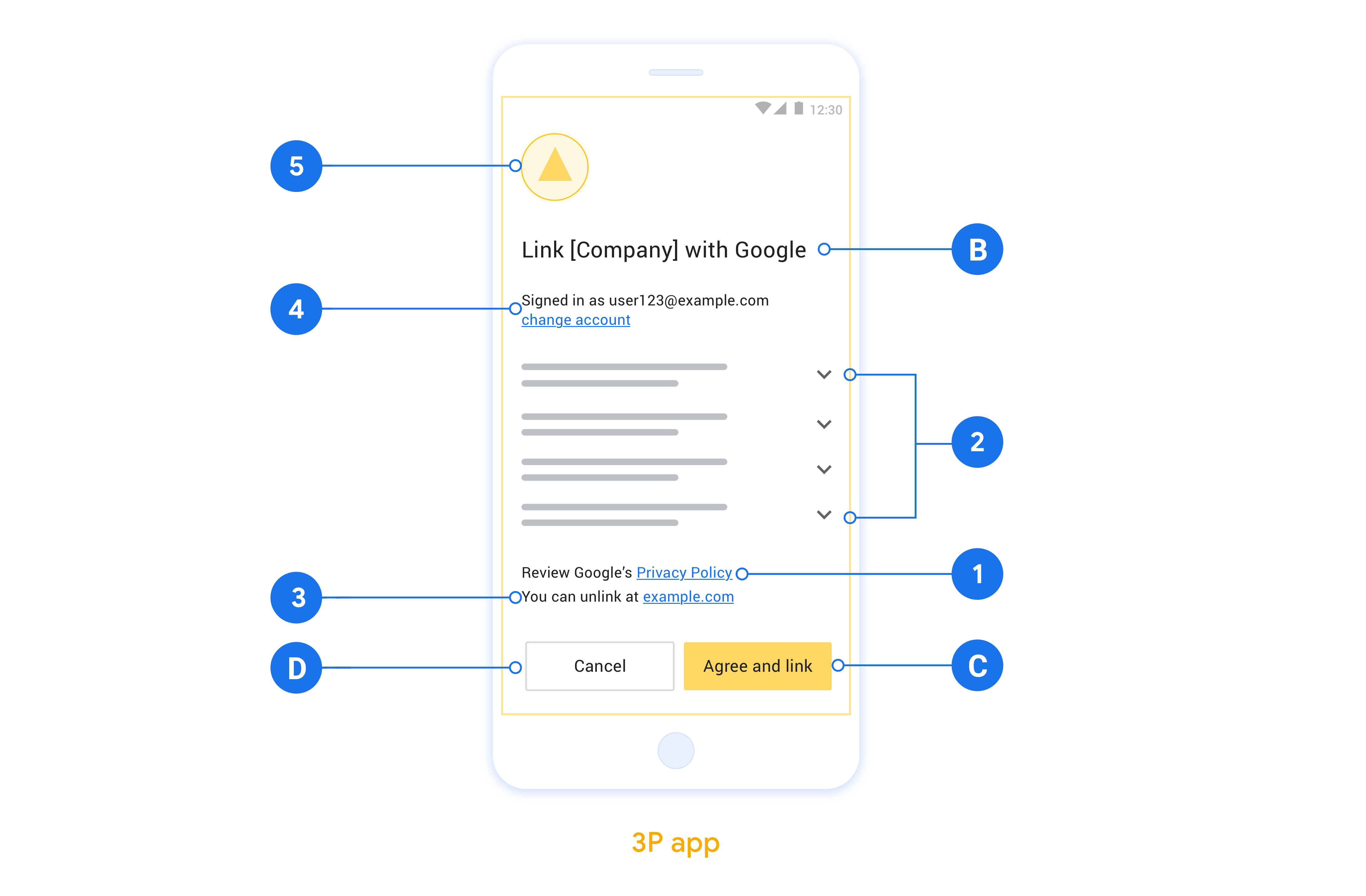
本部分介绍了应用翻转账号关联同意屏幕的设计要求和建议。在 Google 调用您的应用后,您的应用会向用户显示同意屏幕。
要求
- 您必须提供 Google 授权声明,例如“关联后,Google 将有权控制您的设备。”
- 您必须告知用户,其账号将与 Google 关联,而非与 Google Home 或 Google 助理等特定 Google 产品关联。
- 您必须在意见征求界面上明确说明号召性用语,并使用“同意并关联”字样来表示关联操作。这是因为用户需要了解他们必须与 Google 共享哪些数据才能关联账号。
- 如果用户选择不关联,您必须提供一种让用户返回、拒绝或取消的方式。使用“取消”一词表示取消操作。
- 您必须实现以下工作流:用户点击“同意并关联”后,您必须显示关联成功消息,并自动将用户重定向回 Google Home 应用。用户现在应该会在 Google Home 应用中看到与您的操作相关联的设备。点击“取消”后,您应将用户重定向回 Google Home 应用。
建议
建议您执行以下操作:
显示 Google 的隐私权政策。在意见征求屏幕上添加指向 Google 隐私权政策的链接。
要分享的数据。使用简洁明了的语言告知用户 Google 需要哪些用户数据以及原因。
能够解除关联。提供一种可供用户取消关联的机制,例如指向您平台上的账号设置的网址。或者,您也可以添加指向 Google 账号的链接,以便用户管理其关联的账号。
能够更改用户账号。建议用户切换账号的方法。如果用户倾向于使用多个账号,此功能尤其有用。
- 如果用户必须关闭同意屏幕才能切换账号,请向 Google 发送可恢复的错误,以便用户可以通过 OAuth 关联和隐式流程登录所需账号。
添加您的徽标。在权限请求页面上显示公司徽标。 根据样式指南放置徽标。如果您还想显示 Google 的徽标,请参阅徽标和商标。
基于 OAuth 的 App Flip 的设置
以下部分介绍了基于 OAuth 的 App Flip 的前提条件,以及如何在 Google Home Developer Console 中配置您的 App Flip 项目。
创建云到云集成并设置 OAuth 2.0 服务器
在配置 App Flip 之前,你需要执行以下操作:
- 设置 OAuth 2.0 服务器。如需详细了解如何设置 OAuth 服务器,请参阅实现 OAuth 2.0 服务器。
- 创建云到云集成。如需创建集成,请按照 创建云到云集成中的说明操作。
在 Developer Console 中配置 App Flip
以下部分介绍了如何在 Developer Console中配置 App Flip。
- 填写 OAuth Client information 下的所有字段。 (如果 App Flip 不受支持,则会使用常规 OAuth 作为后备选项。)
- 在 Use your app for account linking(optional) 下,选中 Enable for iOS 。
- 填写 Universal Link 字段。如需详细了解通用链接,请参阅允许应用和网站链接到你的内容。
- 如果想选择配置客户端,请添加范围,然后点击 Configure your client (optional) 下的 Add scope 。
- 点击保存 。
现在,你可以继续下一部分,在 iOS 或 App Flip 应用中实现 。Android
在原生应用中实现 App Flip
如需实现 App Flip,你需要修改应用中的用户 101 授权代码,以接受来自 Google 的深层链接。
在设备上测试 App Flip
现在,你已创建云到云集成,并在控制台和 应用中配置了 App Flip,接下来可以在移动设备上测试 App Flip。你可以使用 Google Home 应用测试 App Flip。
如需通过 Google Home 应用测试 App Flip,请按以下步骤操作:
- 前往 Developer Console 并选择你的项目。
- 前往 Cloud-to-cloud > Test 。
- 在 Google Home 应用中触发账号关联流程:
- 打开 Google Home app (GHA)。
- 点击 + 按钮。
- 点击设置设备。
- 点击有已设置好的设备?
- 从提供商列表中选择你的云到云集成。它在列表中以“[test]”为 前缀。从列表中选择 [test] 集成后,就应该会打开你的应用。
- 验证你的应用是否已启动并开始测试授权流程。