

Gdy masz już wdrożony protokół OAuth 2.0, możesz opcjonalnie skonfigurować funkcję opartą na OAuth App Flip, która umożliwia Twoim Android użytkownikom szybsze łączenie kont w Twoim systemie uwierzytelniania z kontami Google. W sekcjach poniżej opisujemy, jak zaprojektować i wdrożyć App Flip w integracji Cloud-to-cloud.
Wskazówki dotyczące wyglądu
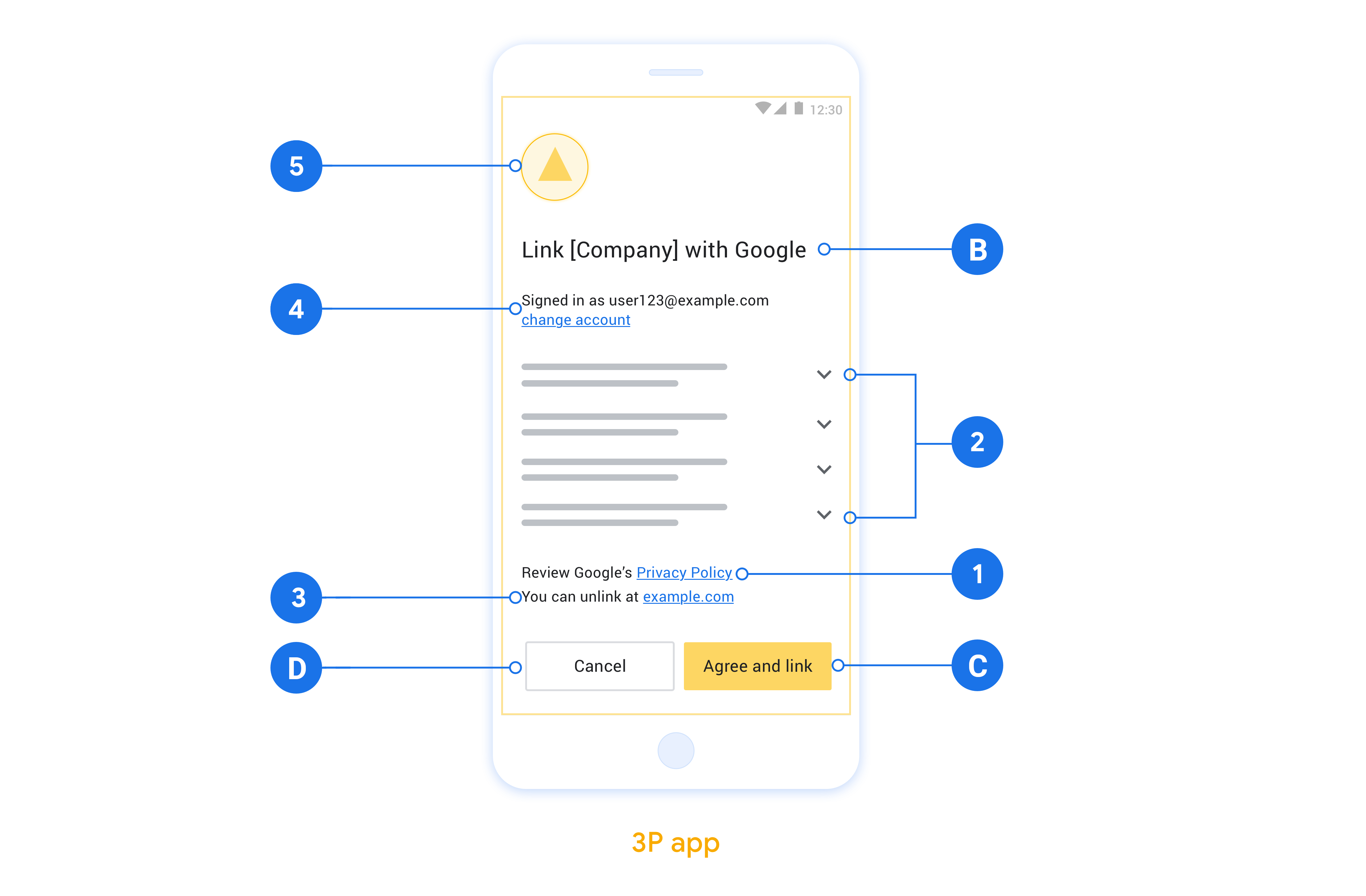
W tej sekcji opisujemy wymagania i zalecenia dotyczące projektu ekranu zgody na połączenie konta w przypadku aplikacji App Flip. Gdy Google wywoła Twoją aplikację, wyświetli ona użytkownikowi ekran zgody.
Wymagania
- Musisz mieć oświadczenie o autoryzacji Google, np. „Po połączeniu Google będzie mieć uprawnienia do sterowania Twoimi urządzeniami”.
- Musisz poinformować użytkownika, że jego konto jest łączone z Google, a nie z konkretną usługą Google, np. Google Home czy Asystentem Google.
- Na ekranie zgody musisz umieścić jasne wezwanie do działania i użyć sformułowania „Zgadzam się i łączę” w przypadku działania polegającego na łączeniu. Dzieje się tak, ponieważ użytkownicy muszą wiedzieć, jakie dane muszą udostępnić Google, aby połączyć swoje konta.
- Musisz umożliwić użytkownikom powrót, odrzucenie lub anulowanie, jeśli nie chcą połączyć kont. W przypadku działania anulowania użyj słowa „Anuluj”.
- Musisz wdrożyć ten proces: po kliknięciu „Zgadzam się i łączę” musisz wyświetlić informację o udanym połączeniu i automatycznie przekierować użytkownika z powrotem do aplikacji Google Home. Użytkownik powinien teraz widzieć połączone urządzenie w aplikacji Google Home z Twoją czynnością. Po kliknięciu „Anuluj” przekieruj użytkownika z powrotem do aplikacji Google Home.
Rekomendacje
Zalecamy wykonanie tych czynności:
Wyświetl Politykę prywatności Google. Na ekranie zgody umieść link do Polityki prywatności Google.
Dane, które mają być udostępniane. Używaj jasnego i zwięzłego języka, aby poinformować użytkownika, jakich danych wymaga Google i dlaczego.
Możliwość odłączenia Udostępniać użytkownikom mechanizm odłączania, np. adres URL do ustawień konta na Twojej platformie. Możesz też dodać link do konta Google, na którym użytkownicy mogą zarządzać połączonym kontem.
Możliwość zmiany konta użytkownika. Zaproponuj użytkownikom metodę przełączania kont. Jest to szczególnie korzystne, jeśli użytkownicy mają zwykle kilka kont.
- Jeśli użytkownik musi zamknąć ekran akceptacji, aby przełączyć konta, wyślij do Google błąd, który można naprawić, aby użytkownik mógł zalogować się na wybrane konto za pomocą połączenia OAuth i przepływu niejawnego.
Dodaj logo. wyświetlać logo firmy na ekranie zgody; Umieść logo zgodnie z wytycznymi dotyczącymi stylu. Jeśli chcesz wyświetlać logo Google, zapoznaj się z sekcją Loga i znaki towarowe.
Konfigurowanie funkcji opartej na OAuth App Flip
W sekcjach poniżej opisujemy wymagania wstępne dotyczące funkcji App Flip opartej na OAuth oraz sposób konfigurowania Twojego projektu App Flip w Konsoli dewelopera Google Home.
Tworzenie integracji typu Cloud-to-cloud i konfigurowanie serwera OAuth 2.0
Zanim skonfigurujesz funkcję App Flip, musisz wykonać te czynności:
- Skonfiguruj serwer OAuth 2.0. Więcej informacji o konfigurowaniu serwera OAuth znajdziesz w artykule Implementowanie serwera OAuth 2.0.
- Utwórz integrację typu Cloud-to-cloud. Aby utworzyć integrację, postępuj zgodnie z instrukcjami w artykule Tworzenie integracji typu Cloud-to-cloud.
Konfigurowanie funkcji App Flip w Konsoli dewelopera
W sekcji poniżej opisujemy, jak skonfigurować funkcję App Flip w Konsoli dewelopera.
- Wypełnij wszystkie pola w sekcji OAuth Client information (Informacje o kliencie OAuth). (Jeśli funkcja App Flip nie jest obsługiwana, jako rezerwowa używana jest zwykła funkcja OAuth).
- W sekcji Use your app for account linking(optional) (Używaj aplikacji do łączenia kont (opcjonalnie)) zaznacz Enable for iOS (Włącz dla iOS).
- Wypełnij pole Universal Link (Link uniwersalny). Więcej informacji o linkach uniwersalnych znajdziesz w artykule Umożliwianie aplikacjom i witrynom linkowania do Twoich treści.
- Jeśli chcesz opcjonalnie skonfigurować klienta, dodaj zakresy i kliknij Add scope (Dodaj zakres) w sekcji Configure your client (optional) (Skonfiguruj klienta (opcjonalnie)).
- Kliknij Save (Zapisz).
Teraz możesz przejść do następnej sekcji, aby wdrożyć App Flip w aplikacji na iOS lub Android.
Wdrażanie funkcji App Flip w aplikacjach natywnych
Aby wdrożyć funkcję App Flip, musisz zmodyfikować kod autoryzacji użytkownika w swojej aplikacji, aby akceptował on precyzyjny link z Google.
Testowanie funkcji App Flip na urządzeniu
Po utworzeniu integracji typu Cloud-to-cloud i skonfigurowaniu funkcji App Flip w konsoli oraz w aplikacji możesz przetestować tę funkcję na urządzeniu mobilnym. Do testowania funkcji App Flip możesz użyć aplikacji Google Home.
Aby przetestować funkcję App Flip w aplikacji Google Home:
- Otwórz Konsolę dewelopera i wybierz swój projekt.
- Otwórz Cloud-to-cloud > Test.
- Uruchom proces łączenia kont w aplikacji Home:
- Otwórz Google Home app (GHA).
- Kliknij przycisk +.
- Kliknij Skonfiguruj urządzenie.
- Kliknij Masz już coś skonfigurowane?
- Z listy dostawców wybierz integrację typu Cloud-to-cloud. Na liście będzie ona poprzedzona ciągiem „[test]”. Gdy wybierzesz z listy integrację [test] , powinna otworzyć się Twoja aplikacja.
- Sprawdź, czy aplikacja została uruchomiona, i zacznij testować proces autoryzacji.