

Gdy masz już wdrożony protokół OAuth 2.0, możesz opcjonalnie skonfigurować funkcję opartą na OAuth App Flip, która umożliwia Twoim Android użytkownikom szybsze łączenie kont w Twoim systemie uwierzytelniania z kontami Google. W sekcjach poniżej opisujemy, jak zaprojektować i wdrożyć App Flip w integracji Cloud-to-cloud.
Design guidelines
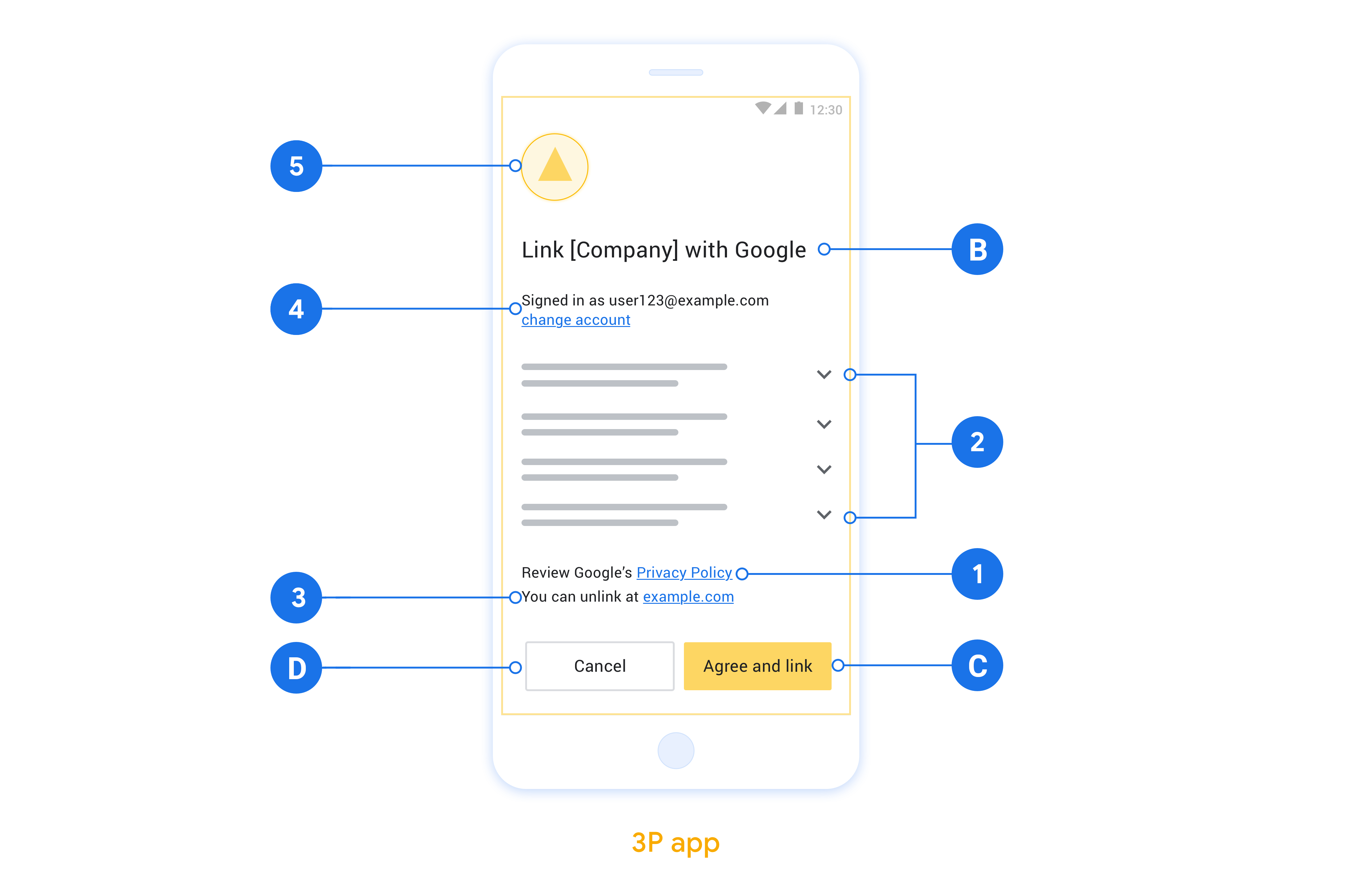
This section describes the design requirements and recommendations for the App Flip account linking consent screen. After Google calls your app, your app displays the consent screen to the user.
Requirements
- You must have a Google authorization statement such as "Once linked, Google will have permission to control your devices."
- You must communicate that the user's account is being linked to Google, not to a specific Google product, such as Google Home or Google Assistant.
- You must state a clear call-to-action on your consent screen and use the wording "Agree and link" for linking action. This is because users need to understand what data they're required to share with Google to link their accounts.
- You must provide a way for users to go back, deny or cancel, if they choose not to link. Use the wording "Cancel" for the cancel action.
- You must implement this workflow: After clicking "Agree and link", you must show linking success and redirect the user back to the Google Home app automatically. The user should now see the linked device on the Google Home app with your action. After clicking "Cancel" you should redirect the user back to the Google Home app.
Recommendations
We recommend that you do the following:
Display Google's Privacy Policy. Include a link to Google's Privacy Policy on the consent screen.
Data to be shared. Use clear and concise language to tell the user what data of theirs Google requires and why.
Ability to unlink. Offer a mechanism for users to unlink, such as a URL to their account settings on your platform. Alternatively, you can include a link to Google Account where users can manage their linked account.
Ability to change user account. Suggest a method for users to switch their account(s). This is especially beneficial if users tend to have multiple accounts.
- If a user must close the consent screen to switch accounts, send a recoverable error to Google so the user can sign in to the desired account with OAuth linking and the implicit flow.
Include your logo. Display your company logo on the consent screen. Use your style guidelines to place your logo. If you wish to also display Google's logo, see Logos and trademarks.
Konfigurowanie funkcji opartej na OAuth App Flip
W sekcjach poniżej opisujemy wymagania wstępne dotyczące funkcji App Flip opartej na OAuth oraz sposób konfigurowania Twojego projektu App Flip w Konsoli dewelopera Google Home.
Tworzenie integracji typu Cloud-to-cloud i konfigurowanie serwera OAuth 2.0
Zanim skonfigurujesz funkcję App Flip, musisz wykonać te czynności:
- Skonfiguruj serwer OAuth 2.0. Więcej informacji o konfigurowaniu serwera OAuth znajdziesz w artykule Implementowanie serwera OAuth 2.0.
- Utwórz integrację typu Cloud-to-cloud. Aby utworzyć integrację, postępuj zgodnie z instrukcjami w artykule Tworzenie integracji typu Cloud-to-cloud.
Konfigurowanie funkcji App Flip w Konsoli dewelopera
W sekcji poniżej opisujemy, jak skonfigurować funkcję App Flip w Konsoli dewelopera.
- Wypełnij wszystkie pola w sekcji OAuth Client information (Informacje o kliencie OAuth). (Jeśli funkcja App Flip nie jest obsługiwana, jako rezerwowa używana jest zwykła funkcja OAuth).
- W sekcji Use your app for account linking(optional) (Używaj aplikacji do łączenia kont (opcjonalnie)) zaznacz Enable for iOS (Włącz dla iOS).
- Wypełnij pole Universal Link (Link uniwersalny). Więcej informacji o linkach uniwersalnych znajdziesz w artykule Umożliwianie aplikacjom i witrynom linkowania do Twoich treści.
- Jeśli chcesz opcjonalnie skonfigurować klienta, dodaj zakresy i kliknij Add scope (Dodaj zakres) w sekcji Configure your client (optional) (Skonfiguruj klienta (opcjonalnie)).
- Kliknij Save (Zapisz).
Teraz możesz przejść do następnej sekcji, aby wdrożyć App Flip w aplikacji na iOS lub Android.
Wdrażanie funkcji App Flip w aplikacjach natywnych
Aby wdrożyć funkcję App Flip, musisz zmodyfikować kod autoryzacji użytkownika w swojej aplikacji, aby akceptował on precyzyjny link z Google.
Testowanie funkcji App Flip na urządzeniu
Po utworzeniu integracji typu Cloud-to-cloud i skonfigurowaniu funkcji App Flip w konsoli oraz w aplikacji możesz przetestować tę funkcję na urządzeniu mobilnym. Do testowania funkcji App Flip możesz użyć aplikacji Google Home.
Aby przetestować funkcję App Flip w aplikacji Google Home:
- Otwórz Konsolę dewelopera i wybierz swój projekt.
- Otwórz Cloud-to-cloud > Test.
- Uruchom proces łączenia kont w aplikacji Home:
- Otwórz Google Home app (GHA).
- Kliknij przycisk +.
- Kliknij Skonfiguruj urządzenie.
- Kliknij Masz już coś skonfigurowane?
- Z listy dostawców wybierz integrację typu Cloud-to-cloud. Na liście będzie ona poprzedzona ciągiem „[test]”. Gdy wybierzesz z listy integrację [test] , powinna otworzyć się Twoja aplikacja.
- Sprawdź, czy aplikacja została uruchomiona, i zacznij testować proces autoryzacji.