

Una volta implementato OAuth 2.0, puoi configurare facoltativamente basato su OAuth App Flip, che consente ai tuoi Android utenti di collegare più rapidamente i propri account nel tuo sistema di autenticazione ai loro Account Google. Le sezioni seguenti descrivono come progettare e implementare App Flip per l' Cloud-to-cloud integrazione.
Design guidelines
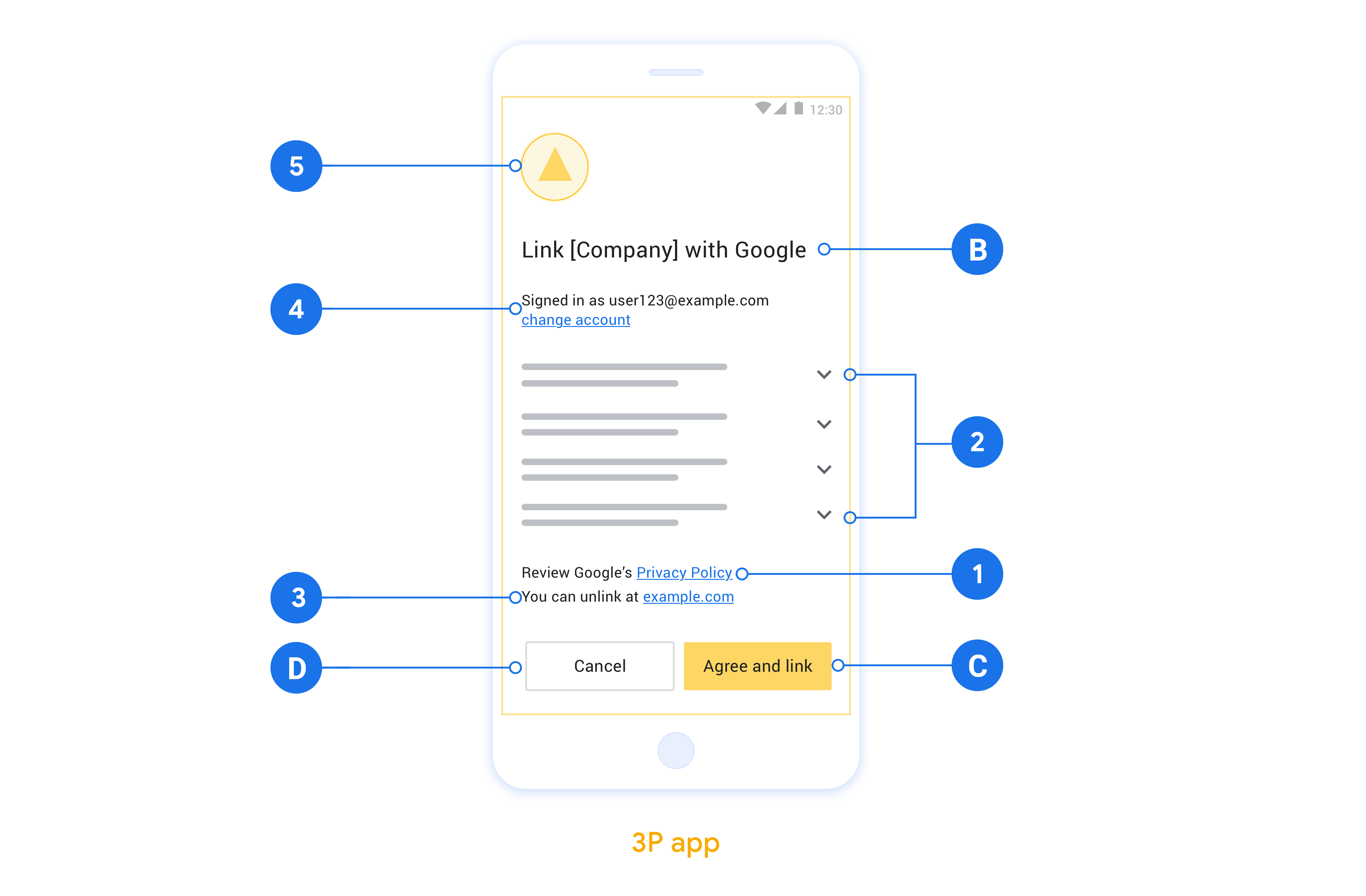
This section describes the design requirements and recommendations for the App Flip account linking consent screen. After Google calls your app, your app displays the consent screen to the user.
Requirements
- You must have a Google authorization statement such as "Once linked, Google will have permission to control your devices."
- You must communicate that the user's account is being linked to Google, not to a specific Google product, such as Google Home or Google Assistant.
- You must state a clear call-to-action on your consent screen and use the wording "Agree and link" for linking action. This is because users need to understand what data they're required to share with Google to link their accounts.
- You must provide a way for users to go back, deny or cancel, if they choose not to link. Use the wording "Cancel" for the cancel action.
- You must implement this workflow: After clicking "Agree and link", you must show linking success and redirect the user back to the Google Home app automatically. The user should now see the linked device on the Google Home app with your action. After clicking "Cancel" you should redirect the user back to the Google Home app.
Recommendations
We recommend that you do the following:
Display Google's Privacy Policy. Include a link to Google's Privacy Policy on the consent screen.
Data to be shared. Use clear and concise language to tell the user what data of theirs Google requires and why.
Ability to unlink. Offer a mechanism for users to unlink, such as a URL to their account settings on your platform. Alternatively, you can include a link to Google Account where users can manage their linked account.
Ability to change user account. Suggest a method for users to switch their account(s). This is especially beneficial if users tend to have multiple accounts.
- If a user must close the consent screen to switch accounts, send a recoverable error to Google so the user can sign in to the desired account with OAuth linking and the implicit flow.
Include your logo. Display your company logo on the consent screen. Use your style guidelines to place your logo. If you wish to also display Google's logo, see Logos and trademarks.
Configurare basato su OAuth App Flip
Le sezioni seguenti descrivono i prerequisiti per App Flip basato su OAuth e come configurare il tuo progetto App Flip nella Google Home Developer Console.
Creare un'integrazione da cloud a cloud e configurare un server OAuth 2.0
Prima di poter configurare App Flip, devi:
- Configurare un server OAuth 2.0. Per ulteriori informazioni sulla configurazione di un server OAuth server, consulta Implementare un server OAuth 2.0.
- Creare un'integrazione da cloud a cloud. Per creare un'integrazione, segui le istruzioni riportate in Creare un'integrazione da cloud a cloud.
Configurare App Flip nella Developer Console
La sezione seguente descrive come configurare App Flip nella Developer Console.
- Compila tutti i campi in Informazioni sul client OAuth. (Se App Flip non è supportato, viene utilizzato OAuth normale come fallback.)
- In Utilizza la tua app per il collegamento dell'account(facoltativo), seleziona Attiva per iOS.
- Compila il campo Link universale. Per ulteriori informazioni sui link universali, consulta Consentire ad app e siti web di creare link ai tuoi contenuti.
- Se vuoi configurare facoltativamente il client, aggiungi gli ambiti e fai clic su Aggiungi ambito in Configura il client (facoltativo).
- Fai clic su Salva.
Ora puoi passare alla sezione successiva per implementare App Flip nella tua app per iOS o Android.
Implement App Flip nelle app native
Per implementare App Flip, devi modificare il codice di autorizzazione utente nella tua app in modo che accetti un deep link da Google.
Test App Flip sul dispositivo
Ora che hai creato un'integrazione da cloud a cloud e configurato App Flip nella console e nella tua app, puoi testare App Flip sul tuo dispositivo mobile. Puoi utilizzare l'app Google Home per testare App Flip.
Per testare App Flip dall'app Google Home:
- Vai alla Developer Console e seleziona il tuo progetto.
- Vai a Da cloud a cloud > Test.
- Attiva il flusso di collegamento dell'account dall'app Home:
- Apri il Google Home app (GHA).
- Fai clic sul pulsante +.
- Fai clic su Configura dispositivo.
- Fai clic su Hai già configurato qualcosa?
- Seleziona l'integrazione da cloud a cloud dall'elenco dei provider. Nell'elenco sarà preceduta da "[test]" . Quando selezioni l'integrazione [test] dall'elenco, l'app dovrebbe aprirsi.
- Verifica che l'app sia stata avviata e inizia a testare il flusso di autorizzazione.