

OAuth 2.0 を実装すると、OAuth ベースの を設定できるようになります。 を使うと、Android ユーザーは、デベロッパーの認証システムに登録されているアカウントを、自分の Google アカウントに簡単にリンクできます。App Flip以降のセクションでは、Android での Cloud-to-cloud 統合用に App Flip を設計して実装する方法について説明します。
Design guidelines
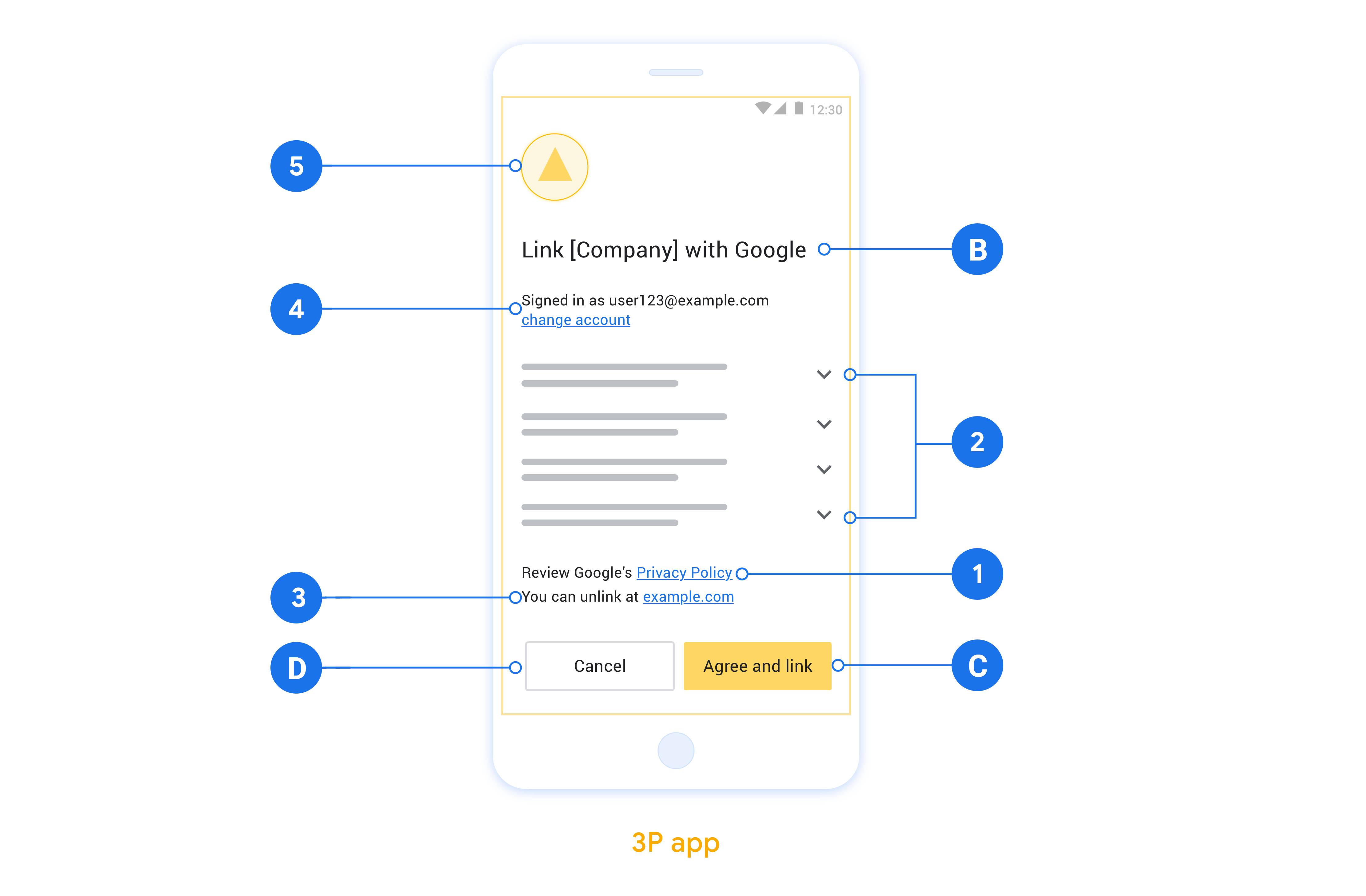
This section describes the design requirements and recommendations for the App Flip account linking consent screen. After Google calls your app, your app displays the consent screen to the user.
Requirements
- You must have a Google authorization statement such as "Once linked, Google will have permission to control your devices."
- You must communicate that the user's account is being linked to Google, not to a specific Google product, such as Google Home or Google Assistant.
- You must state a clear call-to-action on your consent screen and use the wording "Agree and link" for linking action. This is because users need to understand what data they're required to share with Google to link their accounts.
- You must provide a way for users to go back, deny or cancel, if they choose not to link. Use the wording "Cancel" for the cancel action.
- You must implement this workflow: After clicking "Agree and link", you must show linking success and redirect the user back to the Google Home app automatically. The user should now see the linked device on the Google Home app with your action. After clicking "Cancel" you should redirect the user back to the Google Home app.
Recommendations
We recommend that you do the following:
Display Google's Privacy Policy. Include a link to Google's Privacy Policy on the consent screen.
Data to be shared. Use clear and concise language to tell the user what data of theirs Google requires and why.
Ability to unlink. Offer a mechanism for users to unlink, such as a URL to their account settings on your platform. Alternatively, you can include a link to Google Account where users can manage their linked account.
Ability to change user account. Suggest a method for users to switch their account(s). This is especially beneficial if users tend to have multiple accounts.
- If a user must close the consent screen to switch accounts, send a recoverable error to Google so the user can sign in to the desired account with OAuth linking and the implicit flow.
Include your logo. Display your company logo on the consent screen. Use your style guidelines to place your logo. If you wish to also display Google's logo, see Logos and trademarks.
OAuth ベースの App Flip を設定する
以下のセクションでは、OAuth ベースのアプリ切り替えの前提条件と、アプリ切り替えプロジェクトを Google Home Developer Console で設定する方法について説明します。
Cloud-to-cloud 統合を作成して OAuth 2.0 サーバーを設定する
App Flip を構成する前に、次のことを行う必要があります。
- OAuth 2.0 サーバーを設定する。OAuth サーバーの設定について詳しくは、OAuth 2.0 サーバーを実装するをご覧ください。
- Cloud-to-cloud 統合を作成する。統合を作成するには、Cloud-to-cloud 統合を作成するの手順に沿って操作します。
Developer Console でアプリ切り替えを設定する
次のセクションでは、Developer Console でアプリ切り替えを構成する方法を説明します。
- [Account Linking](アカウントのリンク)のすべての必須(*)項目に入力します。(アプリ切り替えがサポートされていない場合は、通常の OAuth がフォールバックとして使用されます)。
- Cloud フルフィルメント URL の URL を指定します。クラウド フルフィルメント URL は、スマートホーム インテントの処理に使用されます。[ローカル フルフィルメント] をオンにします。
- [アプリ切り替え (optional)] で、[Android アプリ] をオンにします。
- 次の各項目を入力します。
- アプリケーション ID。アプリケーション ID は、アプリに設定する一意の ID です。
- [App signature](アプリ署名)。Android アプリは、インストールする前に公開鍵証明書で署名しておく必要があります。アプリ署名の取得について詳しくは、クライアントの認証をご覧ください。
- [Authorization intent](認証インテント)。ここには、インテントのアクションを指定する文字列を入力します。
- クライアントを設定したい場合は、スコープを追加し、[Scopes(s) (optional)](スコープ(省略可))で [Add scope](スコープを追加)をクリックします。
- クライアントで必要な場合は、[Google が HTTP 基本認証ヘッダーを介してクライアント ID とシークレットを送信する] を選択します。
次のセクションでは、Android アプリに App Flip を実装します。
ネイティブ アプリに App Flip を実装する
App Flip を実装するには、Google からのディープリンクを許可するようにアプリのユーザー認可コードを変更する必要があります。
OAuth-based App Flip linking (App Flip) inserts your Android app into the Google Account Linking flow. A traditional account linking flow requires the user to enter their credentials in the browser. The use of App Flip defers user sign-in to your Android app, which allows you to leverage existing authorizations. If the user is signed in to your app, they don't need to re-enter their credentials to link their account. A minimal amount of code changes are required to implement App Flip on your Android app.
In this document, you learn how to modify your Android app to support App Flip.
Try the sample
The App Flip linking sample app demonstrates an App Flip-compatible account linking integration on Android. You can use this app to verify how to respond to an incoming App Flip intent from Google mobile apps.
The sample app is preconfigured to integrate with the App Flip Test Tool for Android, which you can use to verify your Android app's integration with App Flip before you configure account linking with Google. This app simulates the intent triggered by Google mobile apps when App Flip is enabled.
How it works
The following steps are required to carry out an App Flip integration:
- The Google app checks if your app is installed on the device using its package name.
- The Google app uses a package signature check to validate that the installed app is the correct app.
- The Google app builds an intent to start a designated activity in your app. This intent includes additional data required for linking. It also checks to see if your app supports App Flip by resolving this intent through the Android framework.
- Your app validates that the request is coming from the Google app. To do so, your app checks the package signature and the provided client ID.
- Your app requests an authorization code from your OAuth 2.0 server. At the end of this flow, it returns either an authorization code or an error to the Google app.
- The Google app retrieves the result and continues with account linking. If an authorization code is provided, the token exchange happens server-to-server, the same way it does in the browser-based OAuth linking flow.
Modify your Android app to support App Flip
To support App Flip, make the following code changes to your Android app:
Add an
<intent-filter>to yourAndroidManifest.xmlfile with an action string that matches the value you entered in the App Flip Intent field.<activity android:name="AuthActivity"> <!-- Handle the app flip intent --> <intent-filter> <action android:name="INTENT_ACTION_FROM_CONSOLE"/> <category android:name="android.intent.category.DEFAULT"/> </intent-filter> </activity>Validate the calling app's signature.
You need to match the package name and signature for any Google apps that users may use to account link. For example, to link with Google Home and Search apps, add their package names and signatures:
- Package name:
com.google.android.apps.chromecast.app - Original SHA-256 lineage certificate:
3D:7A:12:23:01:9A:A3:9D:9E:A0:E3:43:6A:B7:C0:89:6B:FB:4F:B6:79:F4:DE:5F:E7:C2:3F:32:6C:8F:99:4A - Rotated Play App Signing SHA-256 certificate:
5A:AD:2B:EE:6D:B9:5D:17:E0:5A:08:D7:D1:E6:4C:10:A1:51:18:79:15:44:83:91:6B:6A:E6:C7:FD:9C:B0:C6
and
- Package name:
com.google.android.googlequicksearchbox - Signature:
F0:FD:6C:5B:41:0F:25:CB:25:C3:B5:33:46:C8:97:2F:AE:30:F8:EE:74:11:DF:91:04:80:AD:6B:2D:60:DB:83
Smart home linking requests are initiated directly by the Google Home app (GHA). If your application restricts callers and previously only allowed the Google Search app, you must add
com.google.android.apps.chromecast.appand its SHA-256 certificates to your allowlist so that App Flip continues to succeed.private fun verifyFingerprint( expectedPackage: String, expectedFingerprints: List<String> ): Boolean { val callingPackage = callingActivity?.packageName ?: return false if (callingPackage != expectedPackage) return false return expectedFingerprints.any { hex -> val sha256Bytes = hex.split(":").map { it.toInt(16).toByte() }.toByteArray() packageManager.hasSigningCertificate( callingPackage, sha256Bytes, PackageManager.CERT_INPUT_SHA256 ) } }- Package name:
Extract the client ID from the intent parameters and verify that the client ID matches the expected value.
private const val EXPECTED_CLIENT = "<client-id-from-actions-console>"
private const val EXPECTED_PACKAGE = "com.google.android.apps.chromecast.app"
// Original lineage certificate (3D:7A...) and active rotated
// Play App Signing certificate (5A:AD...)
private val EXPECTED_FINGERPRINTS = listOf(
    "3D:7A:12:23:01:9A:A3:9D:9E:A0:E3:43:6A:B7:C0:89:6B:FB:4F:B6:79:F4:DE:5F:E7:C2:3F:32:6C:8F:99:4A",
    "5A:AD:2B:EE:6D:B9:5D:17:E0:5A:08:D7:D1:E6:4C:10:A1:51:18:79:15:44:83:91:6B:6A:E6:C7:FD:9C:B0:C6"
)
...

override fun onCreate(savedInstanceState: Bundle?) {
    super.onCreate(savedInstanceState)

    val clientId = intent.getStringExtra("CLIENT_ID")

    if (clientId == EXPECTED_CLIENT &&
        verifyFingerprint(EXPECTED_PACKAGE, EXPECTED_FINGERPRINTS)) {

        // ...authorize the user...
    }
}
Upon successful authorization, return the resulting authorization code back to Google.
// Successful result
val data = Intent().apply {
    putExtra("AUTHORIZATION_CODE", authCode)
}
setResult(Activity.RESULT_OK, data)
finish()
If an error occurred, return an error result instead.
// Error result
val error = Intent().apply {
    putExtra("ERROR_TYPE", 1)
    putExtra("ERROR_CODE", 1)
    putExtra("ERROR_DESCRIPTION", "Invalid Request")
}
setResult(-2, error)
finish()
Content of the launch intent
The Android intent that launches your app includes the following fields:
CLIENT_ID(String): Googleclient_idregistered under your app.SCOPE(String[]): A list of scopes requested.REDIRECT_URI(String): The redirect URL.
Content of the response data
The data returned to the Google app is set in your app by calling setResult().
This data includes the following:
AUTHORIZATION_CODE(String): The authorization code value.resultCode(int): Communicates the success or failure of the process and takes one of the following values:Activity.RESULT_OK: Indicates success; an authorization code is returned.Activity.RESULT_CANCELLED: A recoverable error. Signals that the user has cancelled the process. In this case, the Google app will attempt account linking again using your authorization URL.-2: Indicates that an error has occurred. Different types of errors are described below.
ERROR_TYPE(int): The type of error, which takes one of the following values:1: Recoverable error: The Google app will attempt account linking using the authorization URL.2: Unrecoverable error: The Google app aborts account linking.3: Invalid or missing request parameters.
ERROR_CODE(int): An integer representing the nature of the error. To see what each error code means, refer to the table of error codes.ERROR_DESCRIPTION(String, optional): Human-readable status message describing the error.
A value for the AUTHORIZATION_CODE is expected when
resultCode == Activity.RESULT_OK. In all other cases, the value for
AUTHORIZATION_CODE needs to be empty. If resultCode == -2, then the
ERROR_TYPE value is expected to be populated.
Table of error codes
The table below shows the different error codes and whether each is a recoverable or unrecoverable error:
| Error code | Meaning | Recoverable | Unrecoverable |
|---|---|---|---|
1 |
INVALID_REQUEST |
✔ | |
2 |
NO_INTERNET_CONNECTION |
✔ | |
3 |
OFFLINE_MODE_ACTIVE |
✔ | |
4 |
CONNECTION_TIMEOUT |
✔ | |
5 |
INTERNAL_ERROR |
✔ | |
6 |
AUTHENTICATION_SERVICE_UNAVAILABLE |
✔ | |
8 |
CLIENT_VERIFICATION_FAILED |
✔ | |
9 |
INVALID_CLIENT |
✔ | |
10 |
INVALID_APP_ID |
✔ | |
11 |
INVALID_REQUEST |
✔ | |
12 |
AUTHENTICATION_SERVICE_UNKNOWN_ERROR |
✔ | |
13 |
AUTHENTICATION_DENIED_BY_USER |
✔ | |
14 |
CANCELLED_BY_USER |
✔ | |
15 |
FAILURE_OTHER |
✔ | |
16 |
USER_AUTHENTICATION_FAILED |
✔ |
For all error codes, you must return the error result via setResult to
ensure the appropriate fallback is triggered.
デバイスで App Flip をテストする
Cloud-to-cloud 統合を作成し、コンソールとアプリでアプリ切り替えを設定したら、モバイル デバイスでアプリ切り替えをテストできます。Google Home アプリを使用してアプリ切り替えをテストできます。
Google Home アプリから App Flip をテストする手順は次のとおりです。
- Developer Console に移動して、プロジェクトを選択します。
- [Cloud-to-cloud] > [Test] に移動します。
- Home アプリからアカウントのリンクフローをトリガーします。
- Google Home app (GHA) を開きます。
- [+] ボタンをクリックします。
- [デバイスのセットアップ] をクリックします。
- [セットアップ済みデバイスのリンク] をクリックします。
- プロバイダのリストから、Cloud-to-cloud 統合を選択します。リストの先頭に「[test]」が付きます。リストから [test] 統合を選択する場合、アプリを開く必要があります。
- アプリが起動したことを確認し、承認フローのテストを開始します。