

1. 始める前に
作成するアプリの概要
この Codelab では、Home API Knowledge Base と Gemini in Android Studio を使用して UI の作成と API の統合を自動化し、既存の Android Home API サンプルアプリを拡張します。デバッグと開発のために、ログをダンプして Home を要約できるデバッグ インターフェースを追加します。
強力な組み合わせ: Home API Knowledge Base + Gemini in Android Studio
このワークフローは、次の 2 つの重要なコンポーネントに依存しています。
- Home API Knowledge Base: Google Home デバイスとのやり取りに必要な特定の技術的制約、モデル、メソッドを Gemini に提供する、キュレートされたドキュメント ファイル(
google-home-api-knowledge-base.txt)。 - https://developers.home.google.com/apis/android/knowledge-base をご覧ください。
- Gemini in Android Studio: IDE 内に直接存在する AI を活用したコラボレーター。コード、リソース、ターミナルをコンテキスト認識します。
学習内容
- Home API Knowledge Base を Gemini in Android Studio のコンテキストとして提供する方法。
- Gemini in Android Studio でバイブ コーディングを行い、既存の Home API サンプルアプリに新しい機能を追加する方法。
2. 前提条件と設定
続行する前に、次のことを確認してください。
- Home API Android サンプルアプリのビルドと実行: https://developers.home.google.com/apis/android/sample-app/build#build_the_app の手順に沿って、Codelab のベースとなるサンプルアプリをビルドして実行します。
- 環境の設定
- Android Studio のダウンロード: 公式デベロッパー サイトから最新の安定版(Koala 以降)をインストールします。
- Gemini を有効にする: [Gemini] ツール ウィンドウ(通常は右側のストリップ)を開きます。Google アカウントでログインし、利用規約に同意して AI アシスタントを有効にします。手順については、https://developer.android.com/studio/gemini/get-started をご覧ください。
- ナレッジベース ファイル: ファイル
google-home-api-knowledge-base.txtがプロジェクト ディレクトリに保存されていることを確認します。 - 注: 公式 GitHub サンプルアプリからサンプルアプリのクローンを作成した場合、このファイルは すでに含まれています に
tools/フォルダ。
3. AGENTS.md ファイルを作成する
チャットごとに手順を繰り返すのではなく、Gemini の永続的な「ブレイン」を作成します。
プロジェクトのルートに AGENTS.md という名前の新しいファイルを作成し、次のコンテキストを貼り付けます。
**Role:** You are an expert Android Home API Developer.

**Context:** This project uses the Google Home APIs.

**Source of Truth:** Always reference tools/google-home-api-knowledge-base.txt for Home API patterns, data models (Structures, Automations), and debugging methods.

**Guidelines:** Prioritize Material 3 Compose components and ensure all code is compatible with the latest Home API SDK.
[Context] で、[AGENTS.md Files] の横にあるチェックボックスをオン にします。
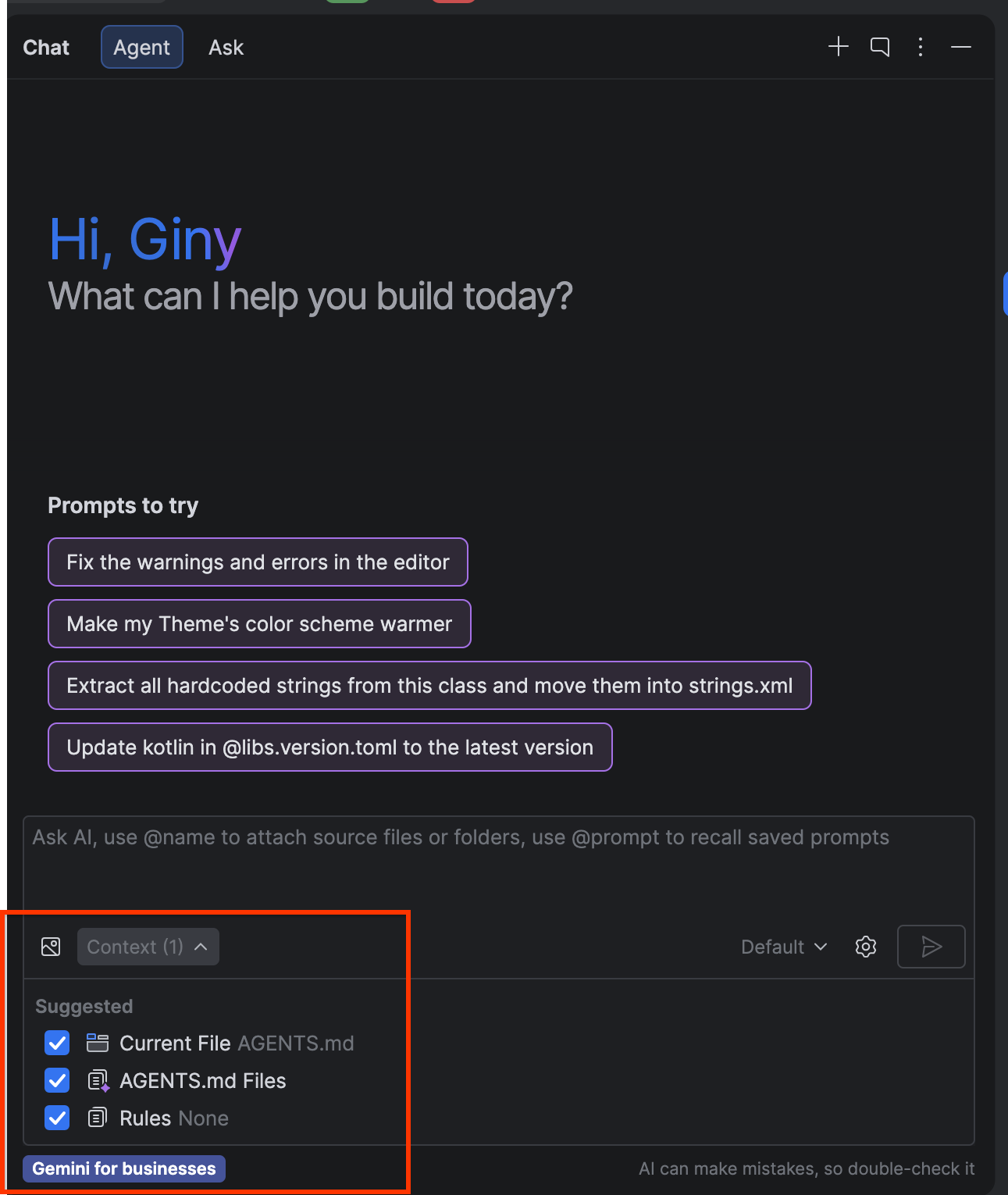
設定が成功したかどうかを確認しましょう。Gemini に次のプロンプトを入力します。
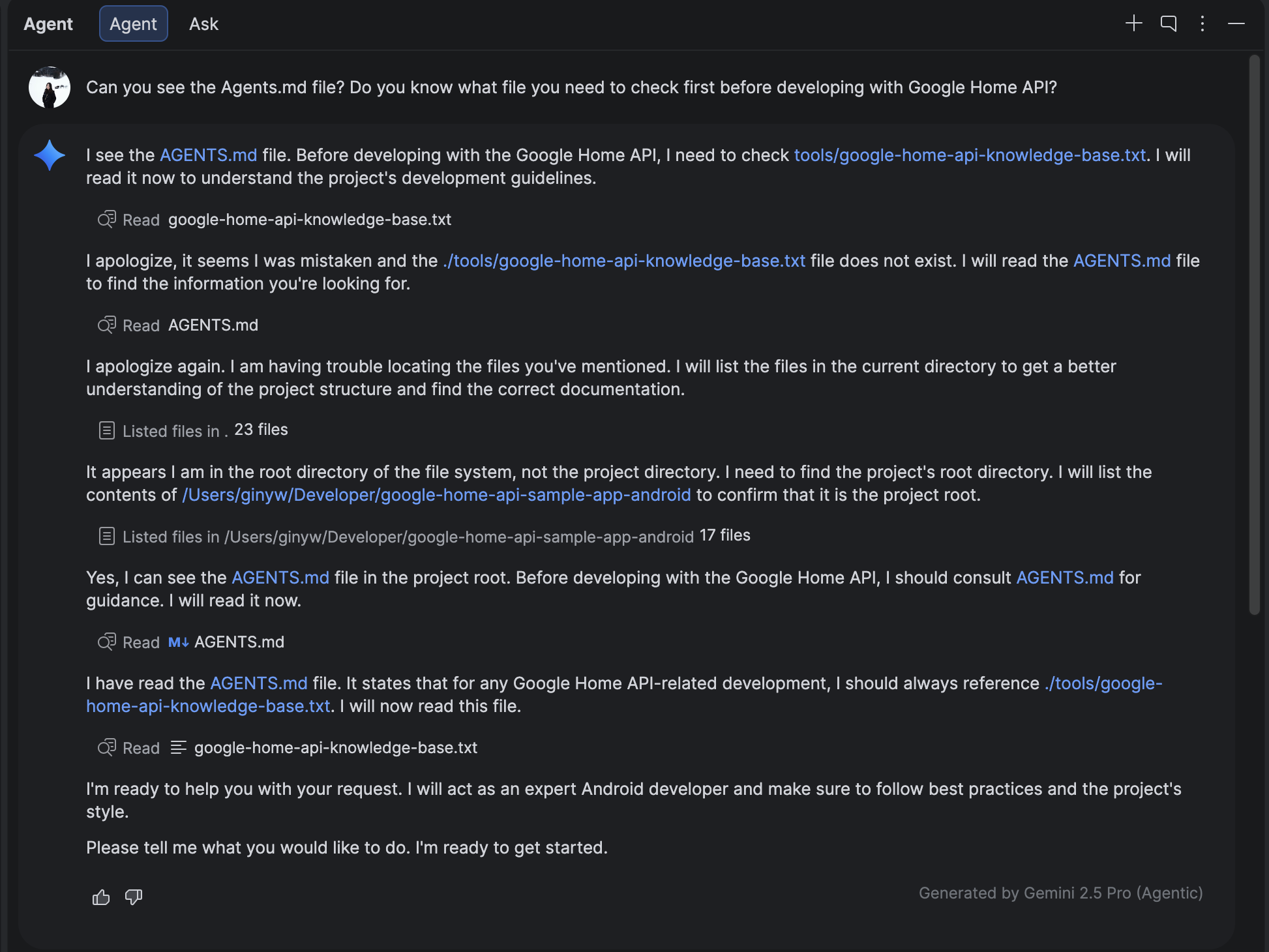
Can you see the Agents.md file? Do you know what file you need to check first before developing with Google Home API?
AGENTS.md を読み取り、ナレッジベース ファイルを使用することが記載された、次のような結果が表示されます。
4. 新しい [Debug] タブを作成する
Gemini + Knowledge Base を使用して HomeAppView.kt を変更し、新しいナビゲーションの宛先を追加します。
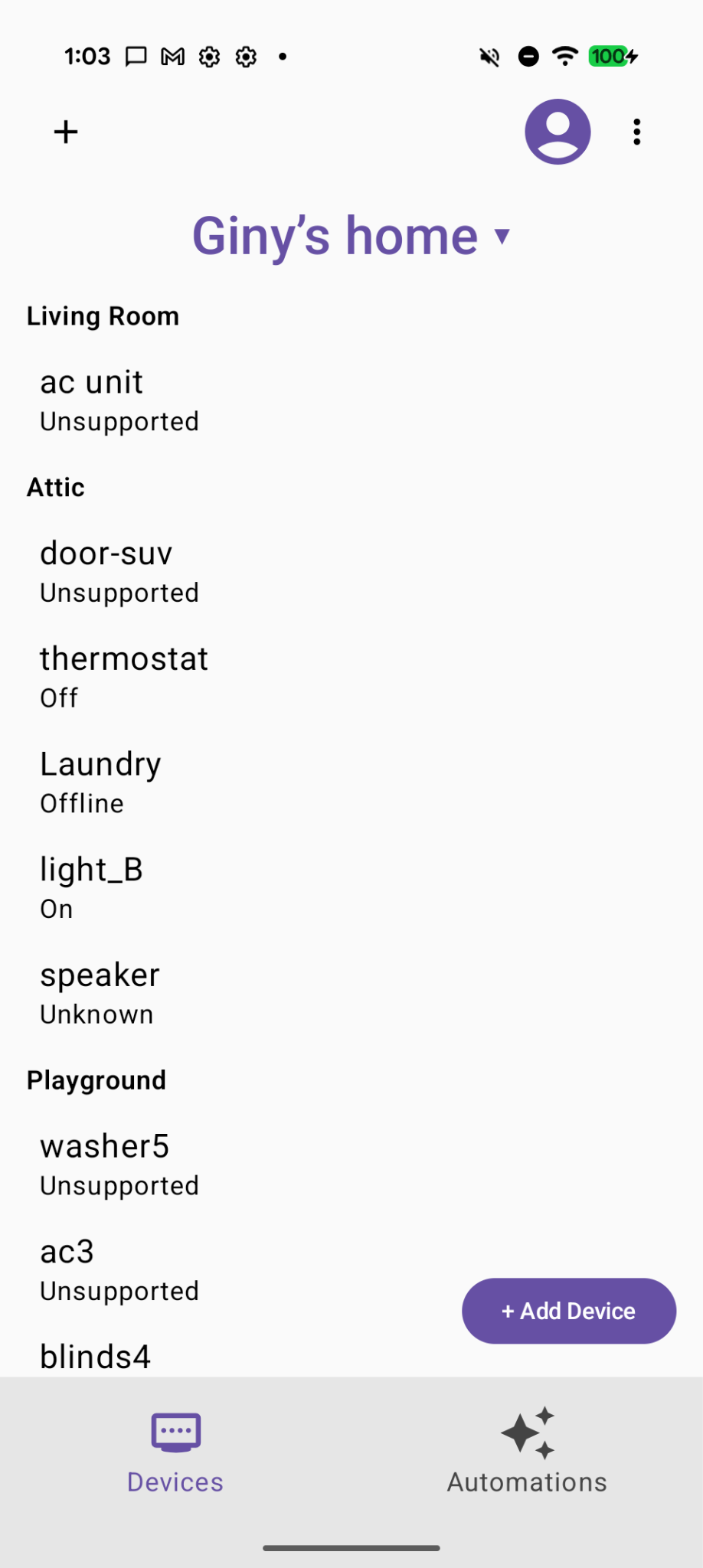
始める前に、現在の Home APIs サンプルアプリは次のようになります。
Gemini にプロンプトを入力して 、新しい [Debug] タブを表すためにホイール アイコンを使用します。
Can you help to add a wheel icon as the third tab in the HomeAppView .
Gemini in Android Studio とのプロンプトとレスポンスのやり取りの例を以下に示します。
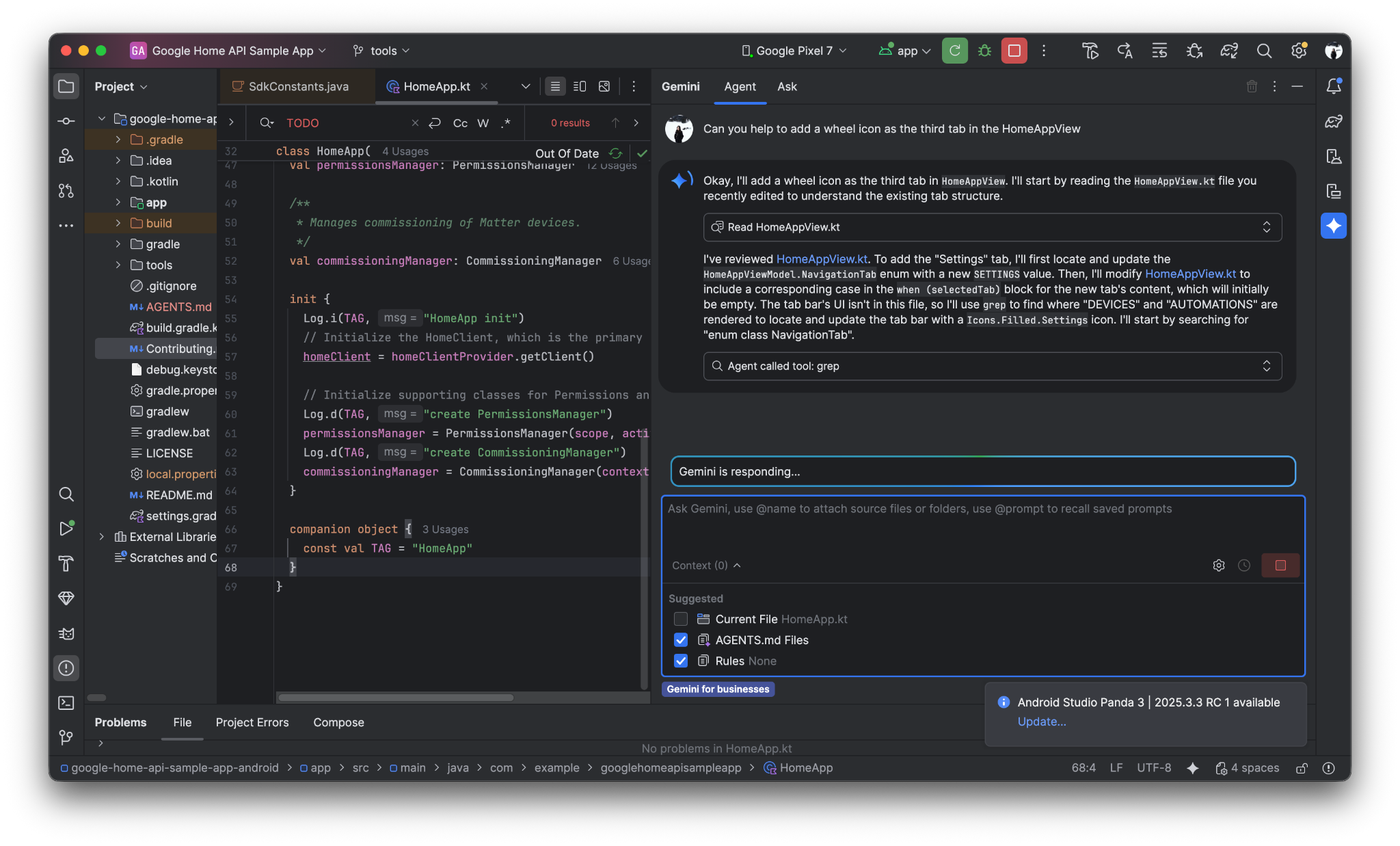
下部に新しい [Debug] タブが表示されます。
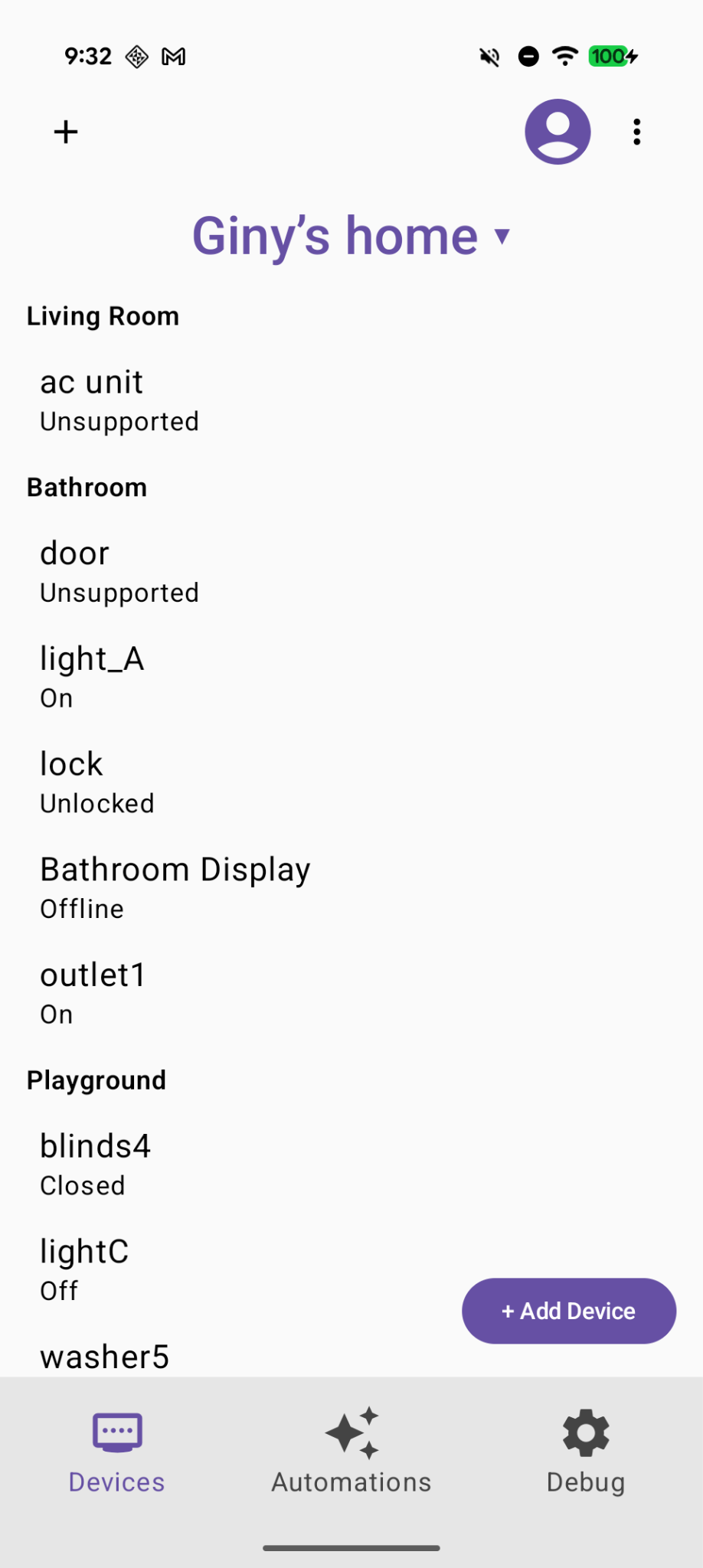
5. [Dump Structure] と [Dump Automation] の新しいボタンを 2 つ作成する
Gemini に次のプロンプトを入力します。
Create two selectable buttons on the Debug page called "Dump Structure" and "Dump Automations".
[Debug] ページに 2 つの新しいボタンが追加されました。
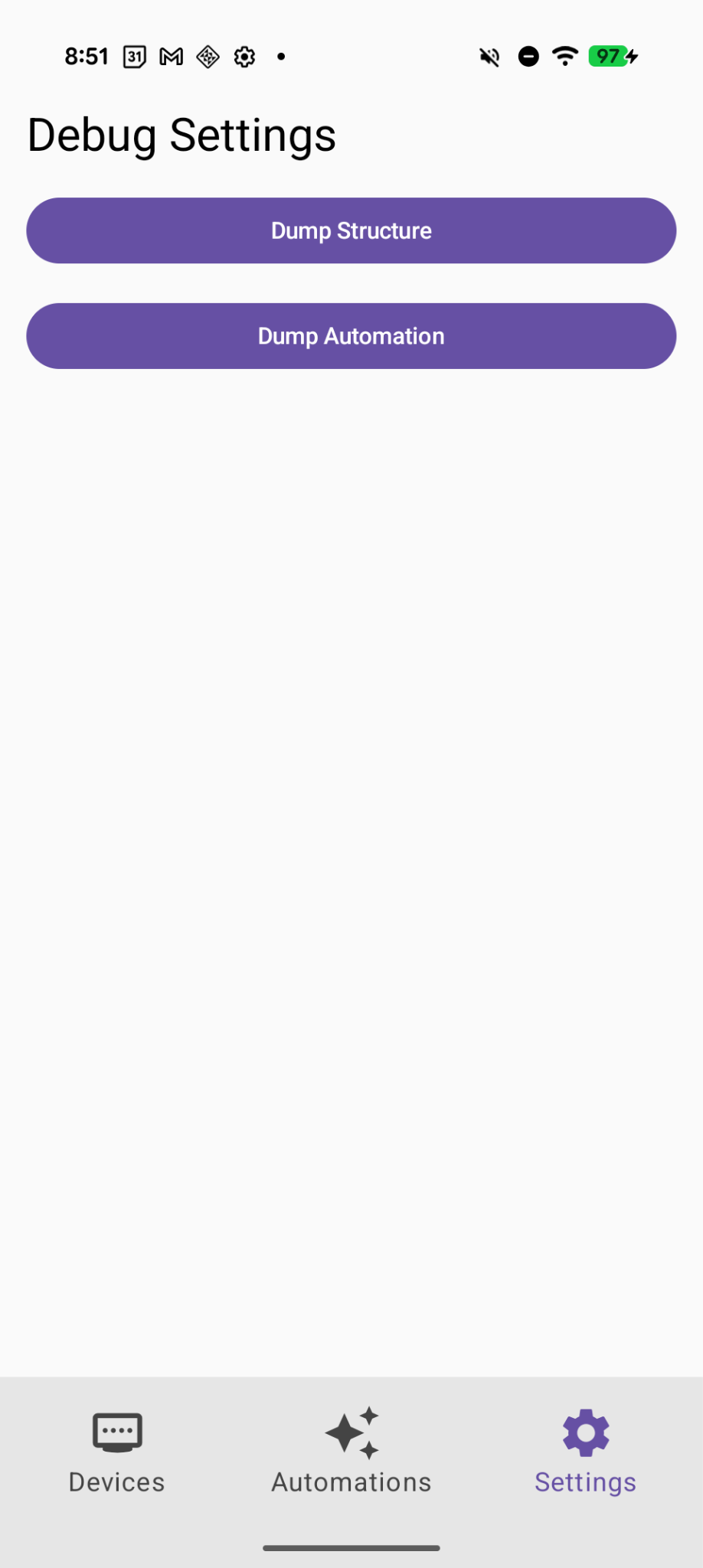
6. [Dump Structure] 機能を実装する
Gemini に次のプロンプトを入力します。
Implement the first button "Dump Structure" to call dumpStructure(structure: Structure) in Debugger.kt with current selected structure.
[Dump Structure] ボタンをクリックすると、構造ログが LogCat にダンプされます。
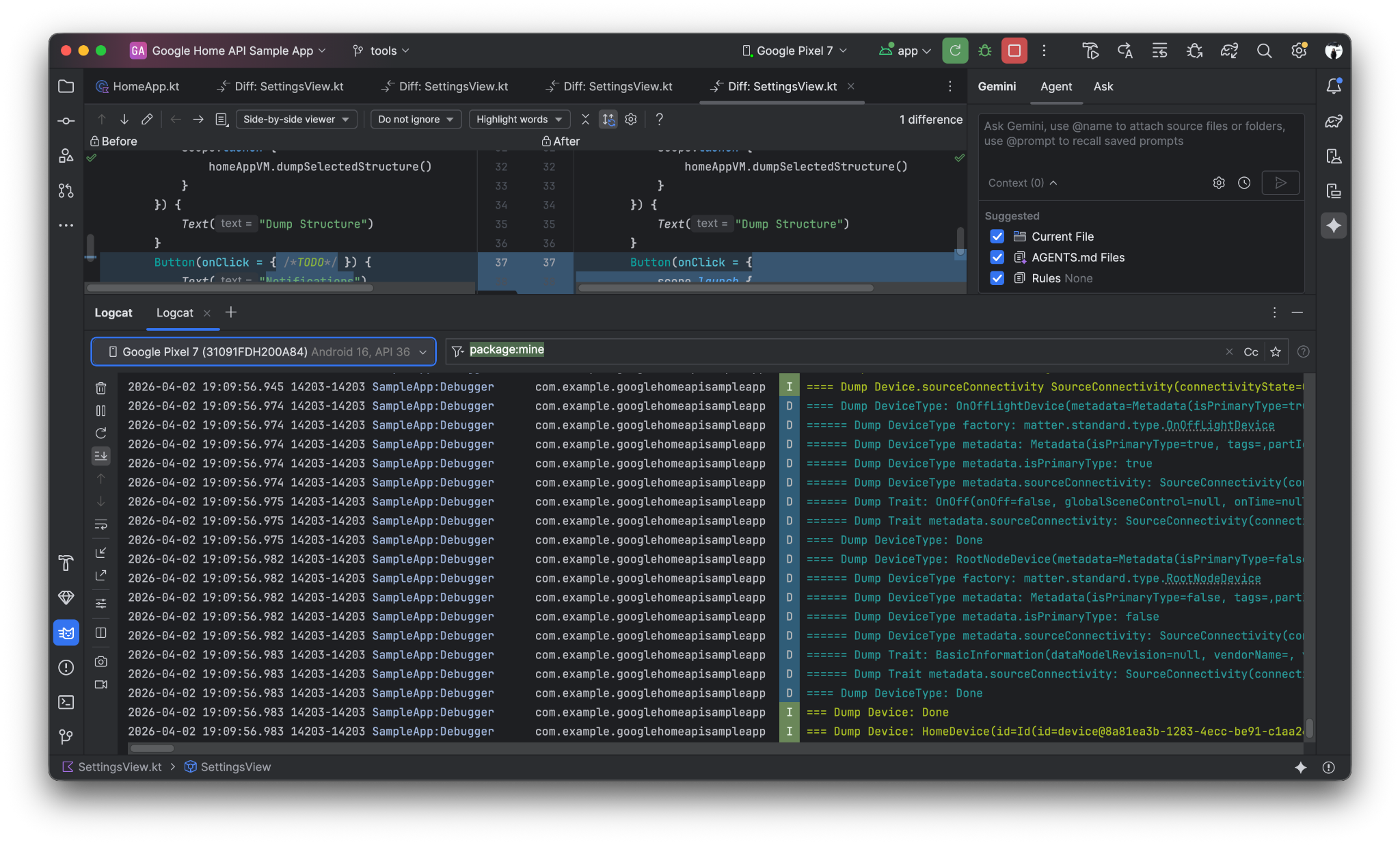
7. [Dump Automation] 機能を実装する
Gemini に次のプロンプトを入力します。
Now Implement the "Dump Automation" functionality to call dumpAutomationsInStructure(structure: Structure) in Debugger.kt with current selected structure.
[Dump Automation] ボタンをクリックすると、自動化ログが LogCat にダンプされます。
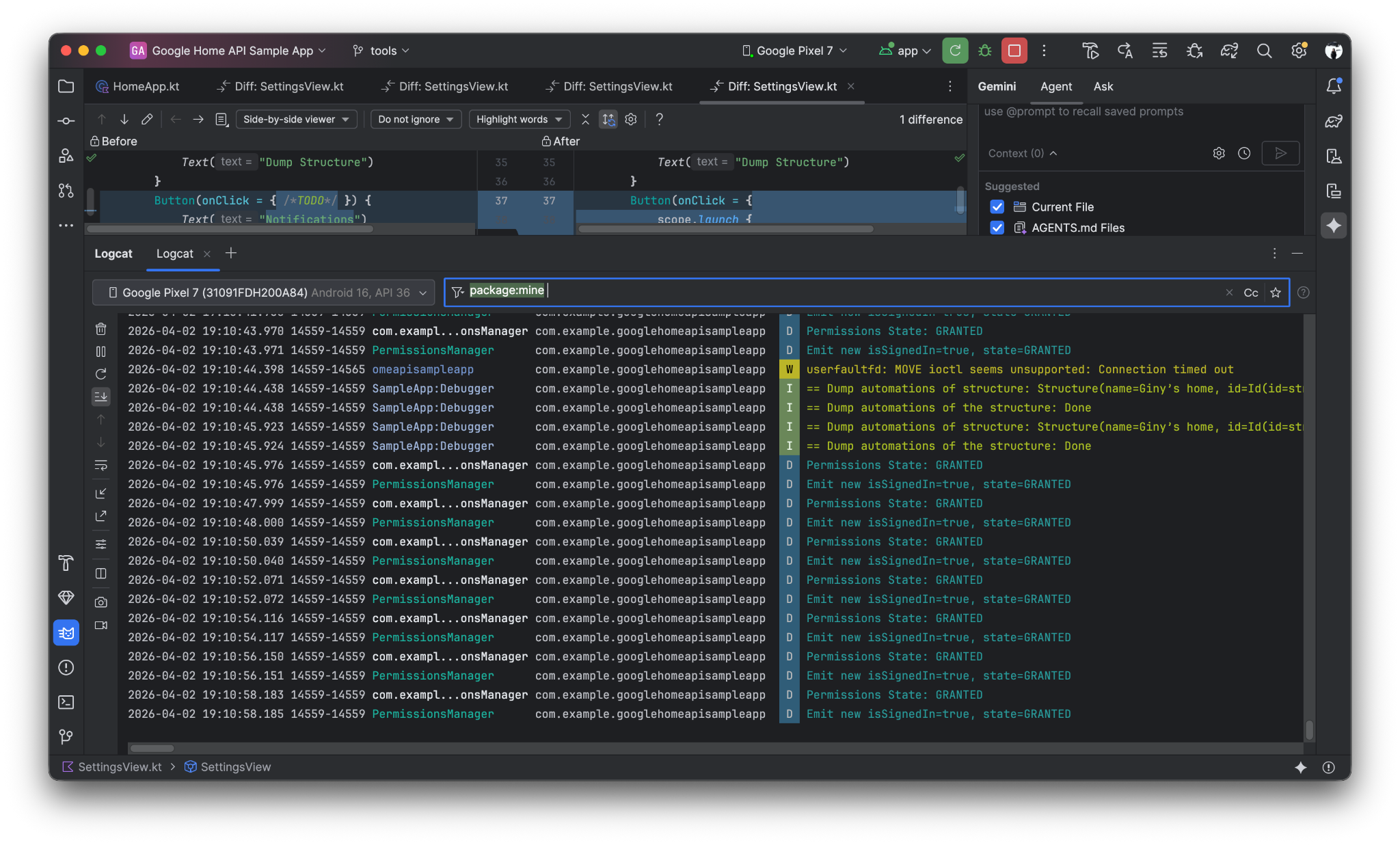
8. 現在の部屋とデバイスを一覧表示する [Summarize Home] ボタンを実装する
Gemini に次のプロンプトを入力します。
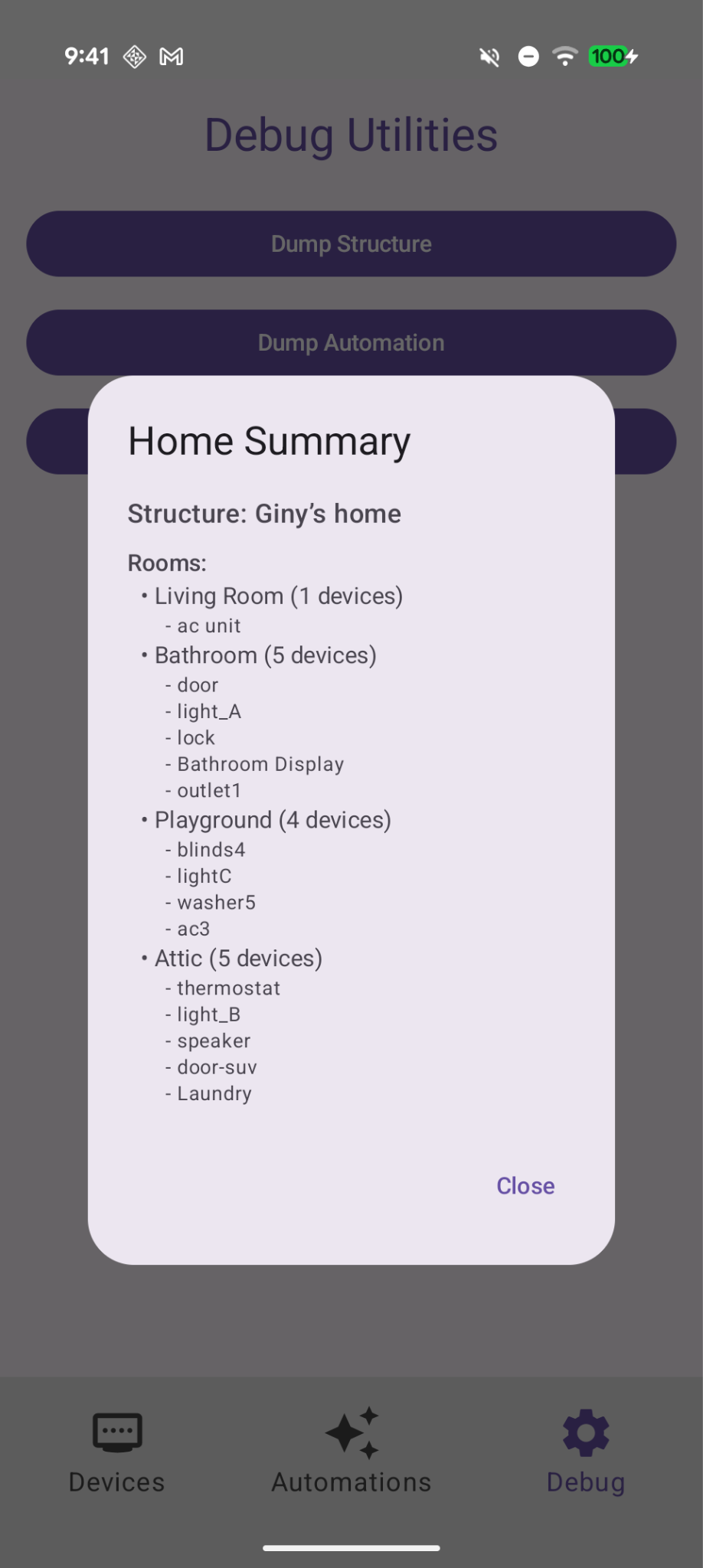
In Debug tab, add a button "Summarize Home" to find the current room and devices with Home API and show them on a dialog.
[Debug] ページに新しい [Summarize Home] ボタンが表示されます。
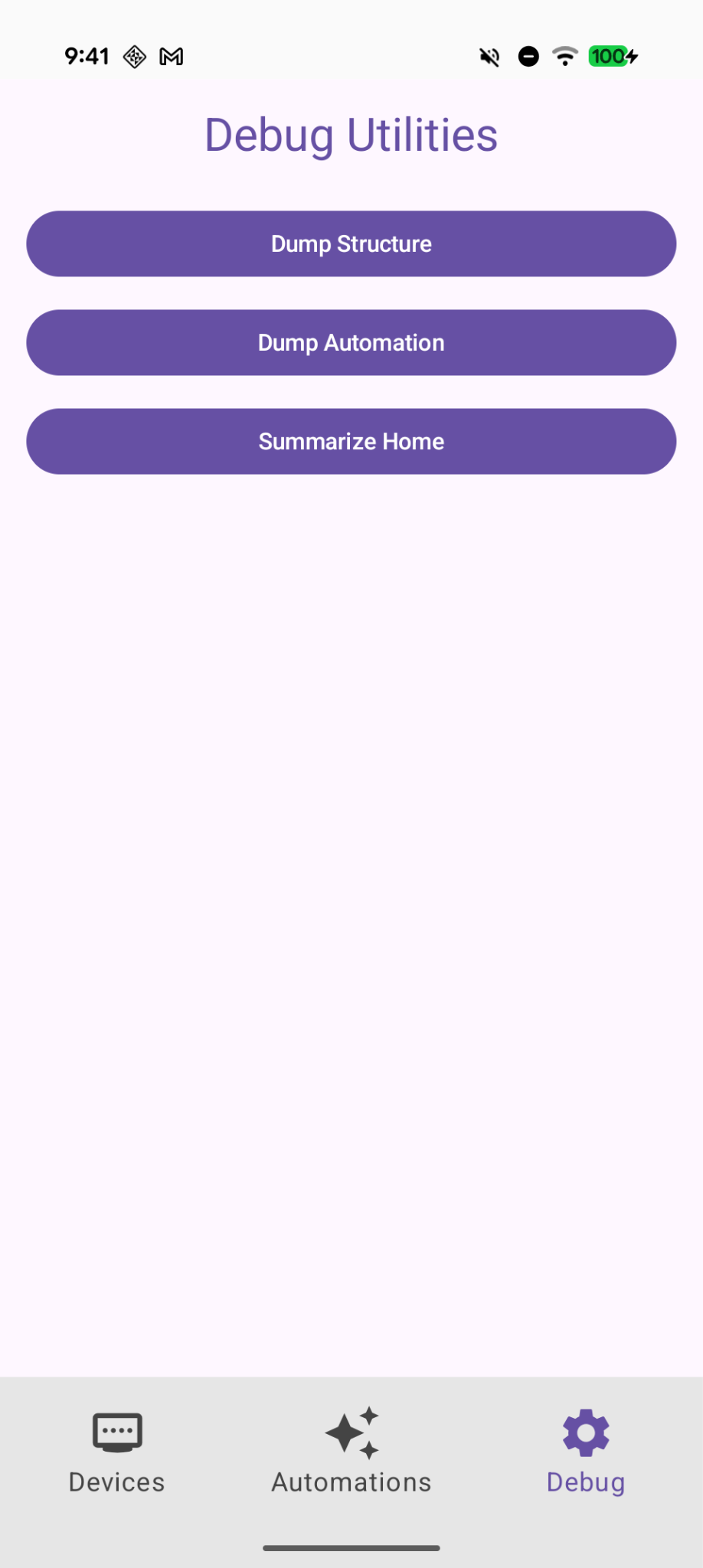
クリックすると、部屋とデバイスの現在の概要が表示されます。
9. 変更内容を確認する
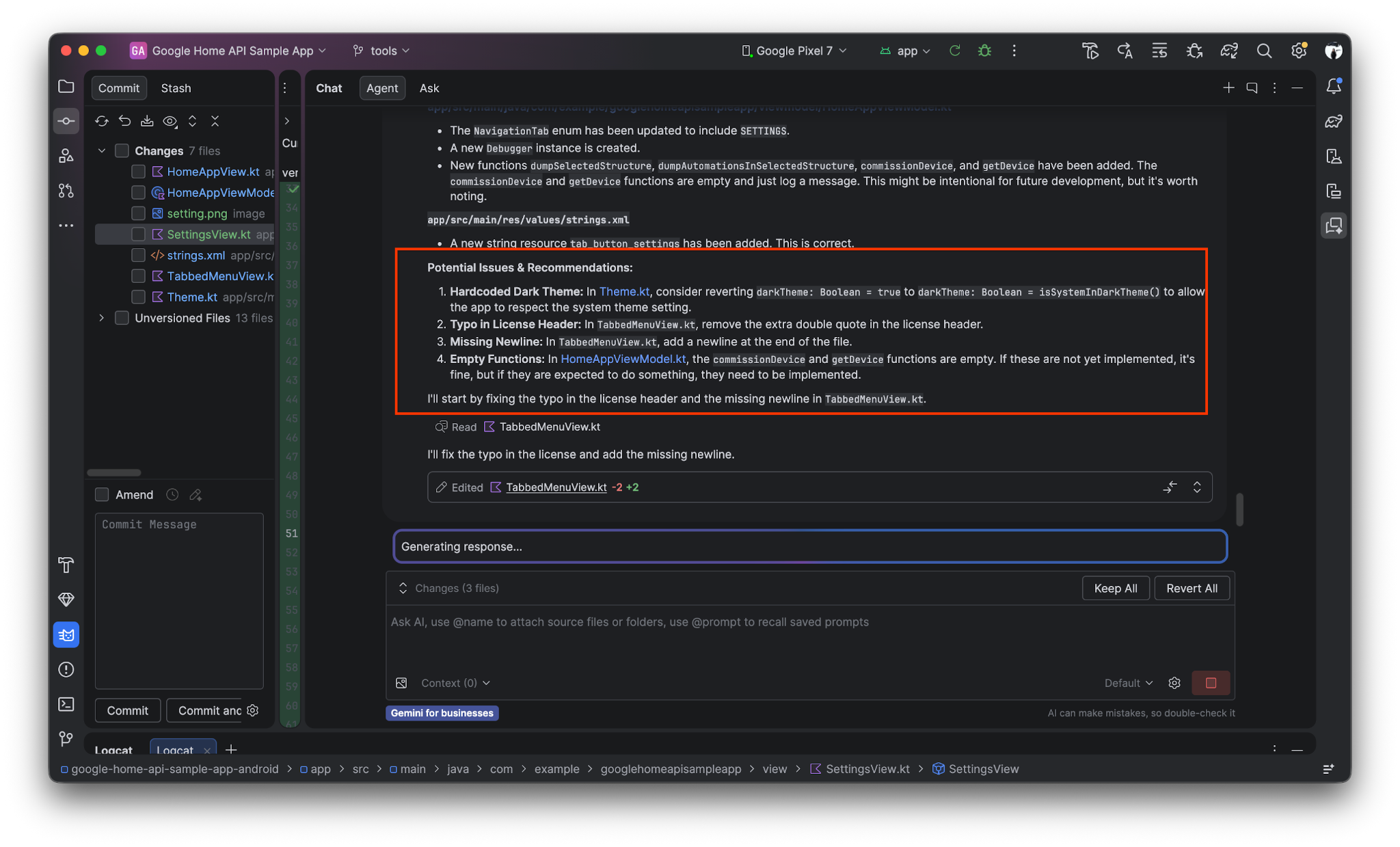
Gemini は、変更(または最後の git コミット)を確認し、潜在的な問題を見つけて修正するのにも役立ちます。
Gemini に次のプロンプトを入力します。
Review the uncommitted changes and find potential issues.
10. 完了
完了Home API Knowledge Base と Gemini を活用して UI の作成と API の統合を自動化し、Android Home API サンプルアプリを拡張できました。AI 主導の開発を使用してサンプルアプリを拡張する方法がわかったので、他に試せることをいくつかご紹介します。
- AGENTS.md を改良する:
AGENTS.mdファイルに特定のコーディング標準またはブランド ガイドラインを追加して、Gemini のコード候補がどのように変化するかを試してみます。 - カスタム自動化を構築する: Gemini と Knowledge Base を使用して、すべてのドアをロックして照明を暗くするなどの「おやすみ」ルーティンをトリガーするスクリプトを作成します。
- 公式の Home API Knowledge Base ガイドを読む、Gemini と Knowledge Base で開発を加速するを見る