
1. Before you begin
What you'll build
In this codelab, you will extend an existing Android Home API sample app by using Home API Knowledge Base and Gemini in Android Studio to automate UI creation and API integration. You will add a debug interface that allows users to dump logs and summarize their Home for debugging and development.
The Power Duo: Home API Knowledge Base + Gemini in Android Studio
This workflow relies on two critical components:
- Home API Knowledge Base: A curated documentation file (
google-home-api-knowledge-base.txt) that provides Gemini with the specific technical constraints, models, and methods required to interact with Google Home devices. - See: https://developers.home.google.com/apis/android/knowledge-base
- Gemini in Android Studio: An AI-powered collaborator that lives directly within your IDE. It is context-aware of your code, resources, and terminal.
What you'll learn
- How to provide the Home API Knowledge Base as context to Gemini in Android Studio.
- How to vibe-code with Gemini in Android Studio to add new functionality to existing Home API Sample App.
2. Prerequisites & Setup
Make sure the following has been completed before continuing:
- Build and Run Home APIs Android Sample APP: Follow the instructions at https://developers.home.google.com/apis/android/sample-app/build#build_the_app to build and run the sample app that our codelab is based on.
- Environment Setup
- Download Android Studio: Install the latest stable version (Koala or newer) from the official developer site.
- Enable Gemini: Open the Gemini tool window (usually on the right-side strip). Sign in with your Google account and accept the terms to activate the AI assistant. See https://developer.android.com/studio/gemini/get-started for instructions.
- Knowledge Base File: Ensure you have the file
google-home-api-knowledge-base.txtsaved in your project directory. - Note: If you cloned the Sample App from the official GitHub sample app, this file is already included in the
tools/folder.
3. Create the AGENTS.md file
Instead of repeating instructions in every chat, create a persistent "brain" for Gemini.
In your project root, create a new file named AGENTS.md and paste the following context:
**Role:** You are an expert Android Home API Developer.

**Context:** This project uses the Google Home APIs.

**Source of Truth:** Always reference tools/google-home-api-knowledge-base.txt for Home API patterns, data models (Structures, Automations), and debugging methods.

**Guidelines:** Prioritize Material 3 Compose components and ensure all code is compatible with the latest Home API SDK.
In "Context", Check the box next to AGENTS.md Files.
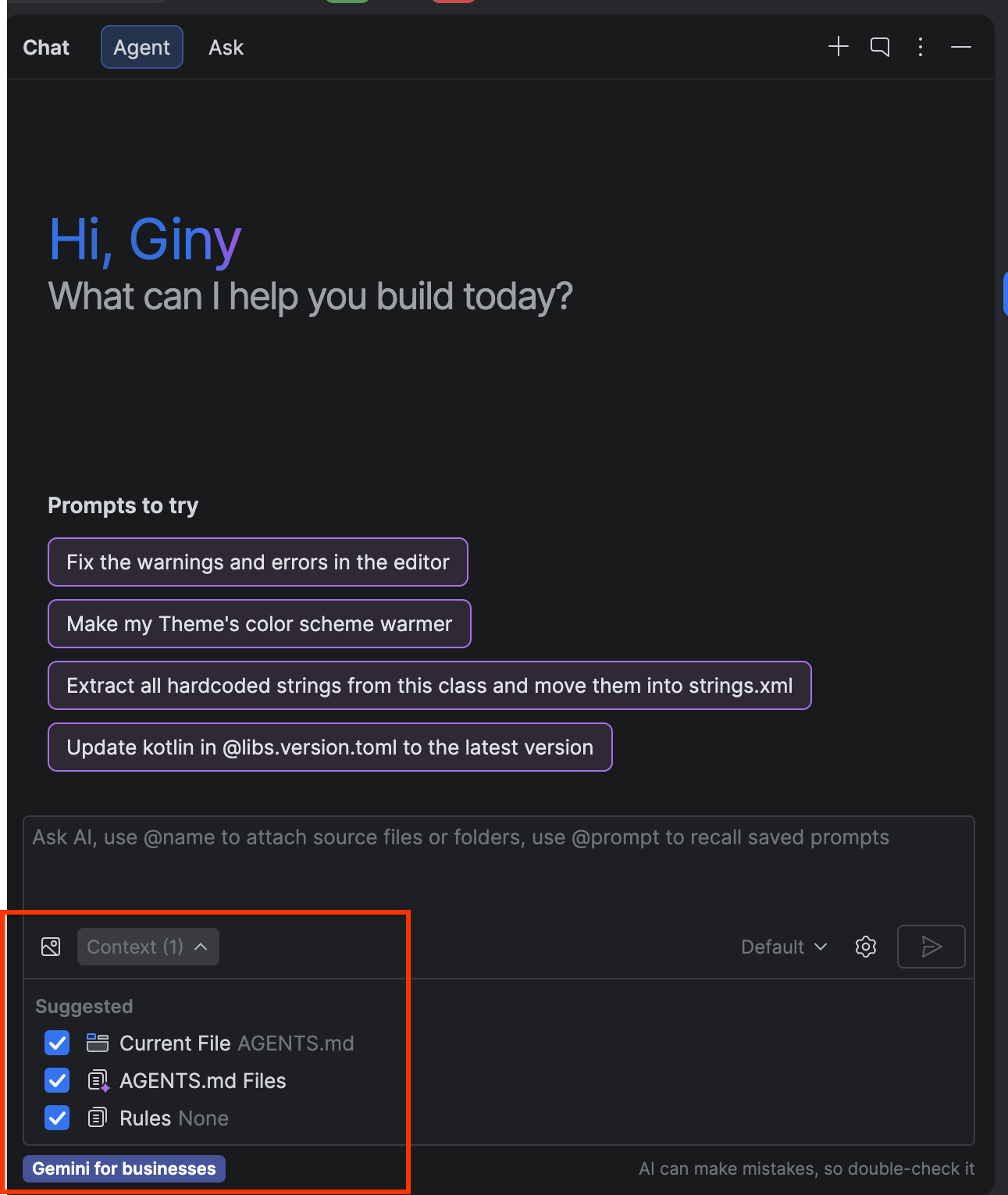
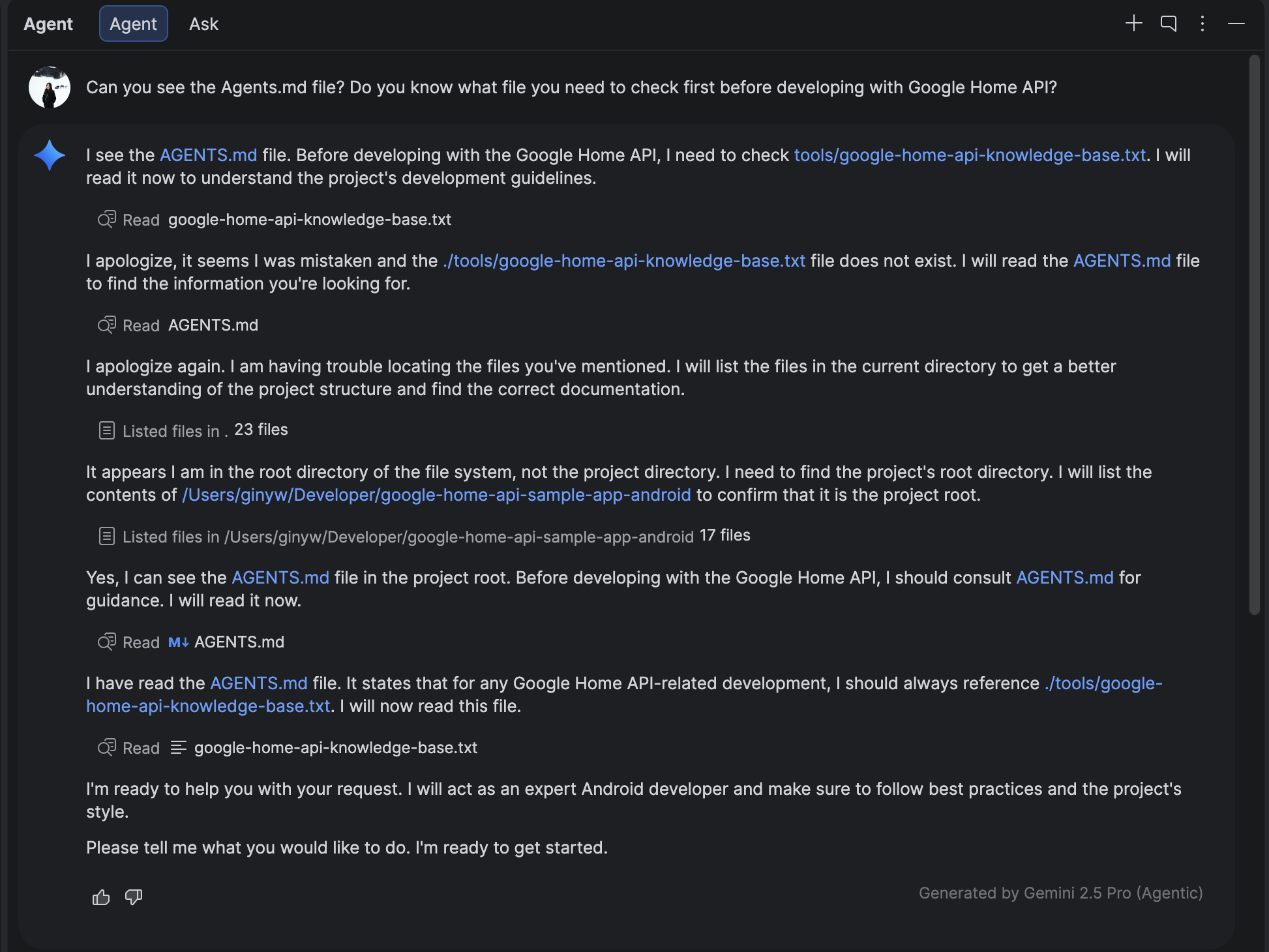
Let's verify if the setup is successful. Prompt Gemini with:
Can you see the Agents.md file? Do you know what file you need to check first before developing with Google Home API?
You should see a similar result as below, mentioning that it's reading the AGENTS.md and will use the Knowledge Base file!
4. Create a new Debug tab
Use Gemini + Knowledge Base to modify the HomeAppView.kt and add a new navigation destination.
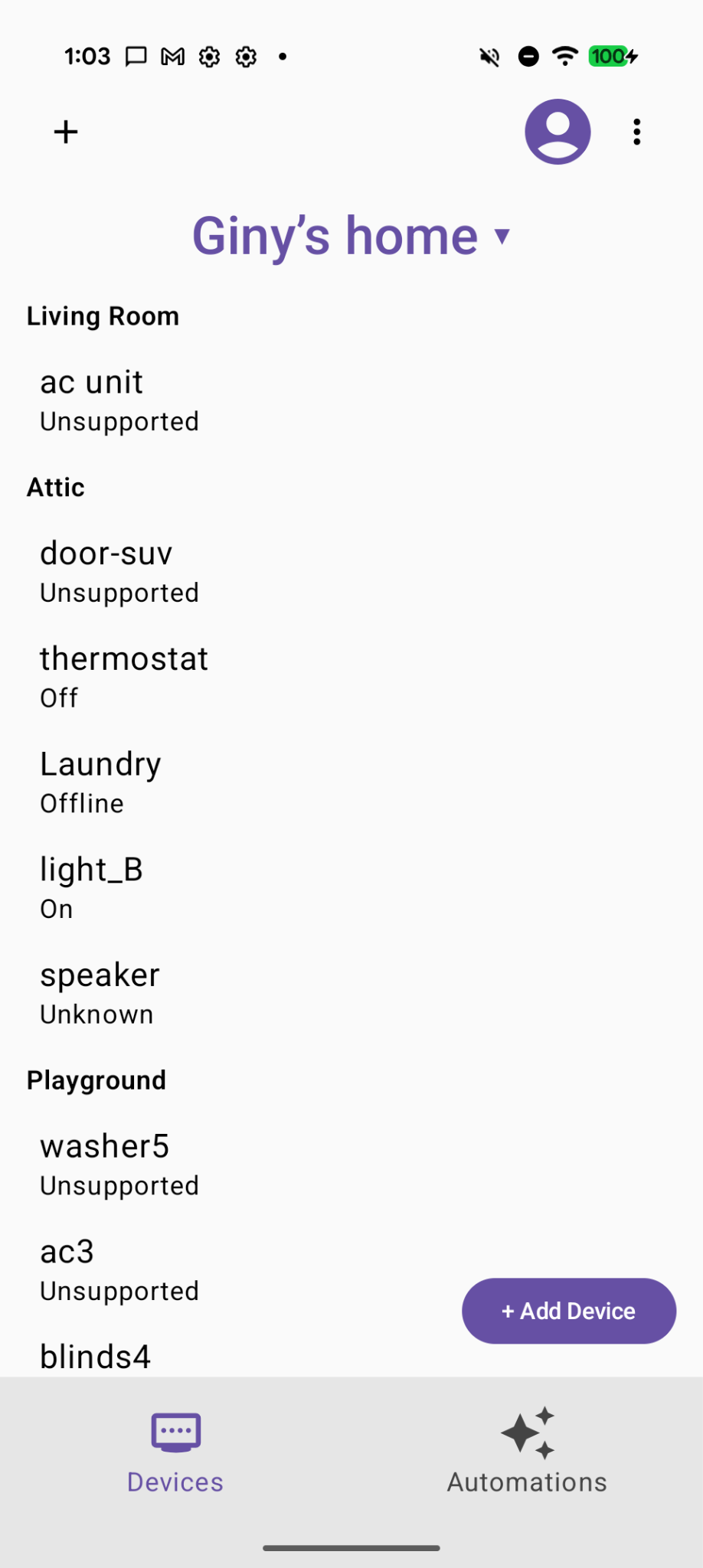
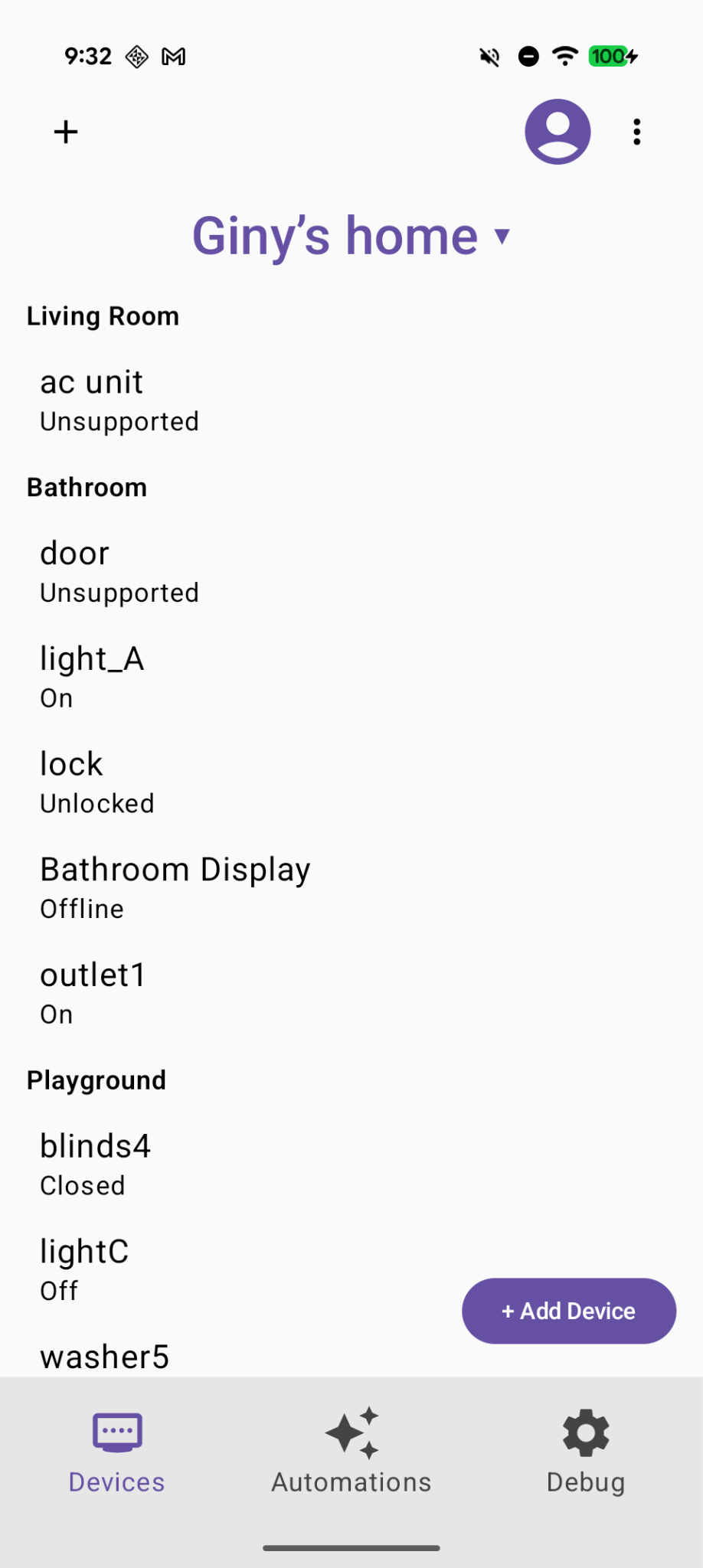
Before you begin, this is what your current Home APIs sample app should look like:
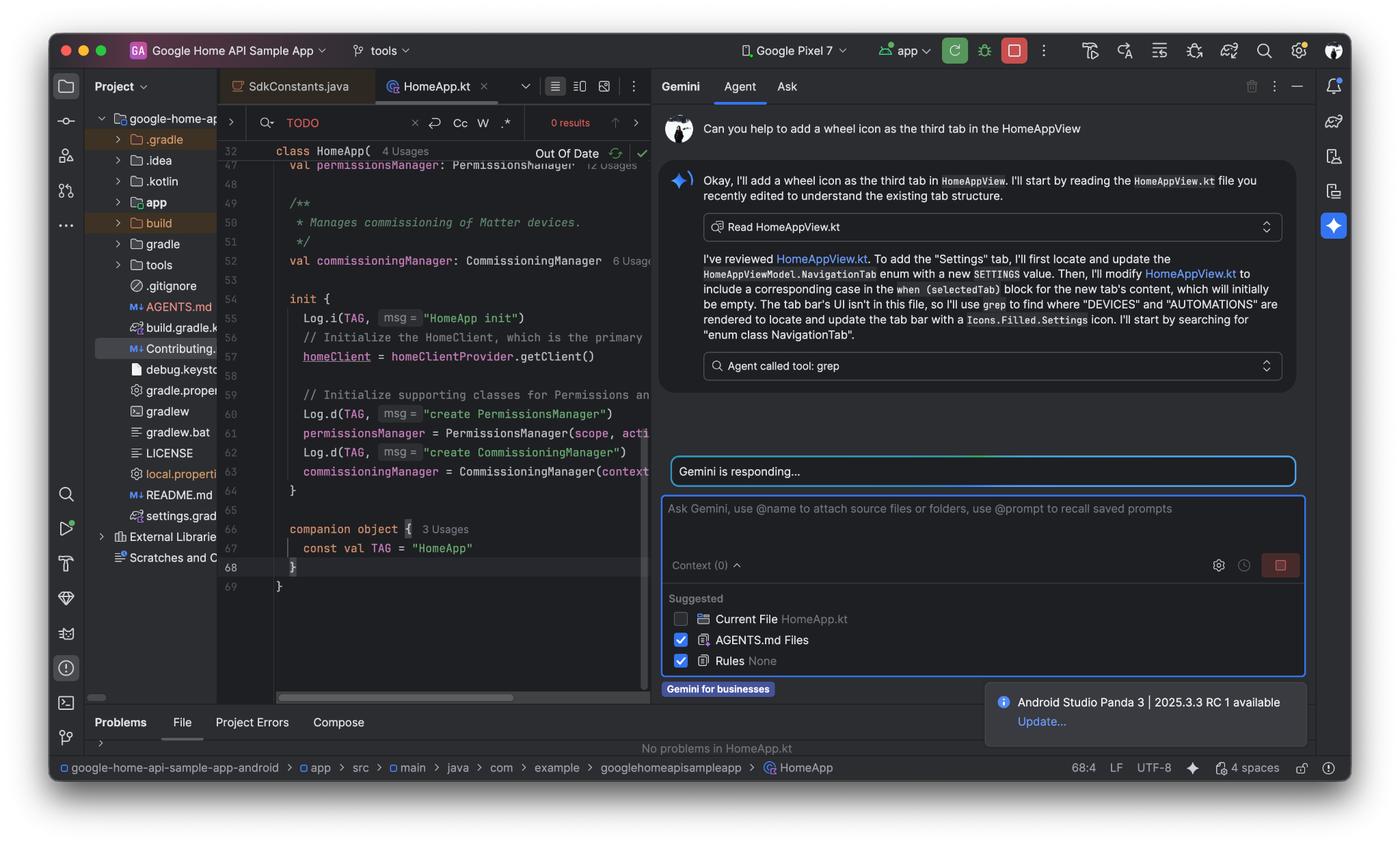
Prompt Gemini to use a wheel icon to represent the new debug tab.
Can you help to add a wheel icon as the third tab in the HomeAppView .
See below for a potential prompt-and-response dialogue with Gemini in Android Studio
Now we can see a new "Debug" tab at the bottom:
5. Create 2 new buttons for "Dump Structure"and "Dump Automation"
Prompt Gemini:
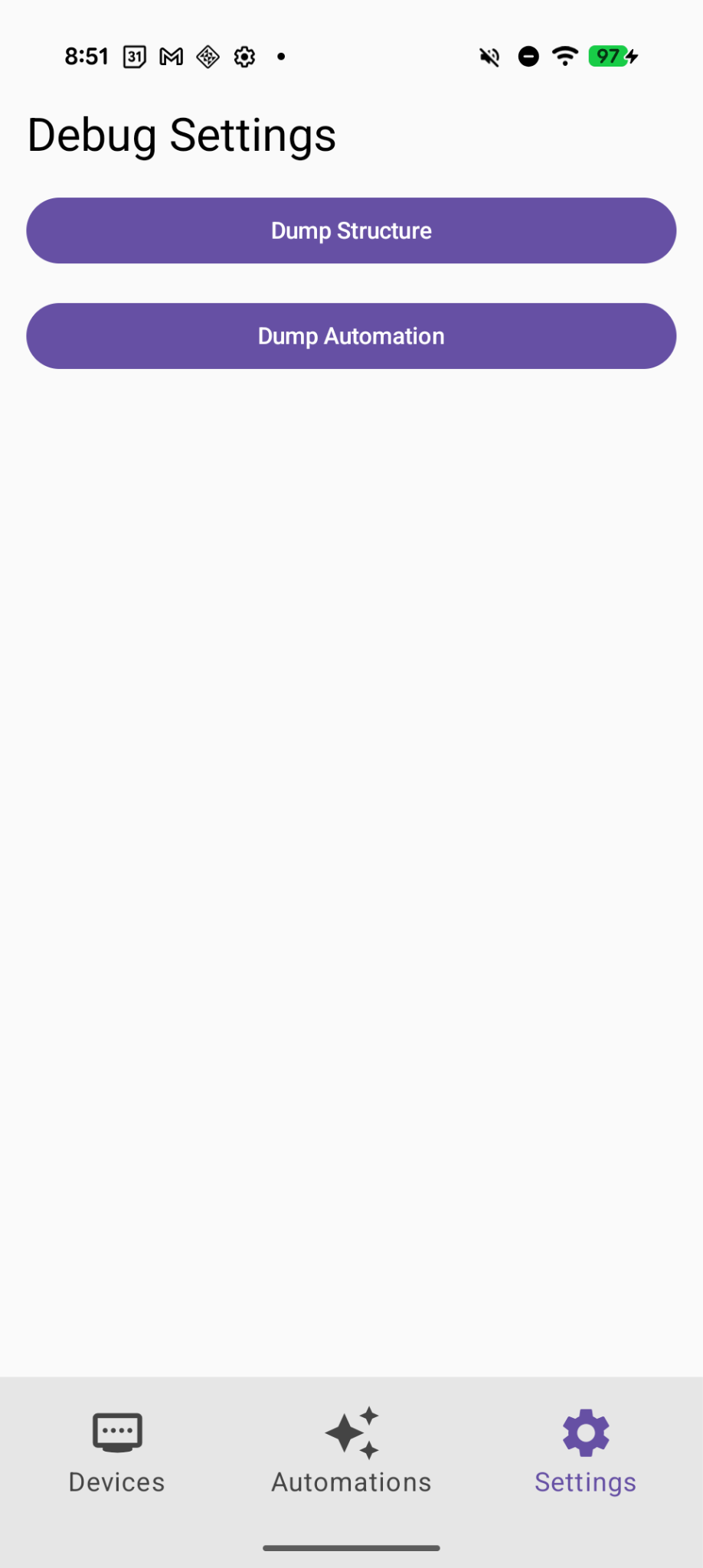
Create two selectable buttons on the Debug page called "Dump Structure" and "Dump Automations".
Now we have 2 new buttons added on the Debug page
6. Implement the "Dump Structure" functionality
Prompt Gemini:
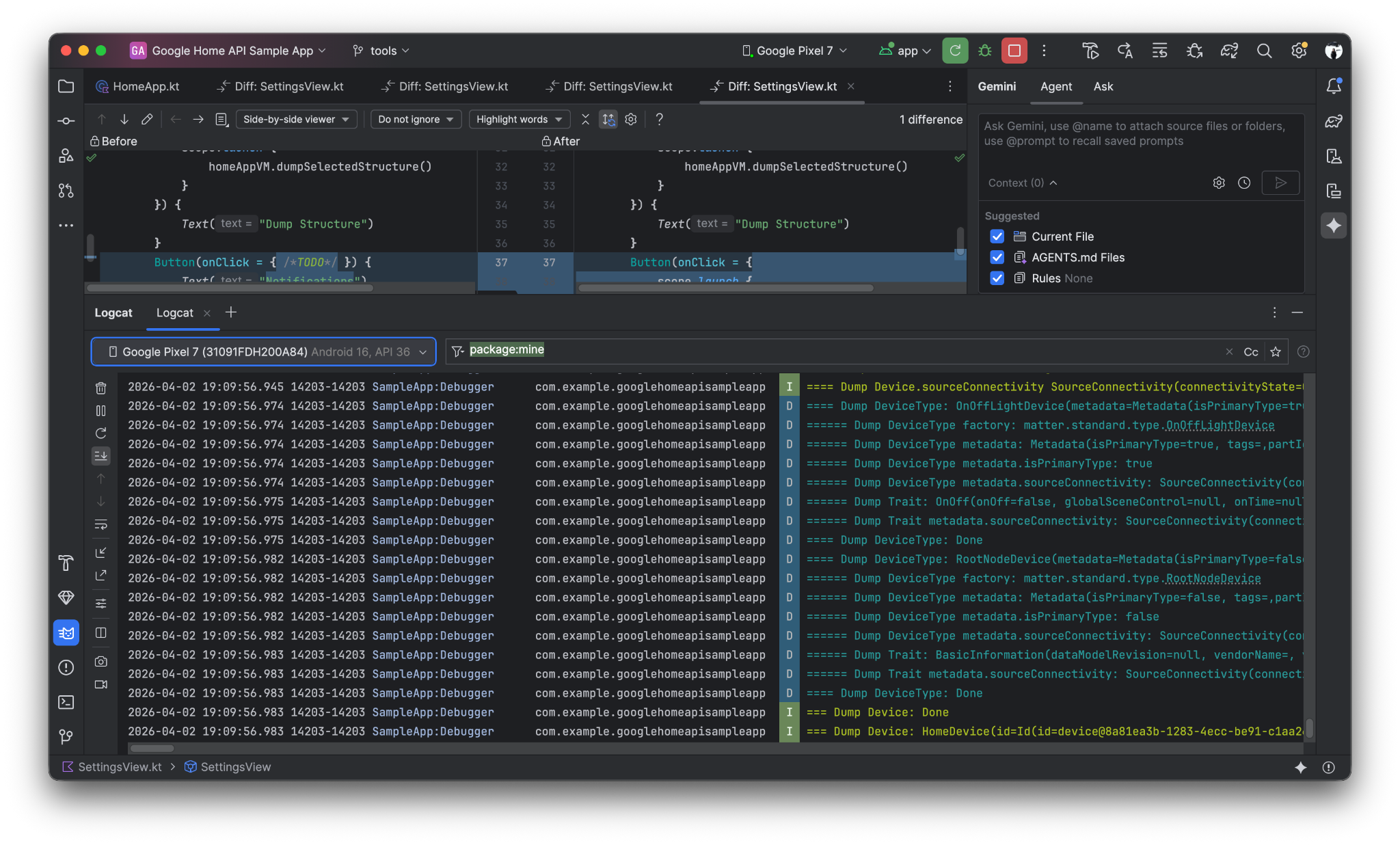
Implement the first button "Dump Structure" to call dumpStructure(structure: Structure) in Debugger.kt with current selected structure.
When click the "Dump Structure" button, Structure logs will be dumped to LogCat
7. Implement the "Dump Automation" functionality
Prompt Gemini:
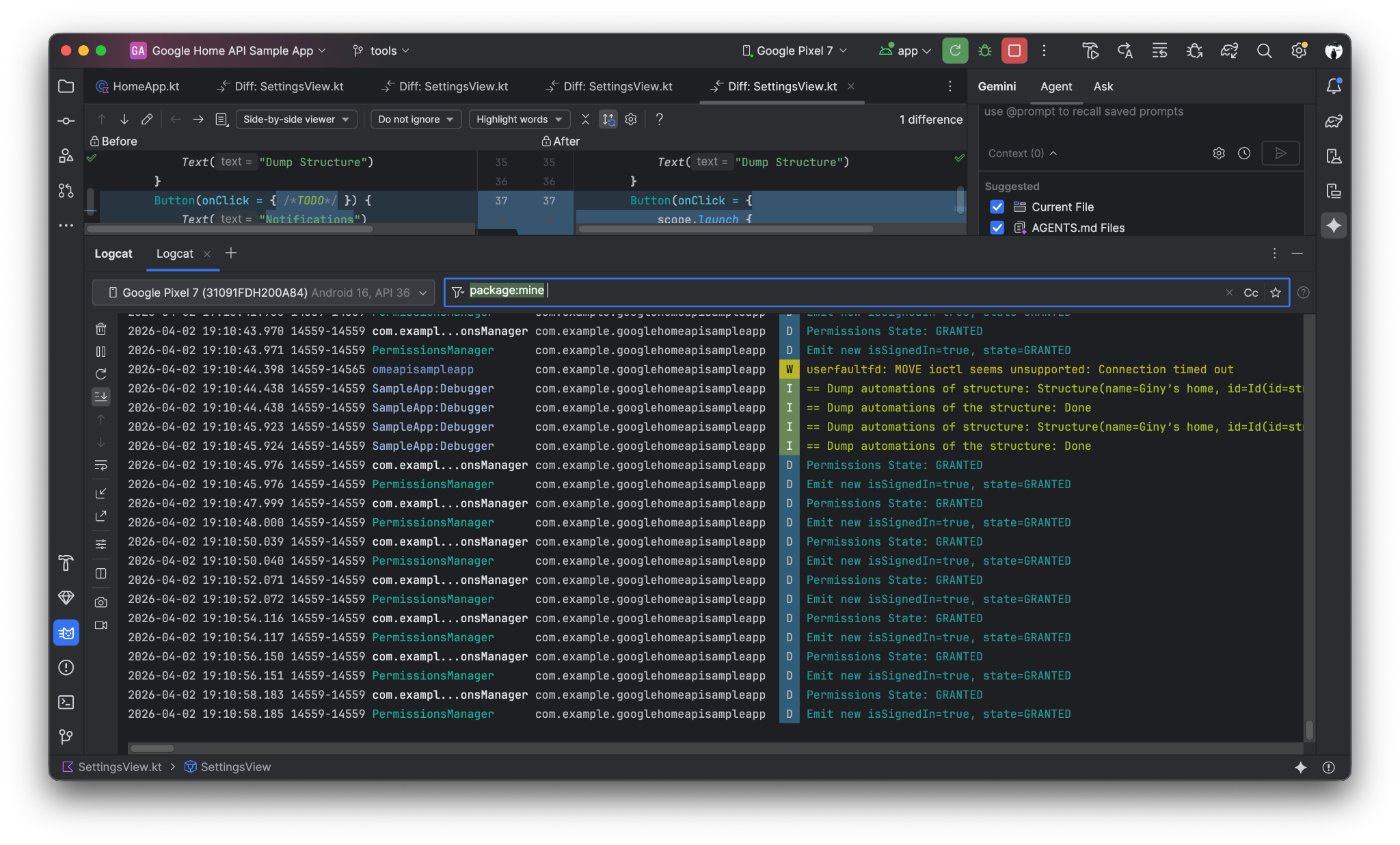
Now Implement the "Dump Automation" functionality to call dumpAutomationsInStructure(structure: Structure) in Debugger.kt with current selected structure.
When click the "Dump Automation" button, Automation logs will be dumped to LogCat
8. Implement a "Summarize Home" button that lists the current Rooms and Devices
Prompt Gemini:
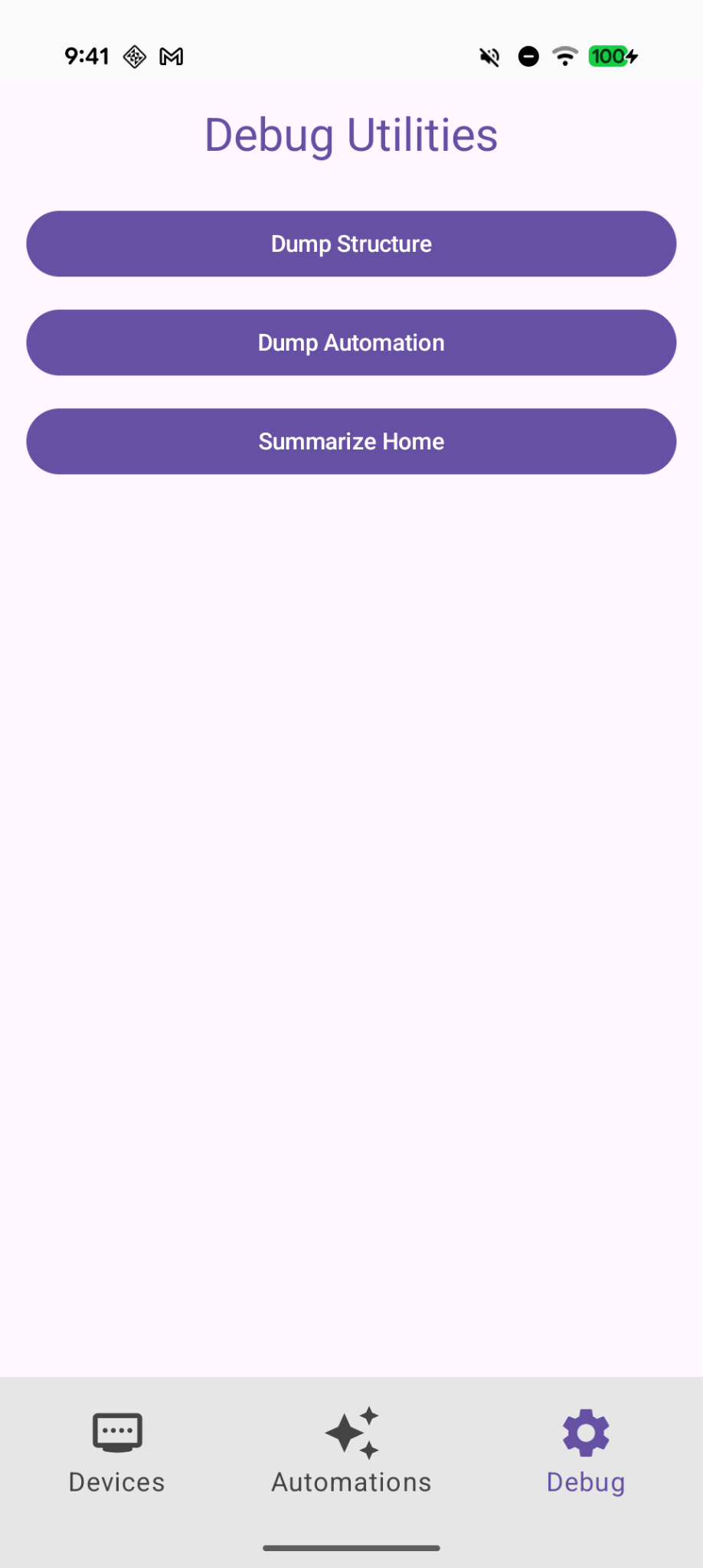
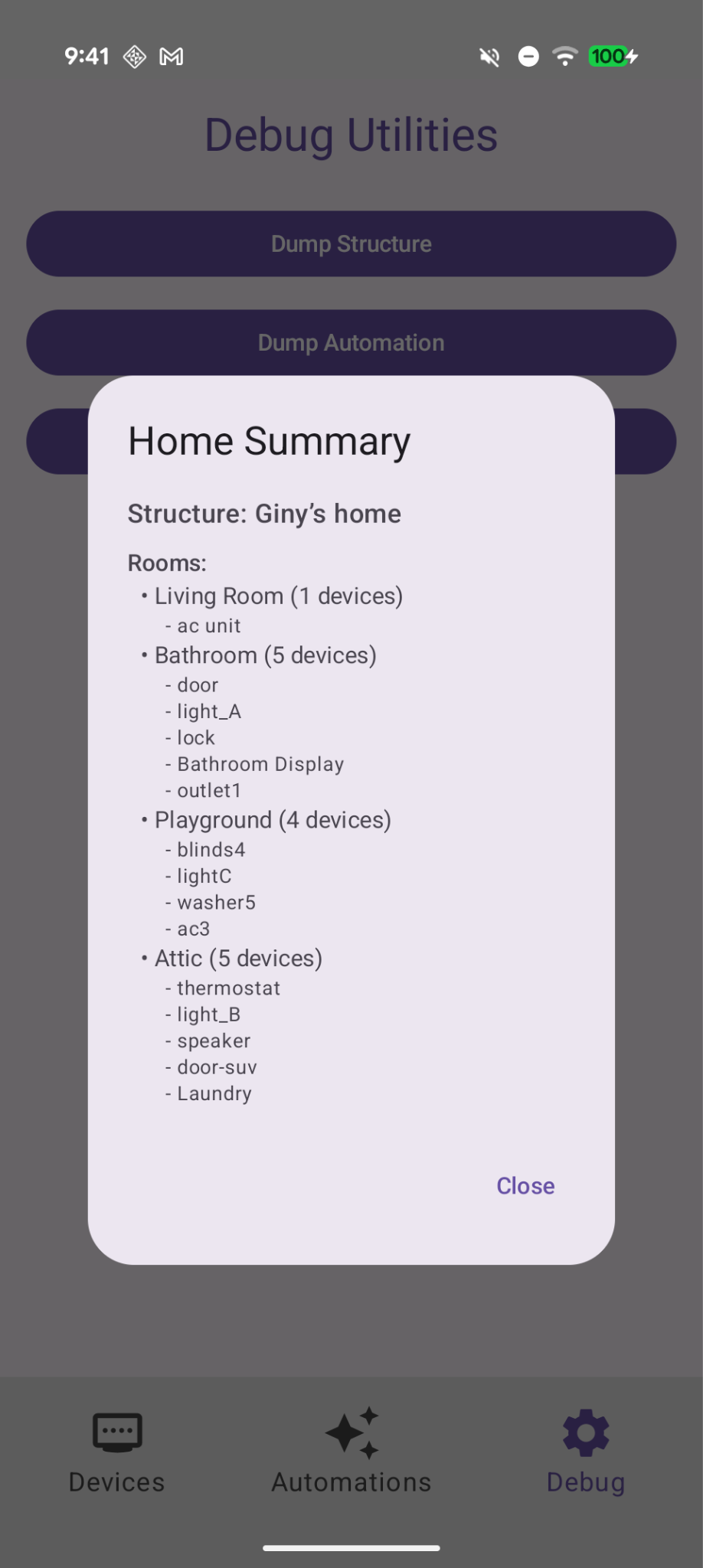
In Debug tab, add a button "Summarize Home" to find the current room and devices with Home API and show them on a dialog.
A new "Summarize Home" button on the Debug page
And when you click on it, a current summary of rooms and devices will be displayed
9. Review the Changes
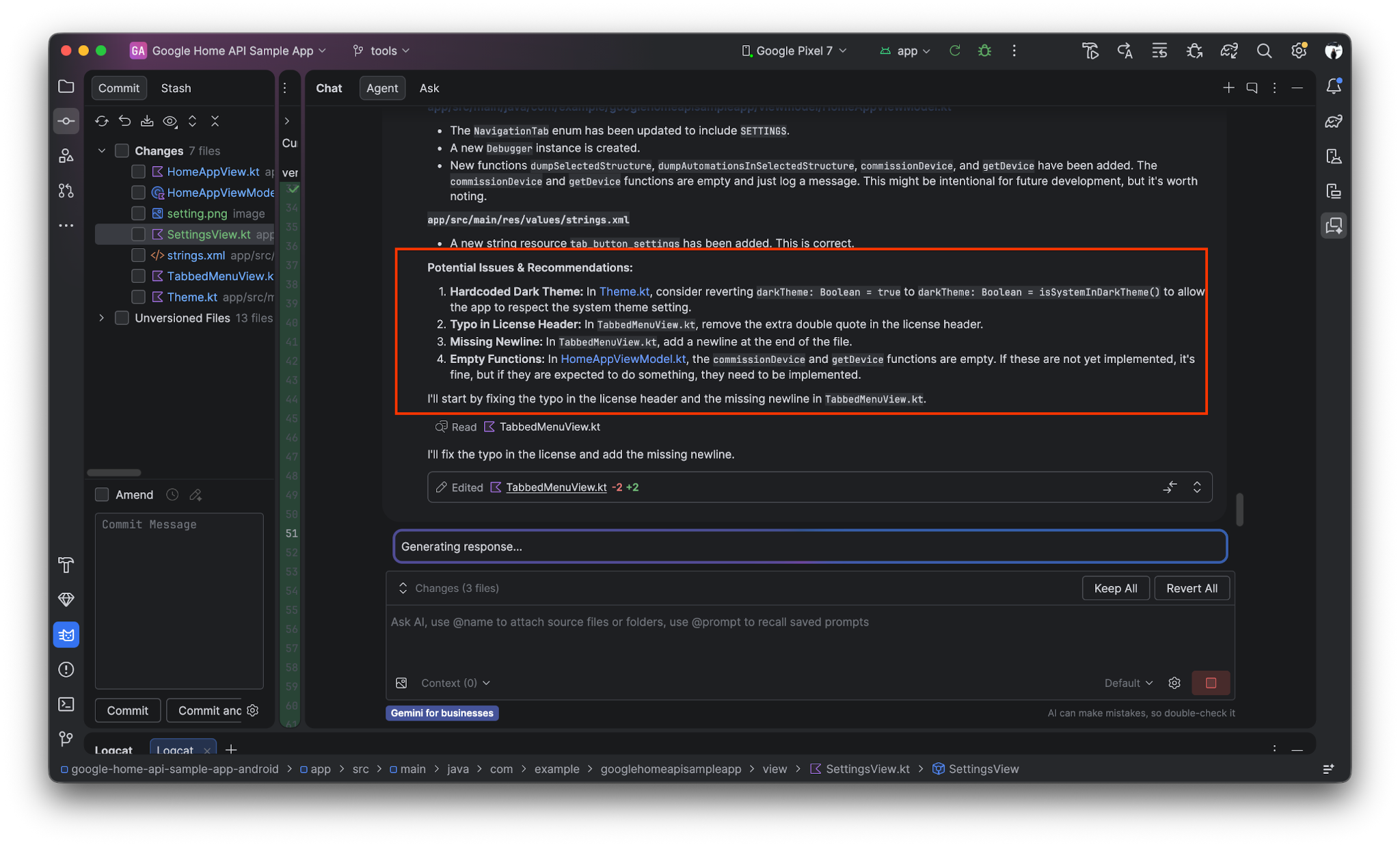
Gemini can also help to review the changes (or last git commit), find the potential issues, and fix that.
Prompt Gemini:
Review the uncommitted changes and find potential issues.
10. Congratulations!
Congratulations! You successfully extended your Android Home API sample app by utilizing the Home API Knowledge Base and Gemini to automate UI creation and API integration! Now that you know how to extend the sample app using AI-driven development, here are some other things you can try:
- Refine your AGENTS.md: Experiment with adding specific coding standards or brand guidelines to your
AGENTS.mdfile to see how it changes Gemini's code suggestions. - Build a Custom Automation: Use Gemini and the Knowledge Base to write a script that triggers a "Good Night" routine, such as locking all doors and dimming lights.
- Read Official Home API Knowledge Base Guide and watch Accelerate Development with Gemini & the Knowledge Base