

1. 事前準備
建構項目
在本程式碼研究室中,您將使用 Home API 知識庫和 Android Studio 內建 Gemini,擴充現有的 Android Home API 範例應用程式,自動建立 UI 和整合 API。您將新增偵錯介面,讓使用者傾印記錄並摘要說明住家,以進行偵錯和開發。
強大組合:Home API 知識庫 + Android Studio 內建 Gemini
這項工作流程仰賴兩個重要元件:
- Home API 知識庫:經過整理的說明文件 (
google-home-api-knowledge-base.txt),提供與 Google Home 裝置互動所需的特定技術限制、模型和方法。 - 請參閱:https://developers.home.google.com/apis/android/knowledge-base
- Android Studio 內建 Gemini:直接在 IDE 中使用的 AI 輔助協作工具。可感知程式碼、資源和終端機的環境。
課程內容
- 如何將 Home API 知識庫做為 Android Studio 內建 Gemini 的背景資訊。
- 如何透過 Android Studio 內建 Gemini,以直覺方式開發程式,為現有的 Home API 範例應用程式新增功能。
2. 事前準備和設定
繼續操作前,請先確認已完成下列事項:
- 建構及執行 Home API Android 範例應用程式:按照 https://developers.home.google.com/apis/android/sample-app/build#build_the_app 的指示,建構及執行範例應用程式,這是我們程式碼研究室的基礎。
- 環境設定
- 下載 Android Studio:從官方開發人員網站安裝最新穩定版 (Koala 以上版本)。
- 啟用 Gemini:開啟 Gemini 工具視窗 (通常位於右側帶狀區域)。登入 Google 帳戶並接受條款,即可啟用 AI 助理。如需操作說明,請參閱 https://developer.android.com/studio/gemini/get-started。
- 知識庫檔案:請確認您已將
google-home-api-knowledge-base.txt檔案儲存到專案目錄。 - 注意:如果您是從官方 GitHub 範例應用程式複製範例應用程式,這個檔案已包含在
tools/資料夾中。
3. 建立 AGENTS.md 檔案
不必在每次對話中重複輸入指令,只要為 Gemini 建立持續性的「大腦」即可。
在專案根目錄中,建立名為 AGENTS.md 的新檔案,然後貼上以下內容:
**Role:** You are an expert Android Home API Developer.

**Context:** This project uses the Google Home APIs.

**Source of Truth:** Always reference tools/google-home-api-knowledge-base.txt for Home API patterns, data models (Structures, Automations), and debugging methods.

**Guidelines:** Prioritize Material 3 Compose components and ensure all code is compatible with the latest Home API SDK.
在「Context」中,勾選 AGENTS.md Files 旁的方塊。
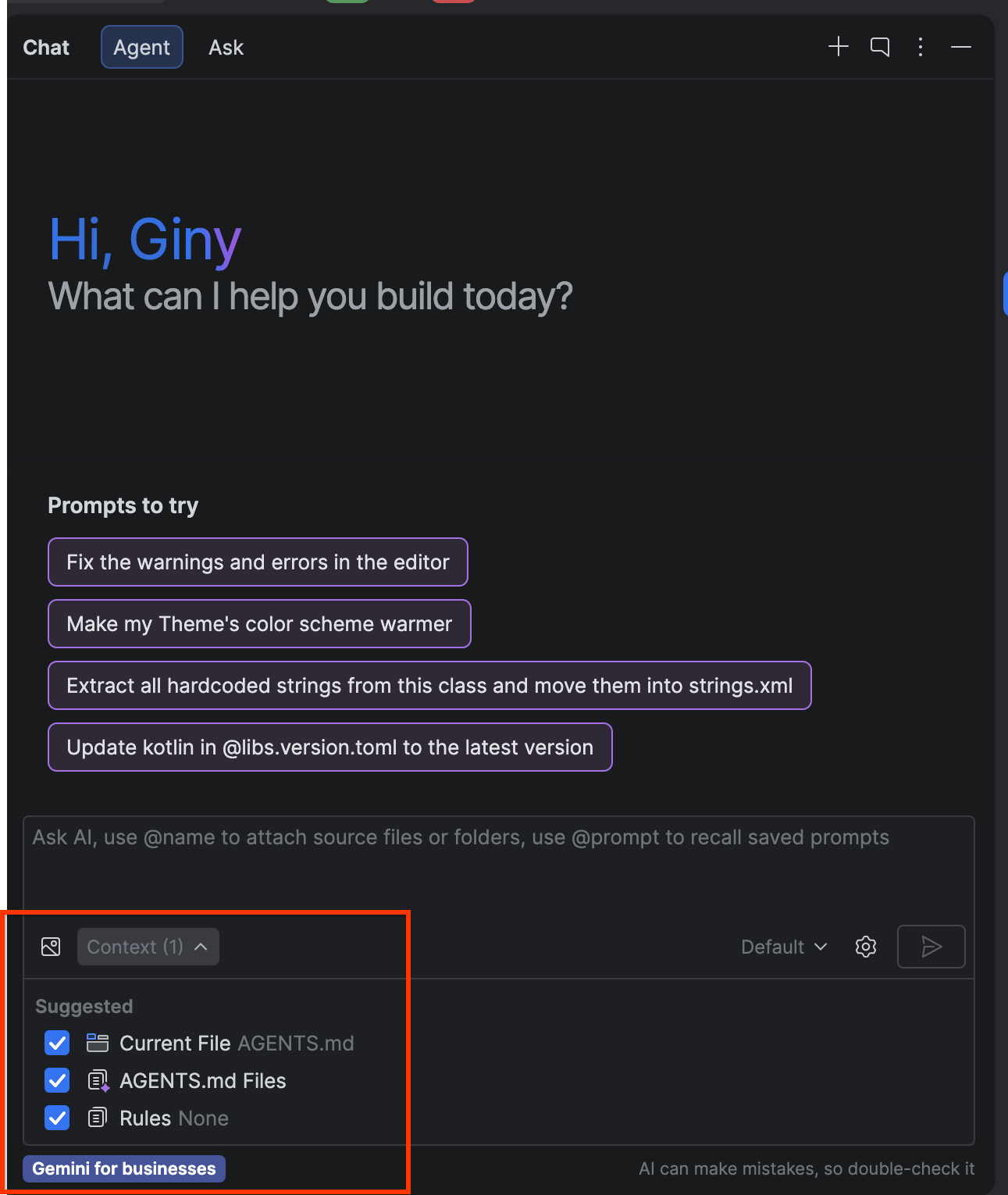
讓我們確認設定是否成功。在 Gemini 中輸入提示:
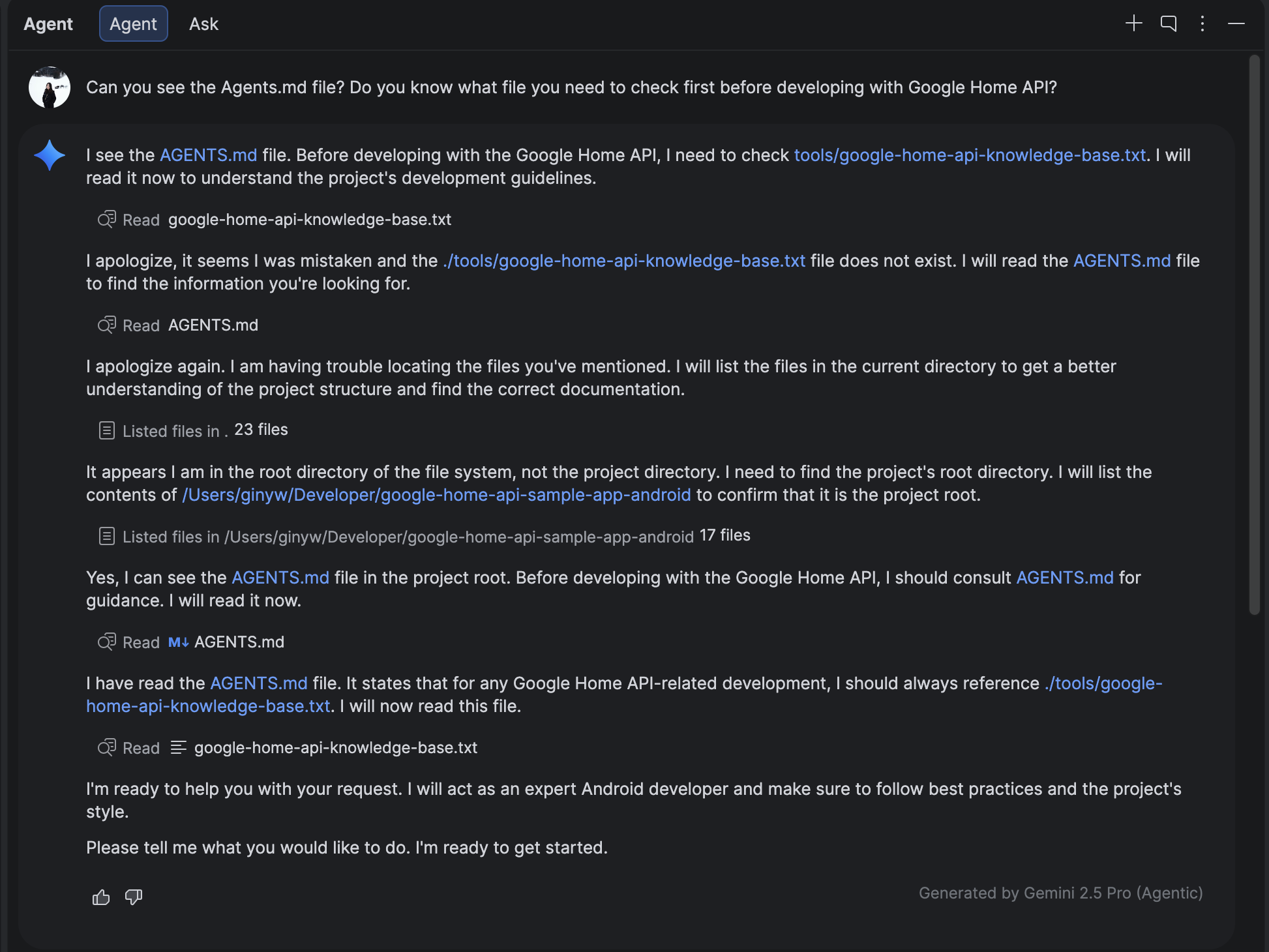
Can you see the Agents.md file? Do you know what file you need to check first before developing with Google Home API?
您應該會看到類似下方的結果,其中提到系統正在讀取 AGENTS.md,並將使用知識庫檔案!
4. 建立新的「Debug」分頁
使用 Gemini + 知識庫修改 HomeAppView.kt,並新增導覽目的地。
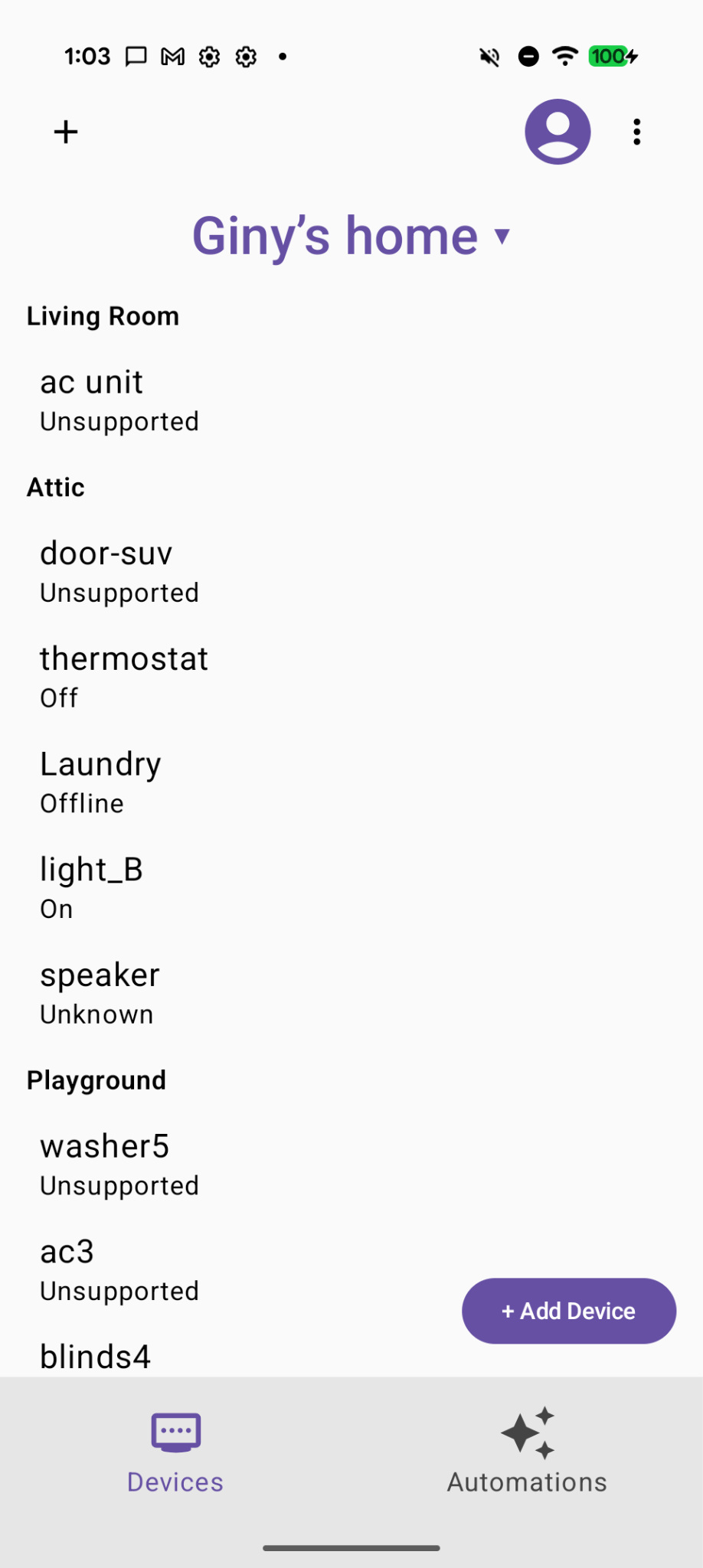
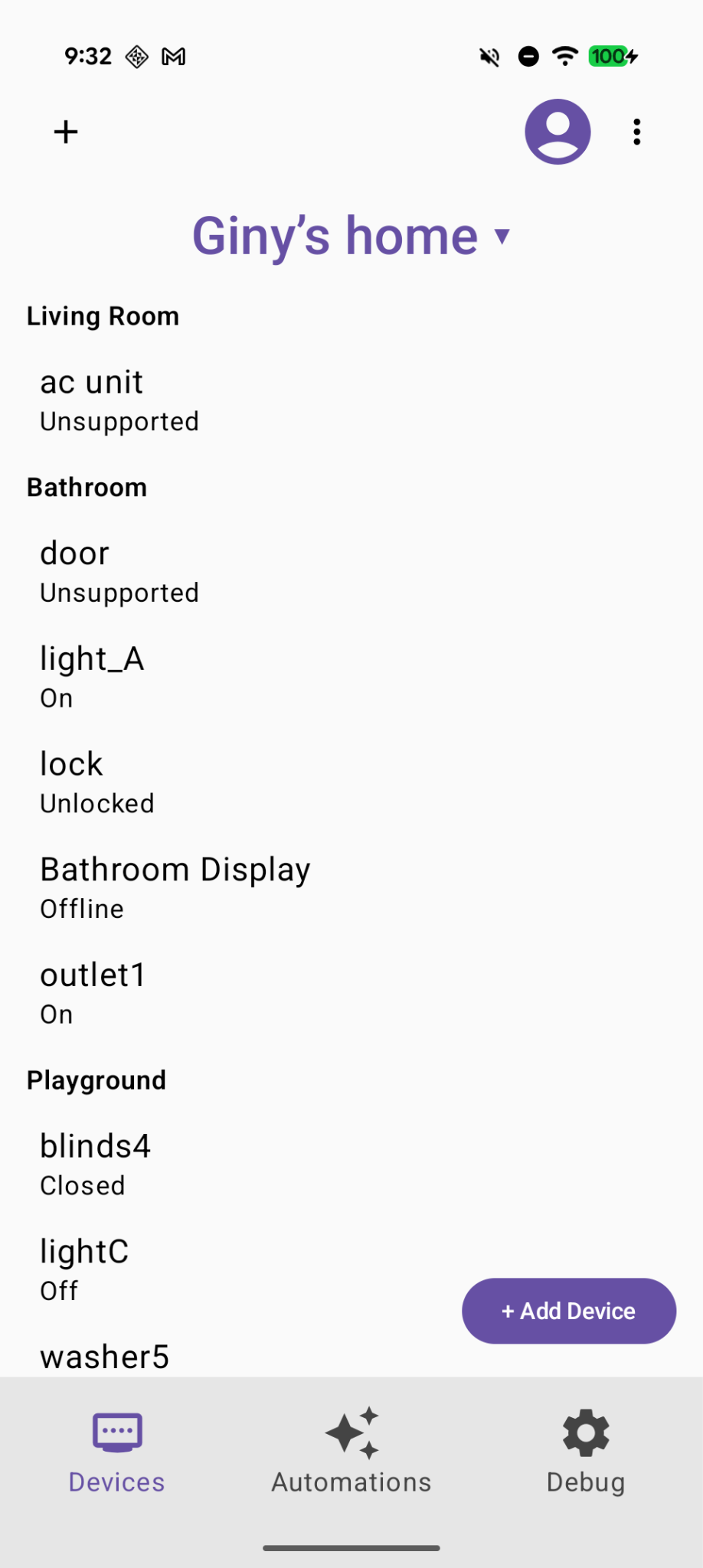
開始之前,目前的 Home API 範例應用程式應如下所示:
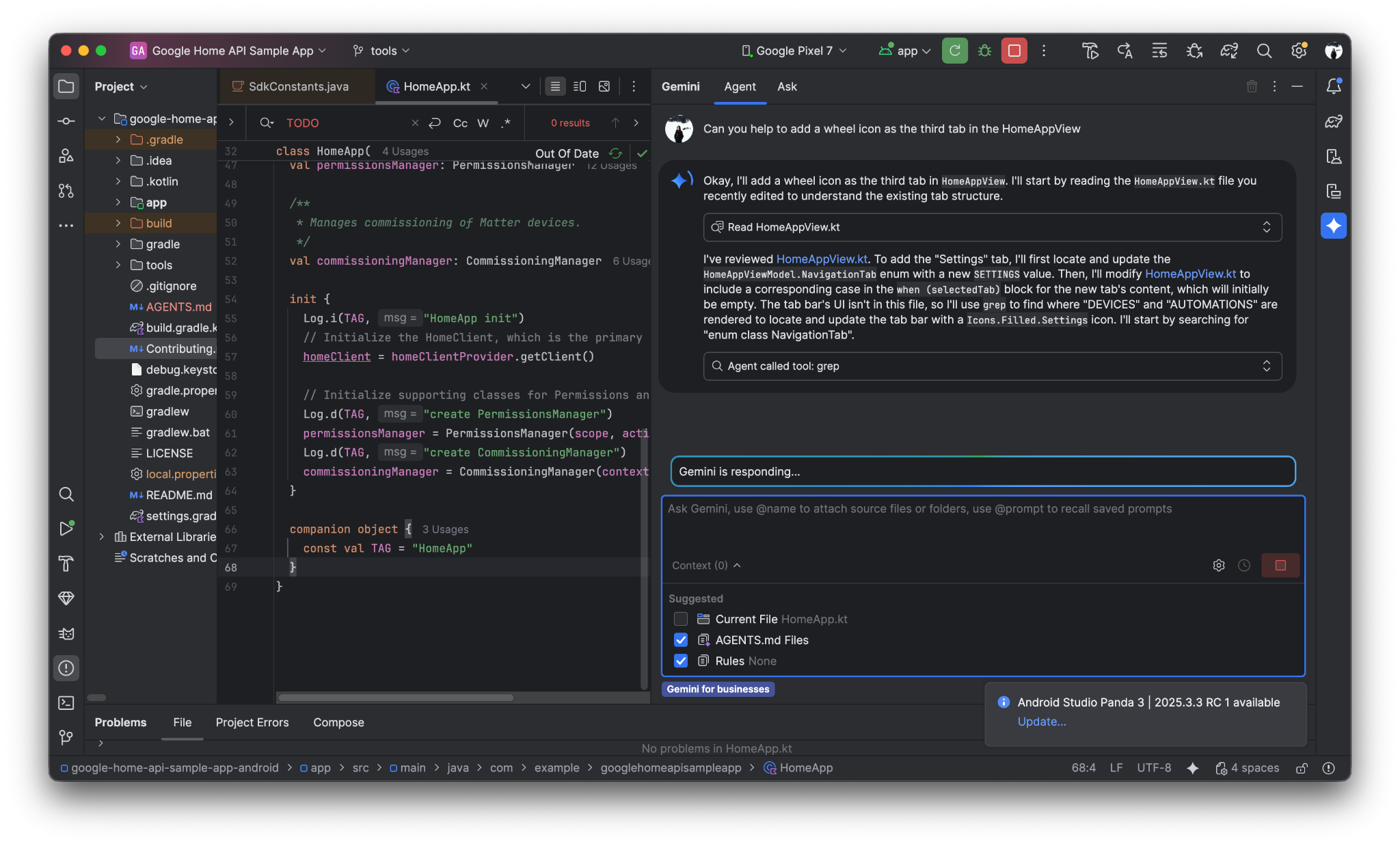
提示 Gemini 使用齒輪圖示代表新的偵錯分頁。
Can you help to add a wheel icon as the third tab in the HomeAppView .
以下是在 Android Studio 內建 Gemini 中,進行提示和回覆對話的範例
現在底部會顯示新的「Debug」分頁:
5. 建立 2 個新按鈕,分別用於「Dump Structure」和「Dump Automation」
提示 Gemini:
Create two selectable buttons on the Debug page called "Dump Structure" and "Dump Automations".
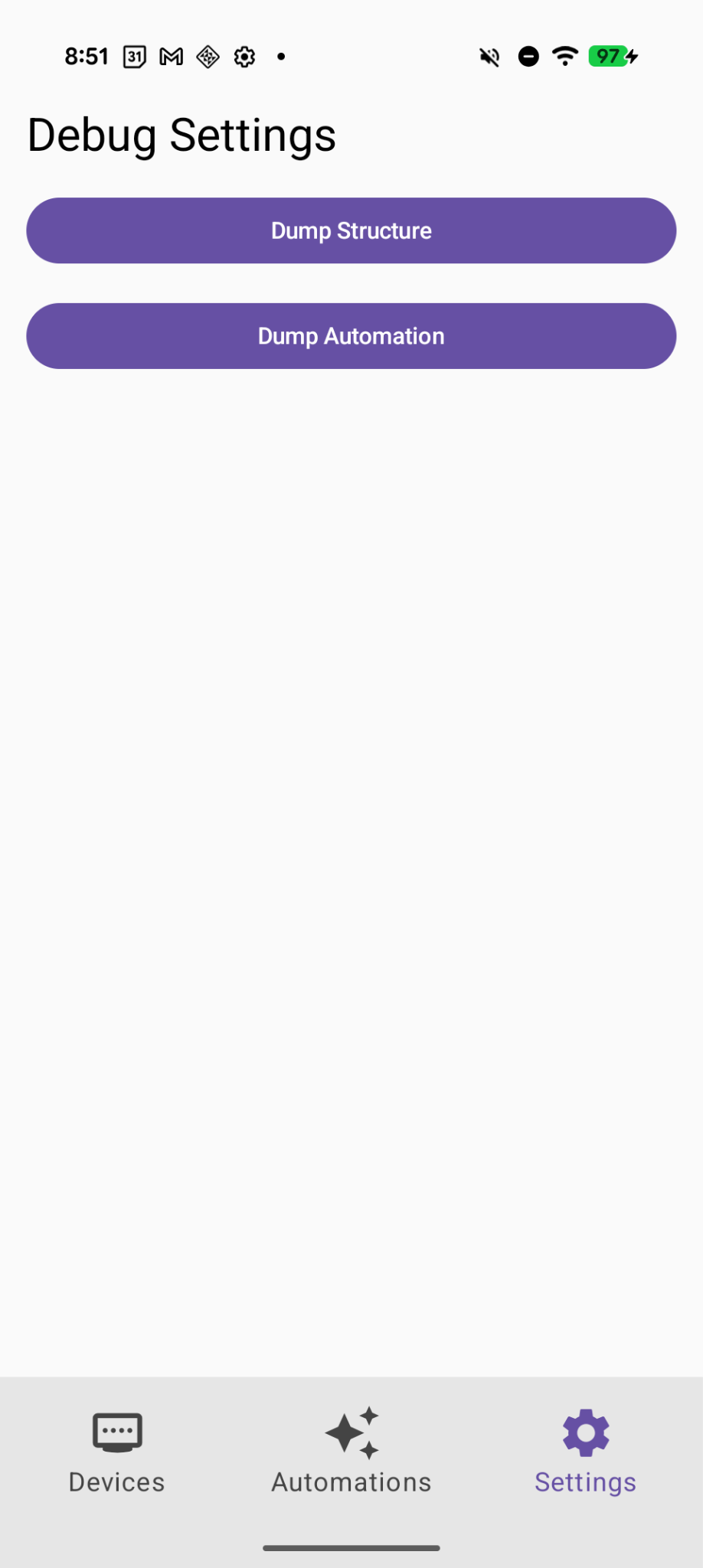
現在「Debug」頁面新增了 2 個按鈕
6. 實作「傾印結構」功能
提示 Gemini:
Implement the first button "Dump Structure" to call dumpStructure(structure: Structure) in Debugger.kt with current selected structure.
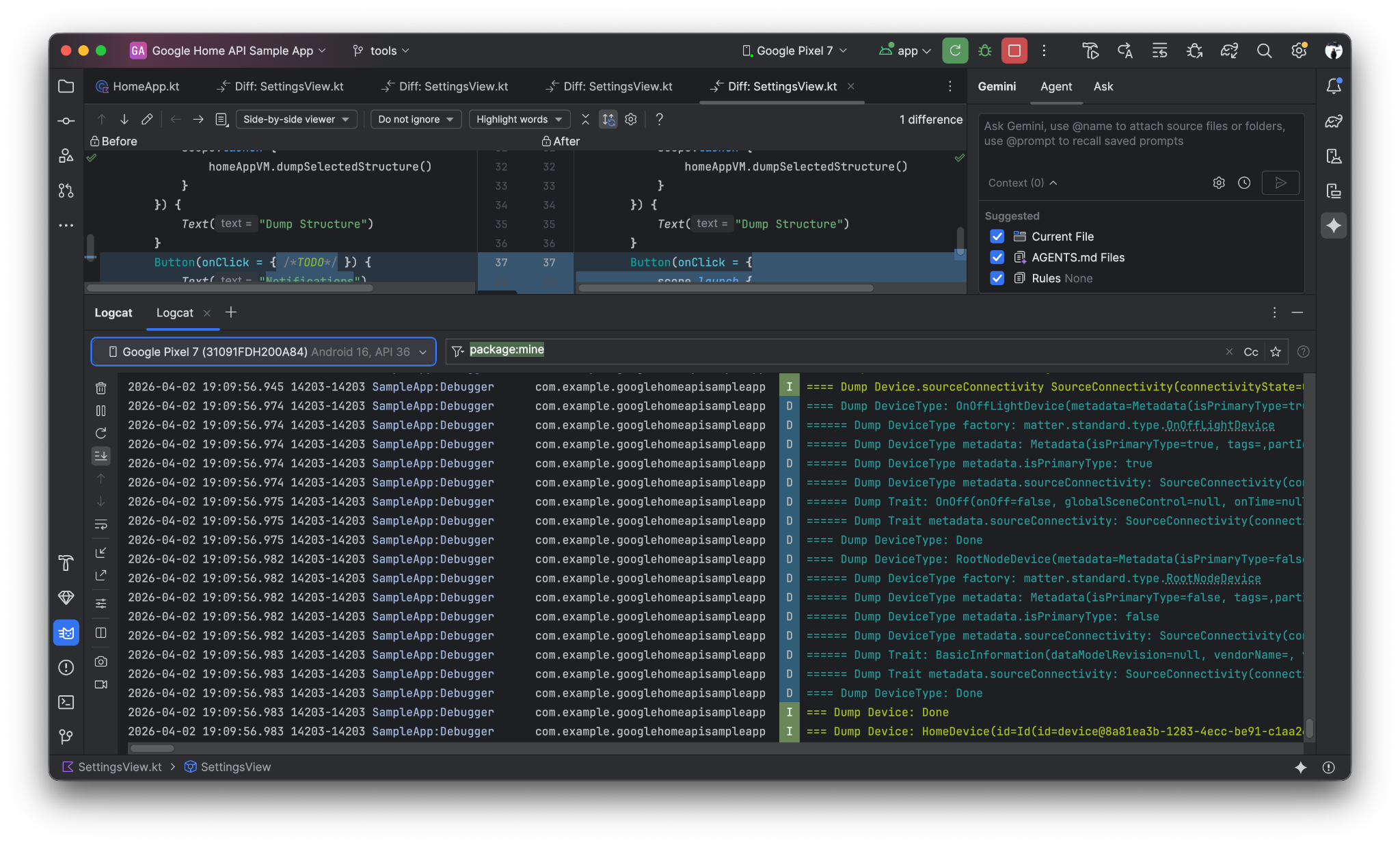
點選「Dump Structure」按鈕後,結構記錄會傾印至 LogCat
7. 實作「Dump Automation」功能
提示 Gemini:
Now Implement the "Dump Automation" functionality to call dumpAutomationsInStructure(structure: Structure) in Debugger.kt with current selected structure.
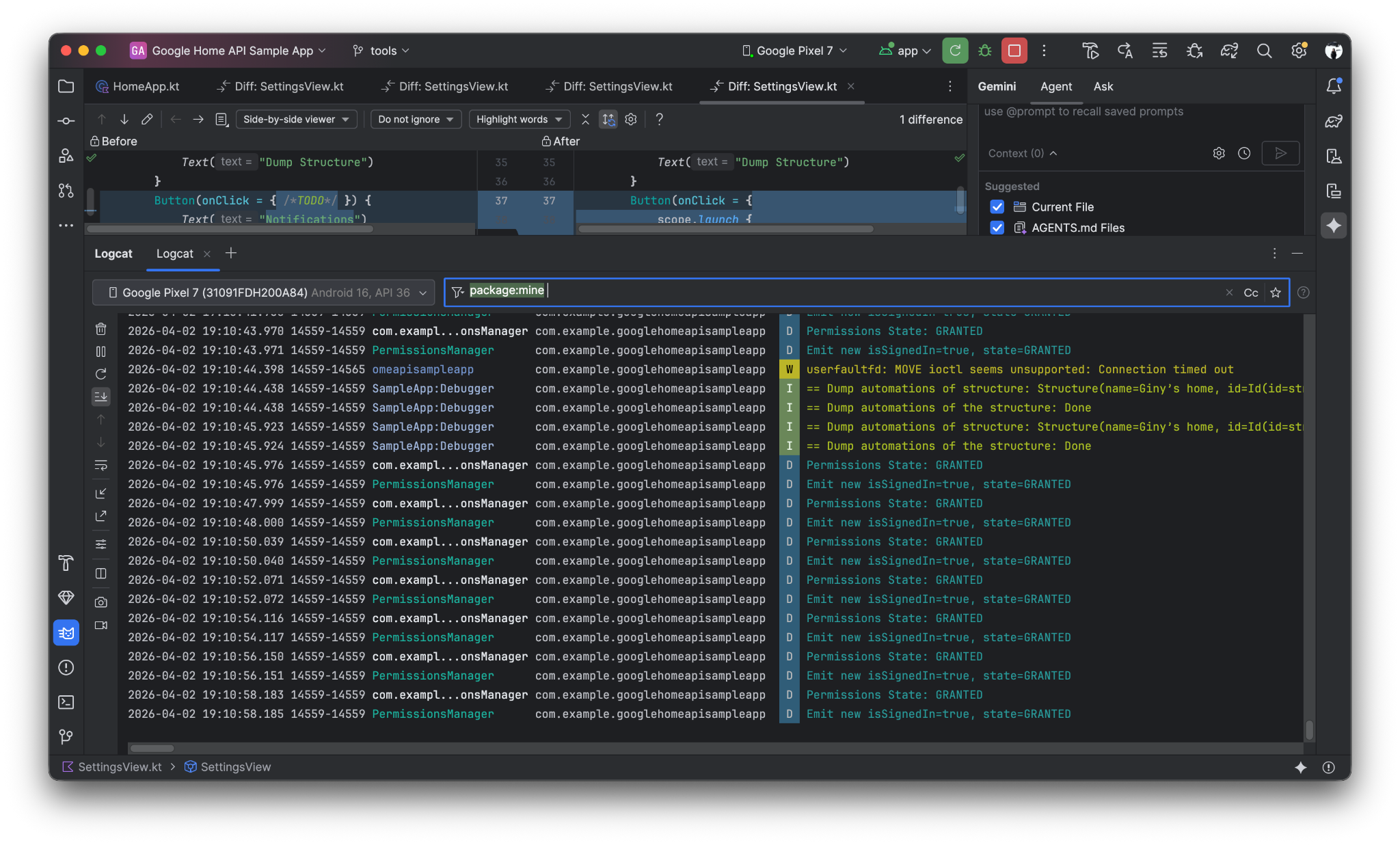
按一下「Dump Automation」按鈕後,系統會將自動化記錄傾印至 LogCat
8. 實作「總覽住家」按鈕,列出目前的房間和裝置
提示 Gemini:
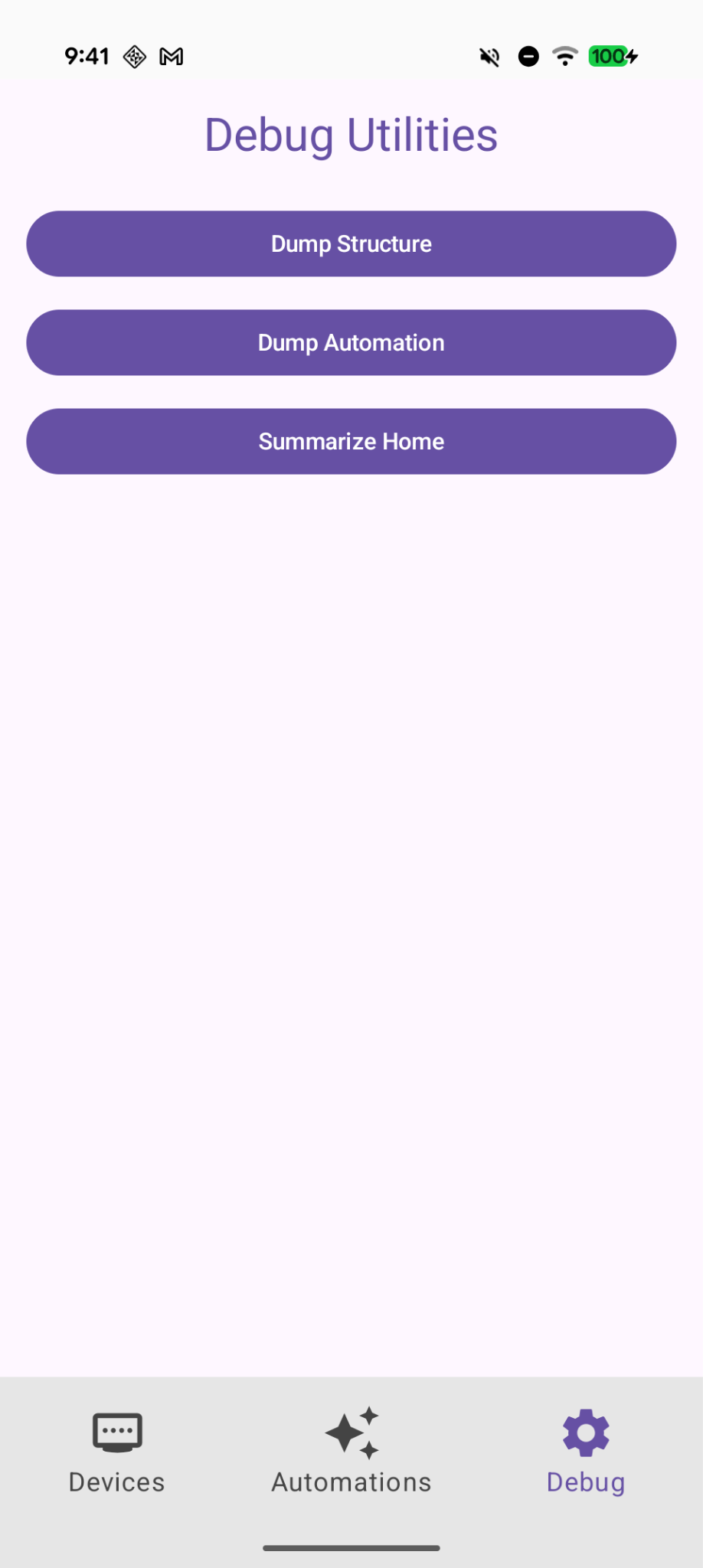
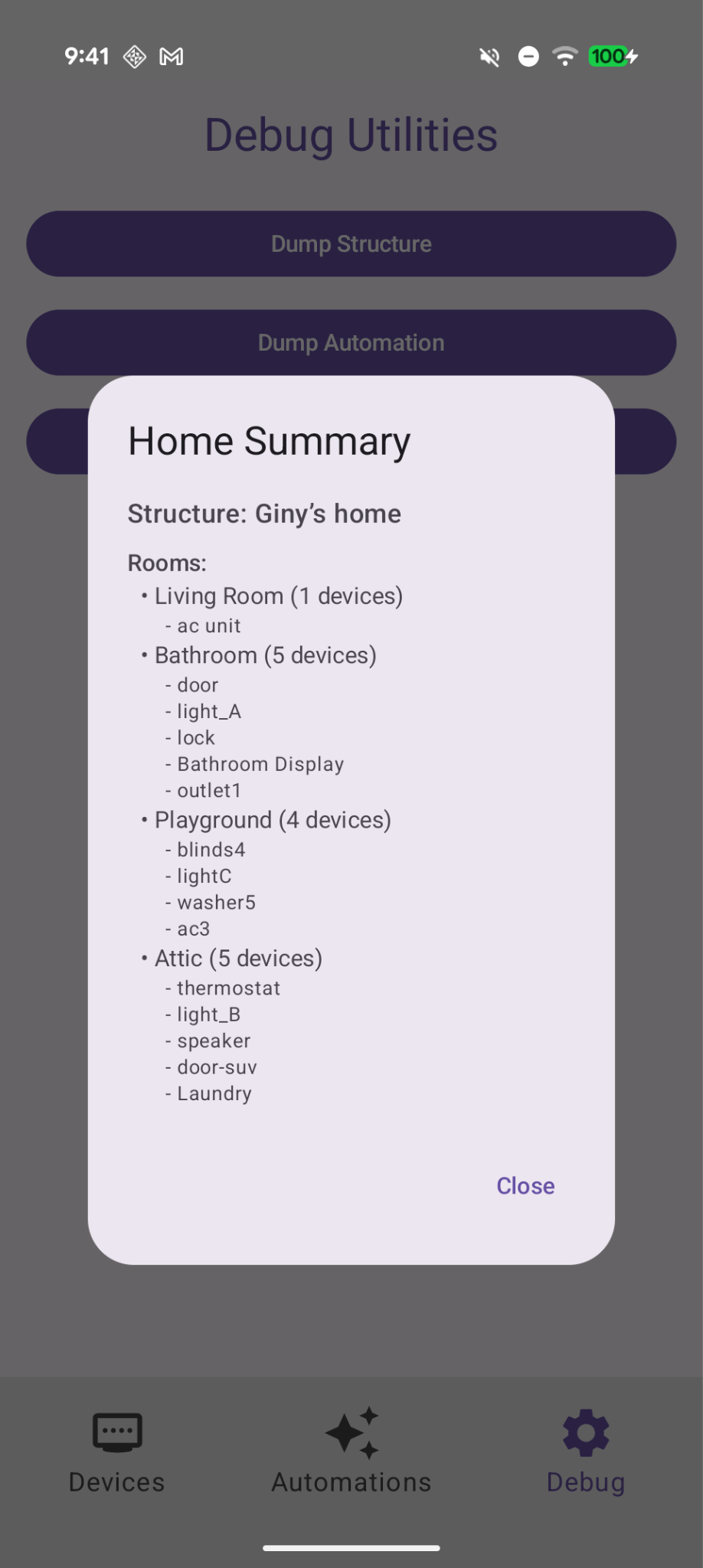
In Debug tab, add a button "Summarize Home" to find the current room and devices with Home API and show them on a dialog.
「偵錯」頁面上的「生成首頁摘要」新按鈕
點選後,系統會顯示房間和裝置的目前摘要
9. 查看變更
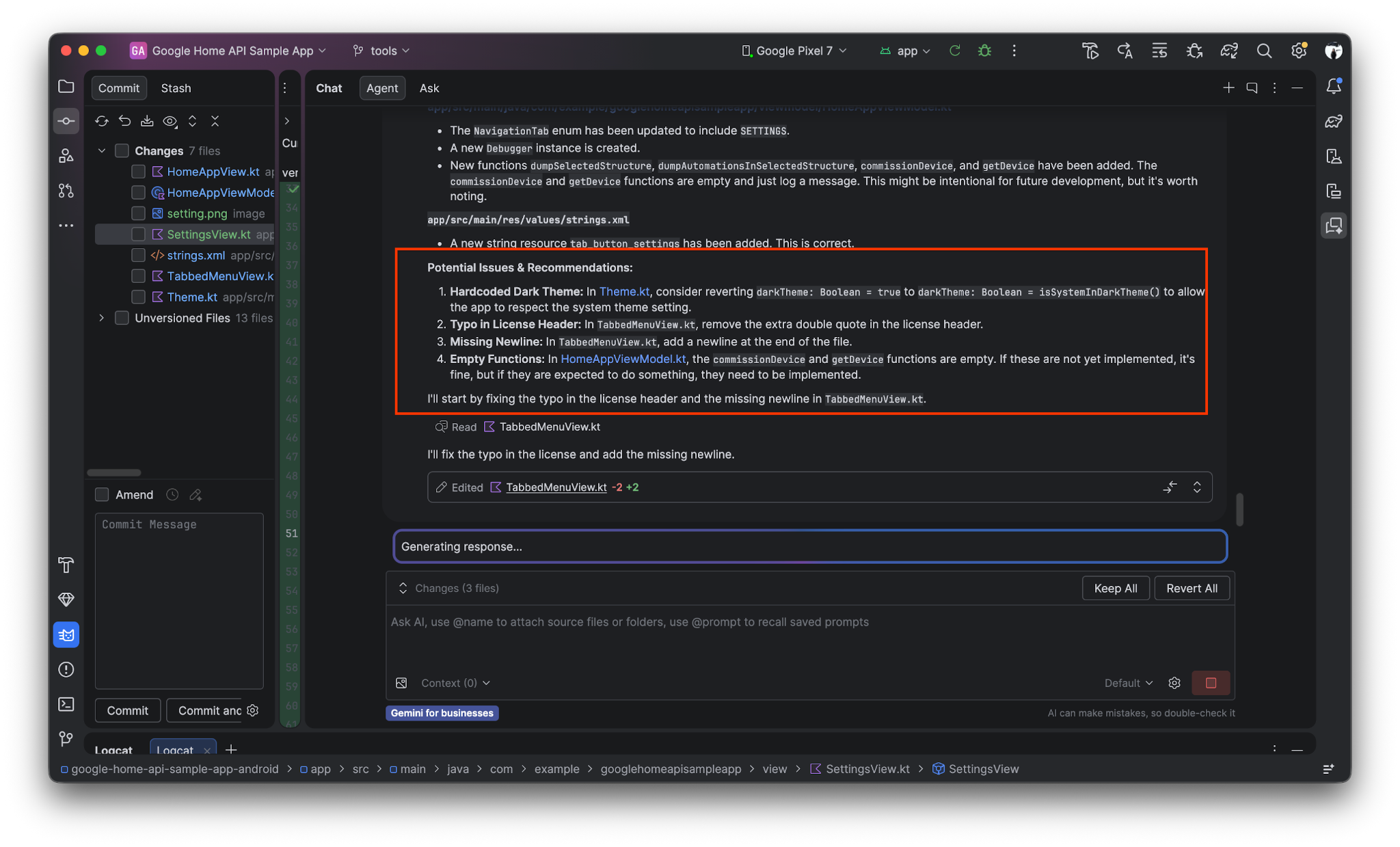
Gemini 也可以協助檢查變更 (或上次的 Git 提交),找出潛在問題並修正。
提示 Gemini:
Review the uncommitted changes and find potential issues.
10. 恭喜!
恭喜!您已成功擴充 Android Home API 範例應用程式,運用 Home API 知識庫和 Gemini 自動建立 UI 及整合 API!您現在已瞭解如何使用 AI 輔助開發功能擴充範例應用程式,接下來可以嘗試以下做法:
- 調整 AGENTS.md:在
AGENTS.md檔案中加入特定程式設計標準或品牌宣傳指南,看看 Gemini 的程式碼建議會如何變化。 - 建立自訂自動化動作:使用 Gemini 和知識庫編寫指令碼,觸發「晚安」日常安排,例如鎖上所有門和調暗燈光。
- 請參閱官方 Home API 知識庫指南,並觀看「Accelerate Development with Gemini & the Knowledge Base」(使用 Gemini 和知識庫加快開發速度)