

1. 准备工作
构建内容
在此 Codelab 中,您将使用 Home API 知识库和 Android Studio 中的 Gemini 扩展现有的 Android Home API 示例应用,以自动执行界面创建和 API 集成。您将添加一个调试界面,让用户可以转储日志并总结其住宅,以便进行调试和开发。
强强联合:Home API 知识库 + Android Studio 中的 Gemini
此工作流依赖于两个关键组件:
- Home API 知识库:一个精选的文档文件 (
google-home-api-knowledge-base.txt),其中包含与 Google Home 设备互动所需的特定技术限制、模型和方法。 - 请参阅:https://developers.home.google.com/apis/android/knowledge-base
- Android Studio 中的 Gemini:直接在 IDE 中运行的 AI 赋能协作工具。它能感知代码、资源和终端的上下文。
学习内容
- 如何在 Android Studio 中将 Home API 知识库作为上下文提供给 Android Studio 中的 Gemini。
- 如何使用 Android Studio 中的 Gemini 进行氛围编程,以向现有的 Home API 示例应用添加新功能。
2. 前提条件和设置
在继续操作之前,请确保已完成以下步骤:
- 构建并运行 Home API Android 示例应用:按照 https://developers.home.google.com/apis/android/sample-app/build#build_the_app 中的说明,构建并运行我们的 Codelab 所基于的示例应用。
- 环境设置
- 下载 Android Studio:从官方开发者网站安装最新稳定版(Koala 或更高版本)。
- 启用 Gemini:打开 Gemini 工具窗口(通常位于右侧条带上)。使用 Google 账号登录并接受相关条款,即可启用 AI 助理。如需了解相关说明,请参阅 https://developer.android.com/studio/gemini/get-started。
- 知识库文件:确保您已将文件
google-home-api-knowledge-base.txt保存在项目目录中。 - 注意:如果您从官方 GitHub 示例应用克隆了示例应用,则此文件已包含在
tools/文件夹中。
3. 创建 AGENTS.md 文件
无需在每次对话中重复指令,只需为 Gemini 创建一个持久的“大脑”。
在项目根目录中,创建一个名为 AGENTS.md 的新文件,并粘贴以下内容:
**Role:** You are an expert Android Home API Developer.

**Context:** This project uses the Google Home APIs.

**Source of Truth:** Always reference tools/google-home-api-knowledge-base.txt for Home API patterns, data models (Structures, Automations), and debugging methods.

**Guidelines:** Prioritize Material 3 Compose components and ensure all code is compatible with the latest Home API SDK.
在“上下文”中,勾选 AGENTS.md Files 旁边的复选框。
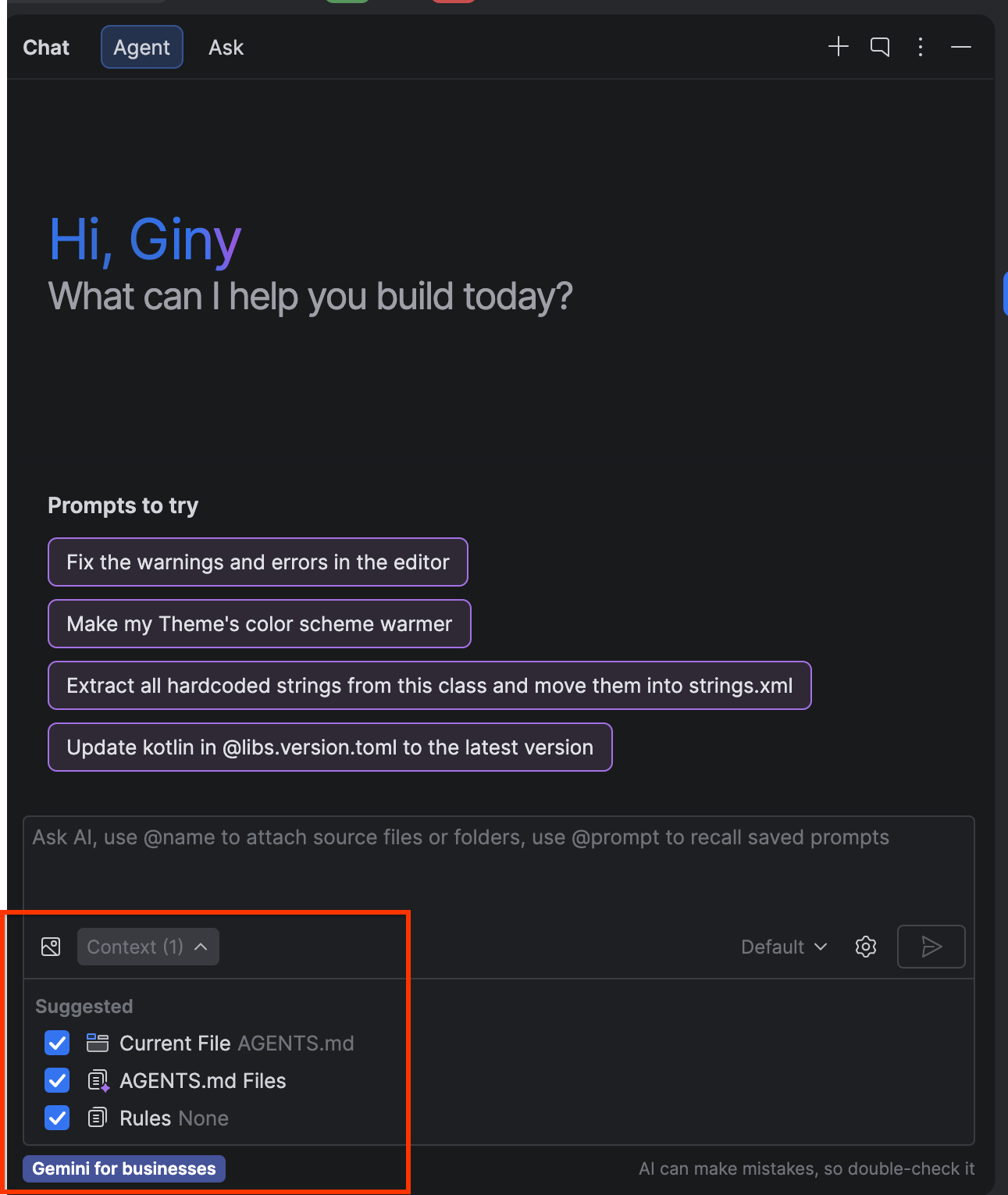
让我们验证设置是否成功。向 Gemini 发出以下提示:
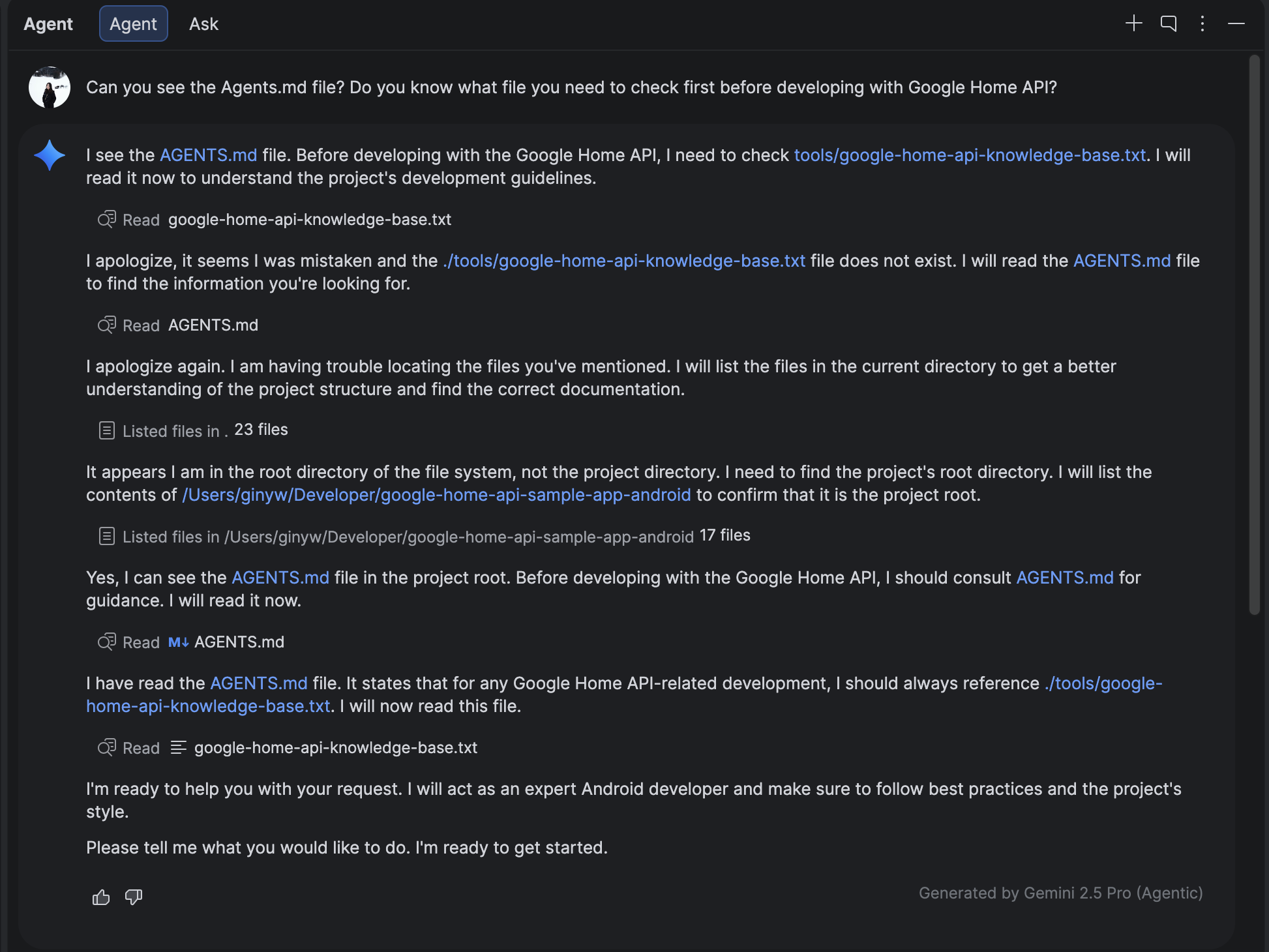
Can you see the Agents.md file? Do you know what file you need to check first before developing with Google Home API?
您应该会看到类似如下所示的结果,其中提到系统正在读取 AGENTS.md 并将使用知识库文件!
4. 创建新的“调试”标签页
使用 Gemini + 知识库修改 HomeAppView.kt 并添加新的导航目的地。
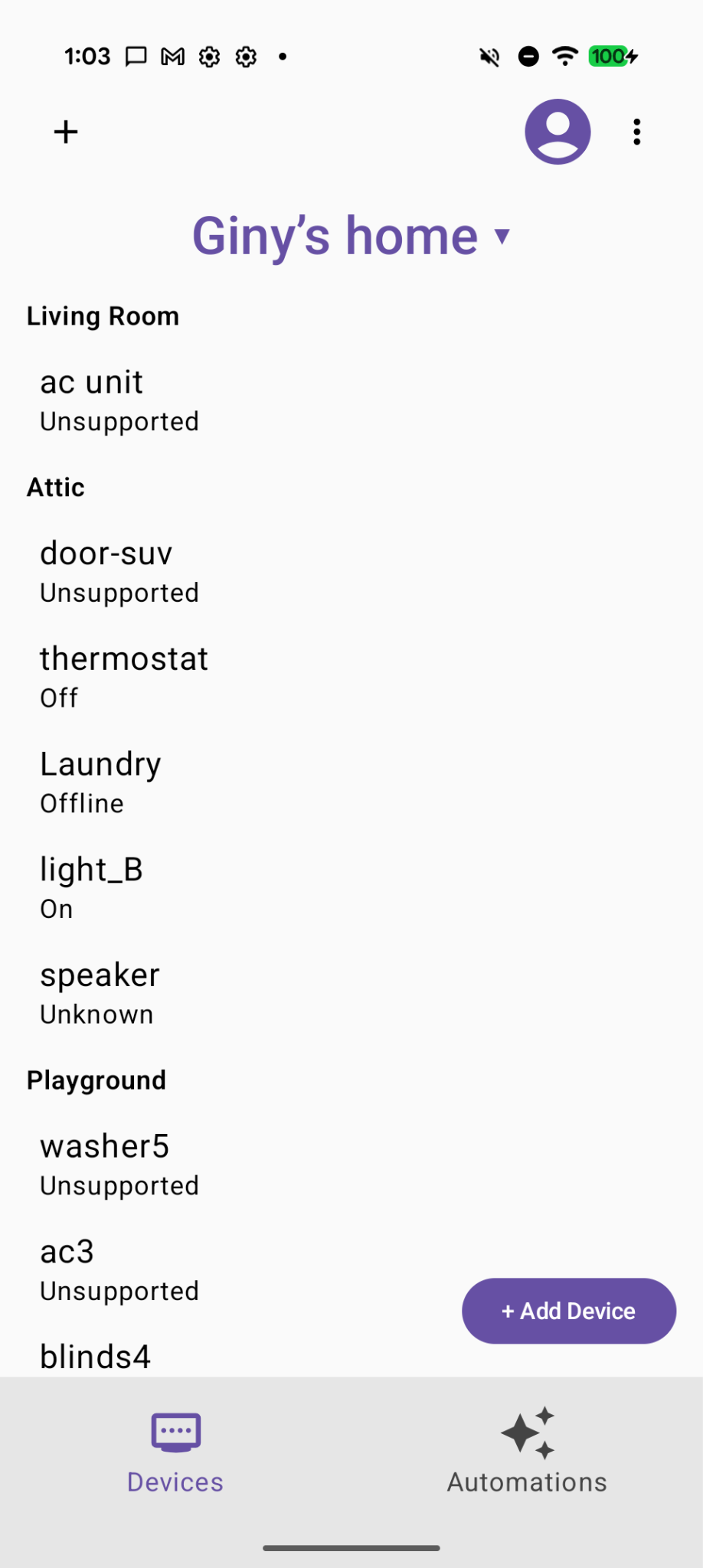
在开始之前,您的当前 Home API 示例应用应如下所示:
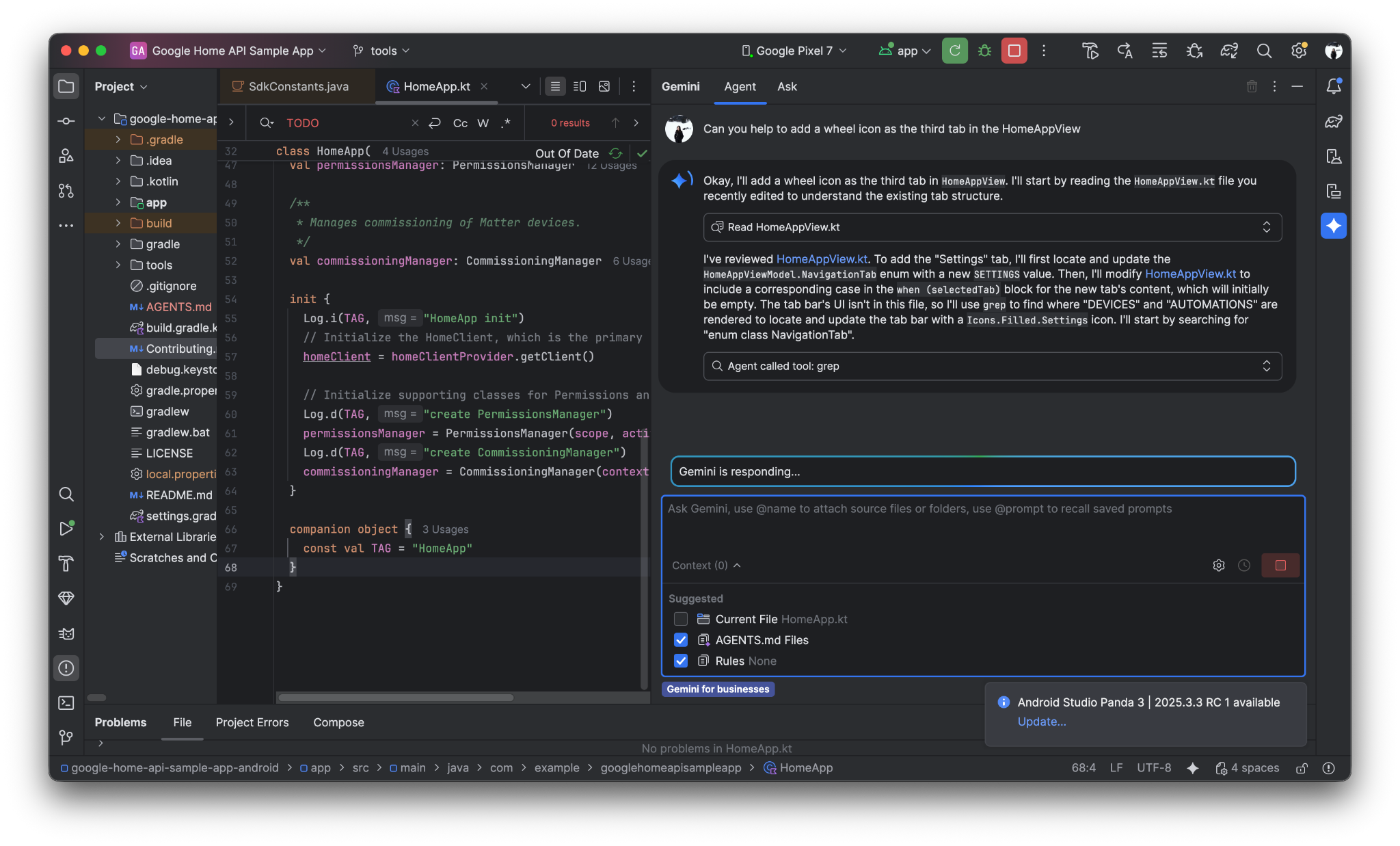
提示 Gemini 使用齿轮图标来表示新的“调试”标签页。
Can you help to add a wheel icon as the third tab in the HomeAppView .
以下是 Android Studio 中的 Gemini 的潜在提示和回答对话
现在,我们可以在底部看到新的“调试”标签页:
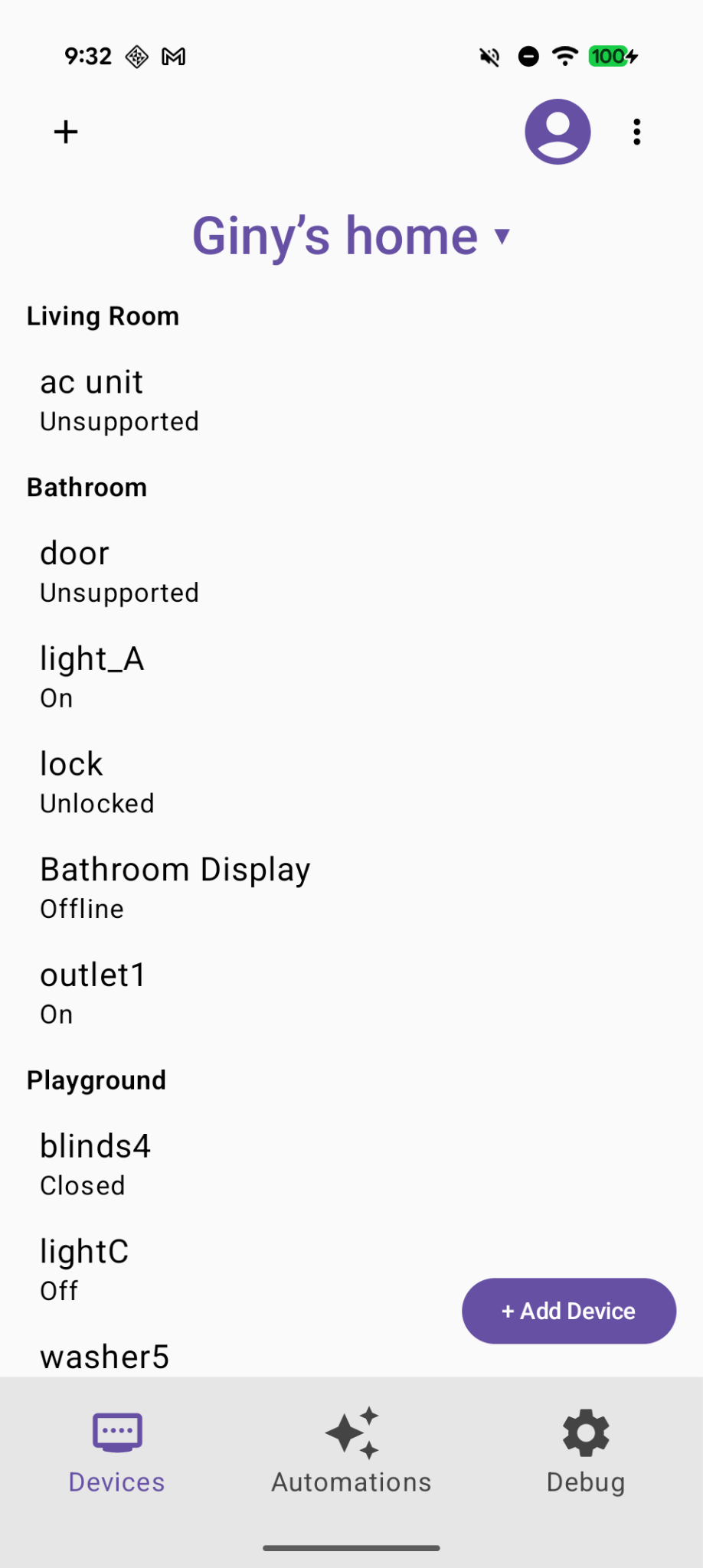
5. 为“Dump Structure”和“Dump Automation”创建 2 个新按钮
向 Gemini 发出提示:
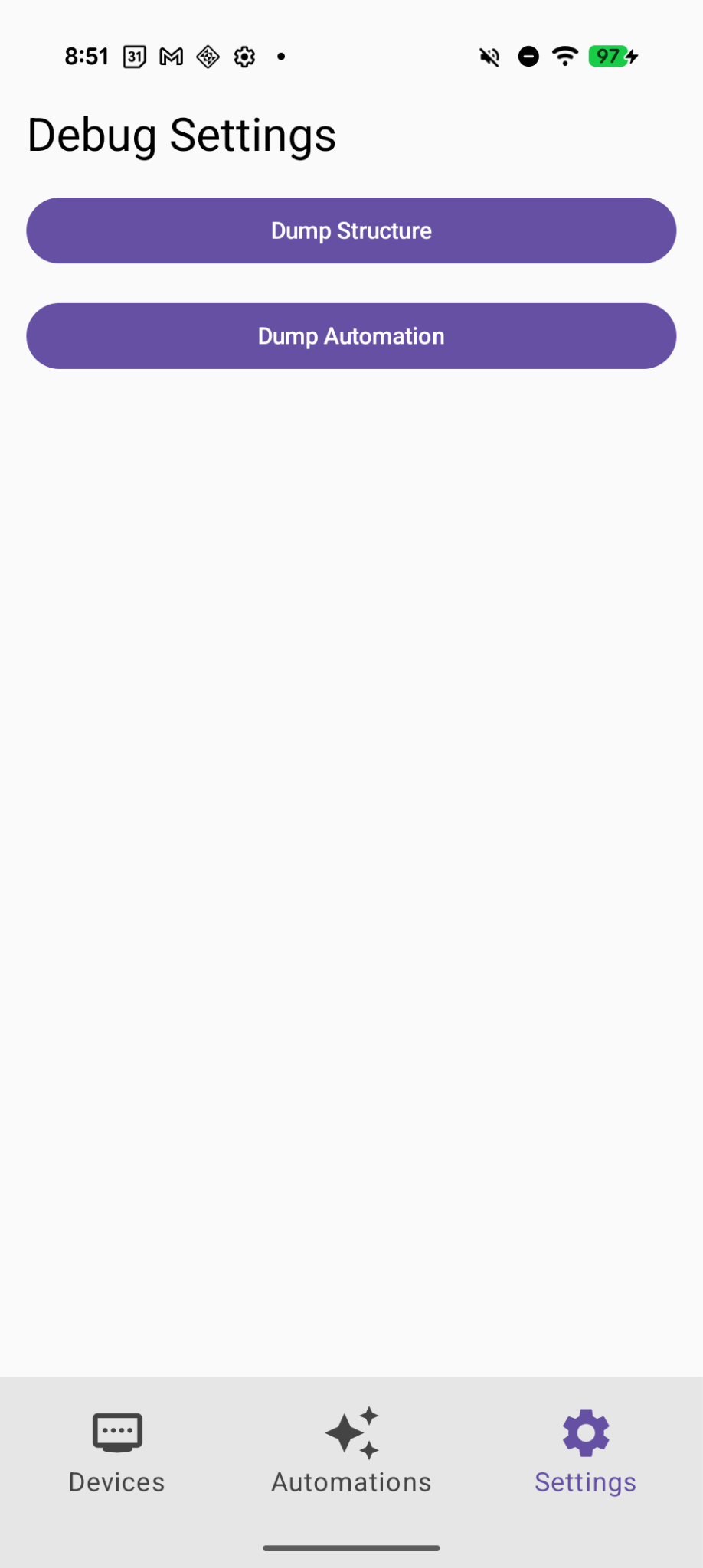
Create two selectable buttons on the Debug page called "Dump Structure" and "Dump Automations".
现在,我们在“调试”页面上添加了 2 个新按钮
6. 实现“转储结构”功能
向 Gemini 发出提示:
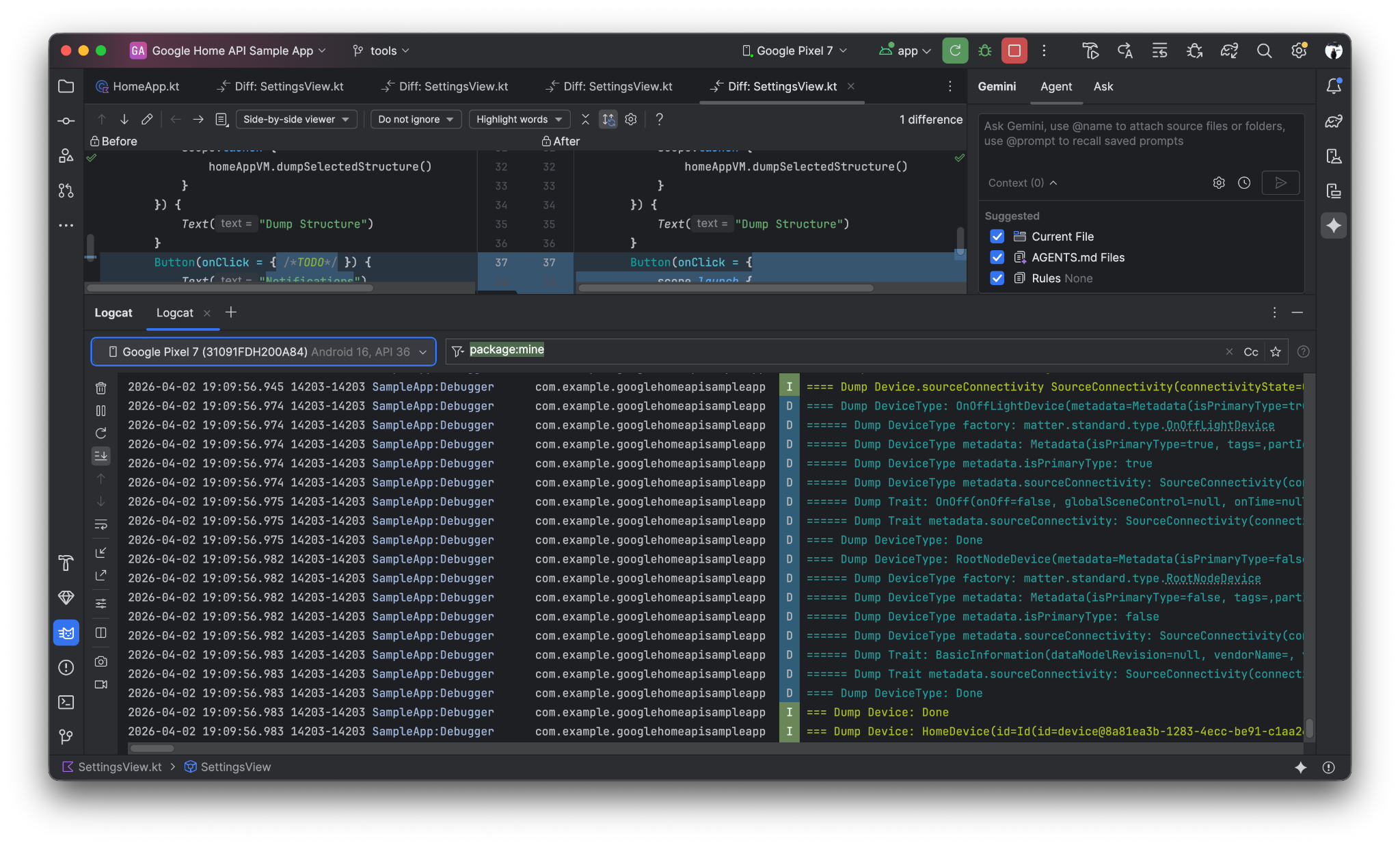
Implement the first button "Dump Structure" to call dumpStructure(structure: Structure) in Debugger.kt with current selected structure.
点击“Dump Structure”按钮时,结构日志将转储到 LogCat
7. 实现“Dump Automation”功能
向 Gemini 发出提示:
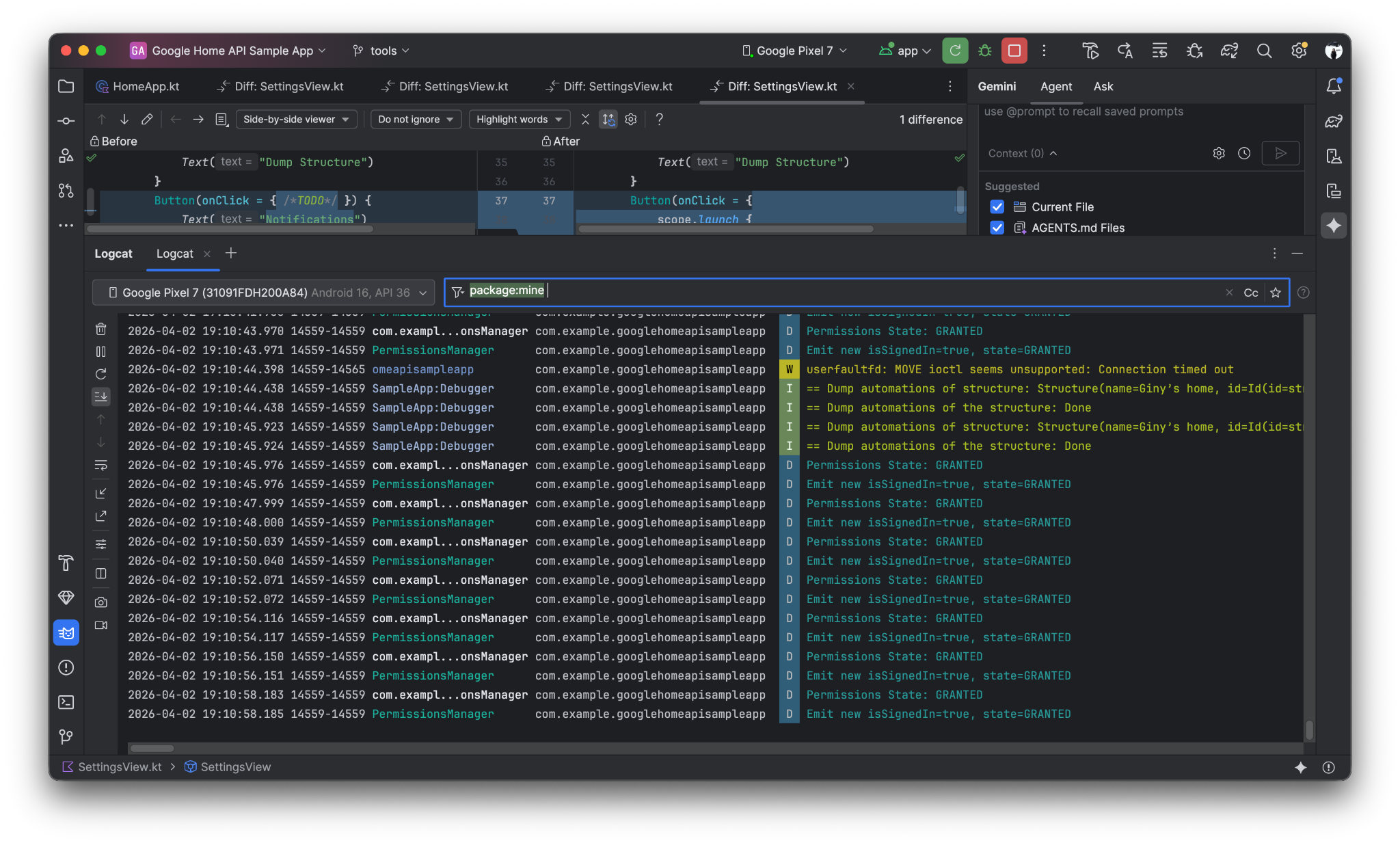
Now Implement the "Dump Automation" functionality to call dumpAutomationsInStructure(structure: Structure) in Debugger.kt with current selected structure.
点击“Dump Automation”按钮后,自动化日志将转储到 LogCat
8. 实现“总结首页”按钮,列出当前的房间和设备
向 Gemini 发出提示:
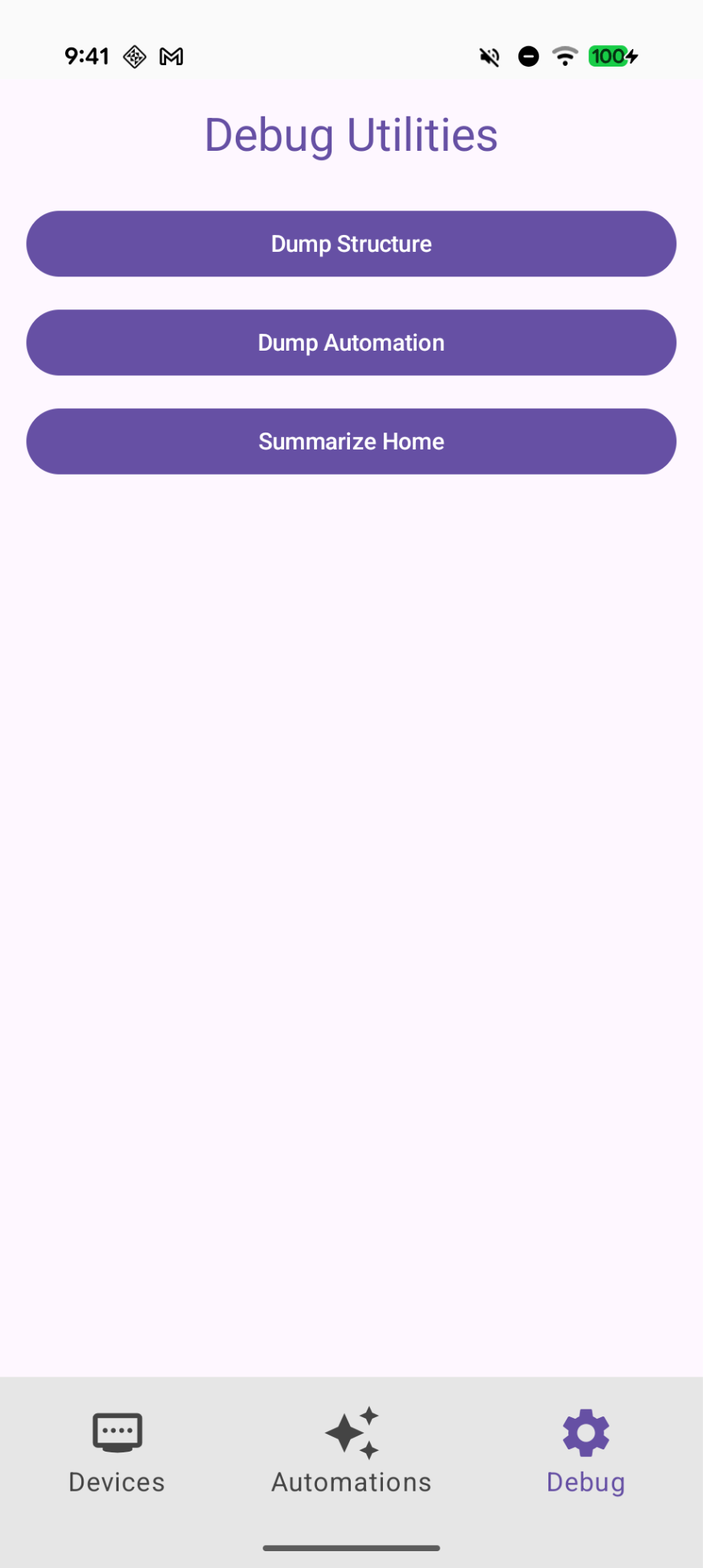
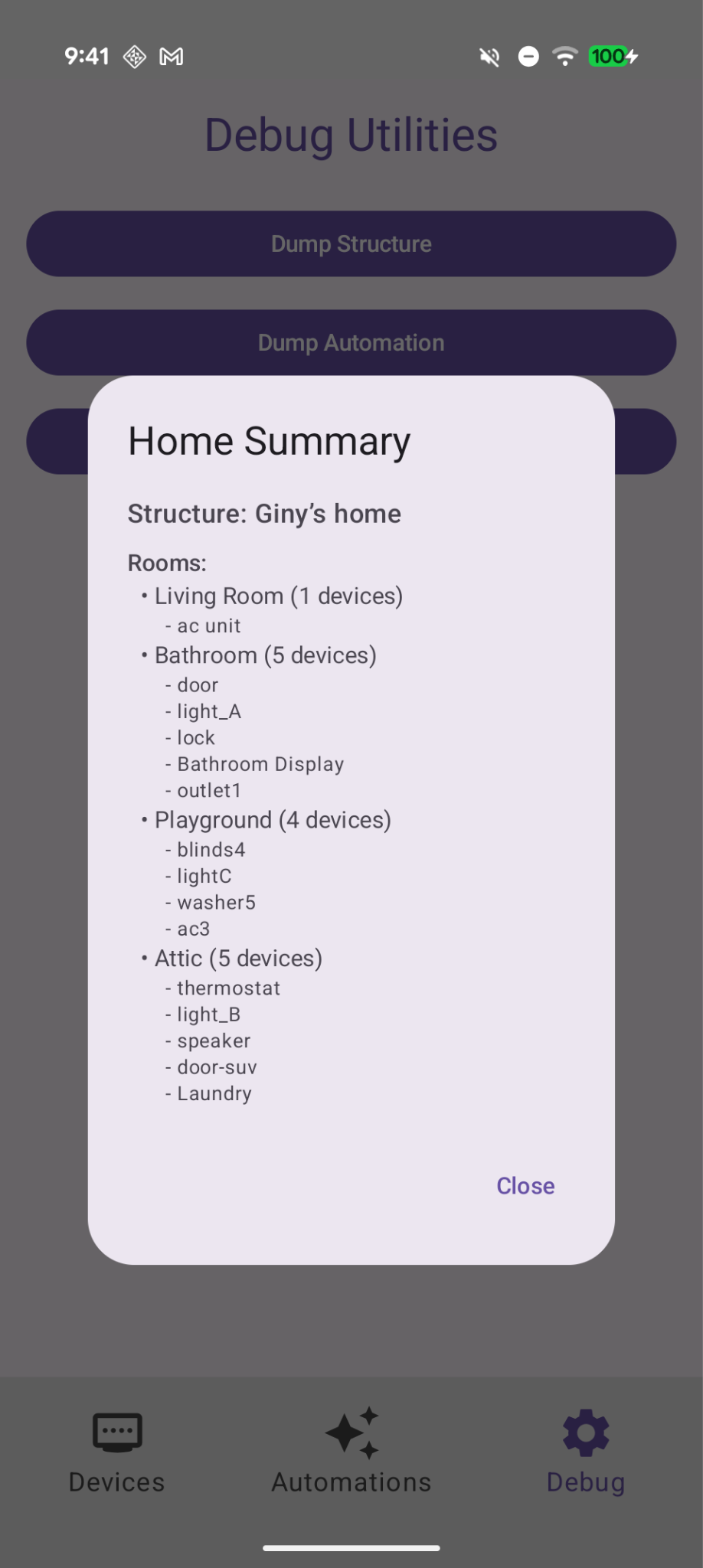
In Debug tab, add a button "Summarize Home" to find the current room and devices with Home API and show them on a dialog.
调试页面上的新“总结首页”按钮
点击该图标后,系统会显示房间和设备的当前摘要
9. 查看更改
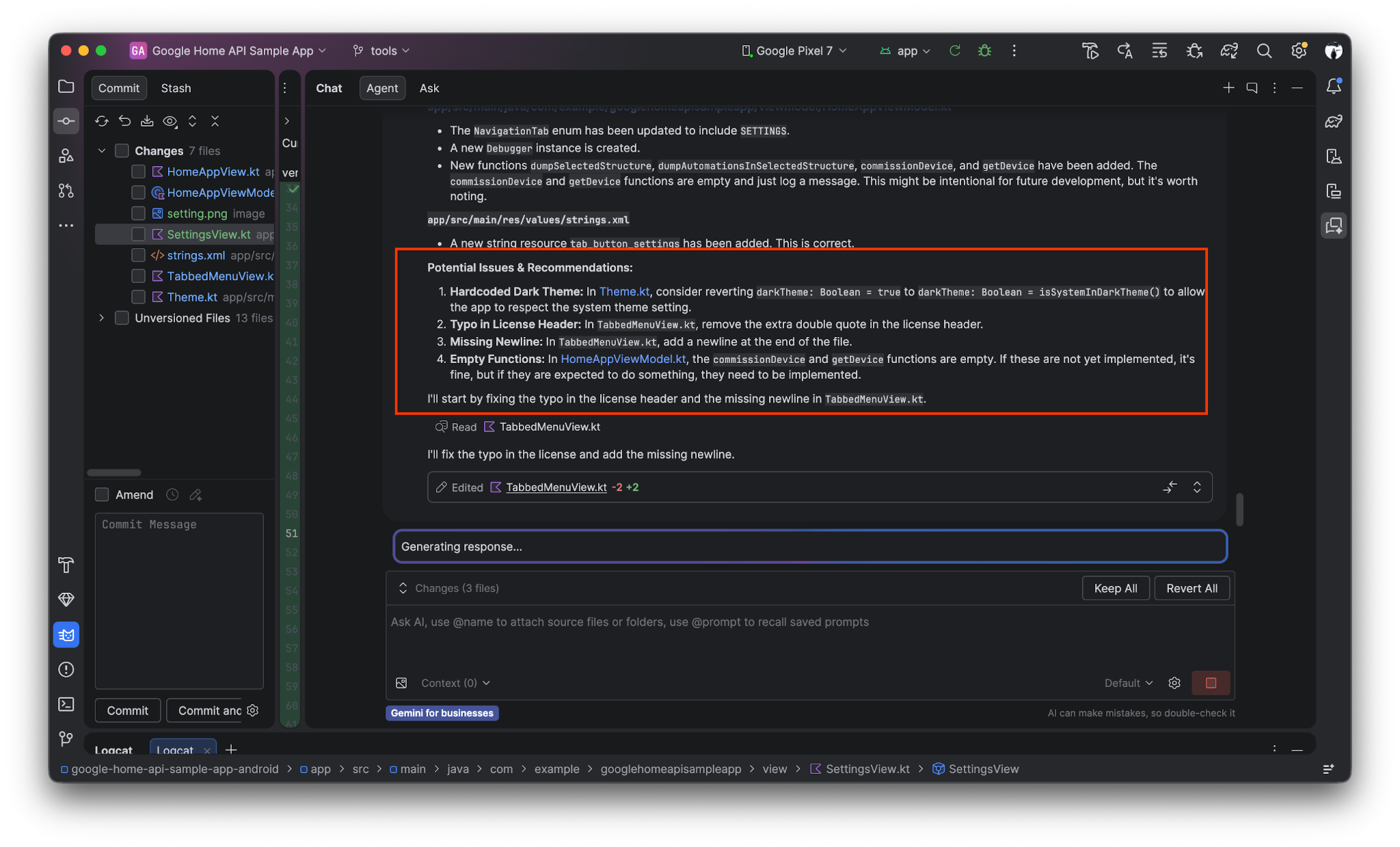
Gemini 还可以帮助检查更改(或上次 git 提交),找到潜在问题并加以修复。
向 Gemini 发出提示:
Review the uncommitted changes and find potential issues.
10. 恭喜!
恭喜!您已成功扩展 Android Home API 示例应用,利用 Home API 知识库和 Gemini 自动创建界面和集成 API!现在,您已了解如何使用 AI 驱动的开发来扩展示例应用,接下来可以尝试以下其他操作:
- 优化 AGENTS.md:尝试向
AGENTS.md文件添加特定的编码标准或品牌推广指南,看看这会如何改变 Gemini 的代码建议。 - 构建自定义自动化操作:使用 Gemini 和知识库编写一个脚本,以触发“晚安”日常安排,例如锁上所有门和调暗灯光。
- 阅读官方 Home API 知识库指南,观看利用 Gemini 和知识库加速开发