
The Google Home Developer Model Context Protocol (MCP) server gives AI-powered development tools the ability to search the following and retrieve real-time, domain-specific information:
- Google Home Developer Center public documentation
- OpenThread
- Matter Specification: Available for version 1.5.1
- Thread Specification: Available for version 1.4.1
It helps ensure that AI agents and tools can provide accurate technical answers related to Google Home developer programs and technology.
An MCP server acts as a proxy between an external service that provides context or data and an AI application (the host). The Home Developer MCP server exposes executable tools that let Large Language Models (LLMs) find precise answers directly from indexed corpuses. To learn more about MCP servers, see What is the MCP and how does it work?.
Prerequisites
To use the Home Developer MCP server, you must have an MCP-compatible AI client or editor installed.
Google Antigravity
If you are using Google's AI development environment, install one of the following:
- Antigravity CLI, following the Getting Started with Antigravity CLI guide
- Antigravity 2.0, following the Google Antigravity Documentation
- Antigravity IDE, following the Antigravity IDE Getting Started guide
Third-party AI assistants
You can also integrate the MCP with other AI applications, command line tools, and code editors, such as:
- Claude Code
- Cursor
- GitHub Copilot in VS Code
Choose an authentication path
Depending on your integration requirements, you can connect to the Home Developer MCP server using either an unauthenticated trial path or an authenticated API key.
Unauthenticated connection testing
This method does not require an API key or Google Cloud configuration. It uses a shared public quota, making it the easiest way to trial the server and test core mechanics immediately.
Authenticated connection for production
To prevent rate-limiting under shared public quotas, authenticating your environment is recommended for sustained development.
This path requires you to have an active Google Cloud project.
- In the Google Cloud console, enable the API on your project:
- Open the Home Developers API page in the Google APIs library.
- Check that you have the correct project selected in which you intend to use the API.
- Click Enable.
Create an API Key:
- Go to the Credentials page.
- Click Create credentials, and then select API key from the menu.
- In the Name field, provide a name for the key.
Click the Select API restrictions drop-down, and then type Home Developers API. Click the result, and then click OK.
Click Create.
After the key is created, click Show key to view it, and copy it for the next step.
Configure your client
Enter your credentials in the following fields to populate the configuration templates for your preferred AI development environment:
Enter your API key: YOUR_API_KEY
Antigravity
Open your local ~/.gemini/config/mcp_config.json configuration file (or
.agents/mcp_config.json in your workspace) and add the HomeDevelopers
entry under the mcpServers object.
Regardless of whether you use the Antigravity CLI, Antigravity 2.0, or
Antigravity IDE, all three tools share ~/.gemini/config/mcp_config.json.
API key
{
  "mcpServers": {
    "HomeDevelopers": {
      "serverUrl": "https://homedevelopers.googleapis.com/mcp",
      "headers": {
        "X-Goog-Api-Key": "YOUR_API_KEY"
      }
    }
  }
}
Unauthenticated
{
  "mcpServers": {
    "HomeDevelopers": {
      "serverUrl": "https://homedevelopers.googleapis.com/mcp"
    }
  }
}
Claude
To configure
Claude Code,
add the Home Developer MCP server using the claude mcp add command in your
terminal.
API key (Claude Code)
claude mcp add HomeDevelopers \
  --transport http https://homedevelopers.googleapis.com/mcp \
  --header "X-Goog-Api-Key: YOUR_API_KEY"
Unauthenticated (Claude Code)
claude mcp add HomeDevelopers \
  --transport http https://homedevelopers.googleapis.com/mcp
Cursor
To configure
Cursor,
edit either .cursor/mcp.json (for a specific project) or
~/.cursor/mcp.json (for all projects).
API key
{
  "mcpServers": {
    "HomeDevelopers": {
      "url": "https://homedevelopers.googleapis.com/mcp",
      "headers": {
        "X-Goog-Api-Key": "YOUR_API_KEY"
      }
    }
  }
}
Unauthenticated
{
  "mcpServers": {
    "HomeDevelopers": {
      "url": "https://homedevelopers.googleapis.com/mcp"
    }
  }
}
GitHub Copilot
To configure GitHub Copilot in VS Code for a single project, edit the
.vscode/mcp.json file in your workspace. Alternatively, to make the server
globally available, click Open Settings (JSON) in your
VS Code user settings
and add the JSON under an "mcp" root key.
API key
{
  "servers": {
    "HomeDevelopers": {
      "url": "https://homedevelopers.googleapis.com/mcp",
      "headers": {
        "X-Goog-Api-Key": "YOUR_API_KEY"
      }
    }
  }
}
Unauthenticated
{
  "servers": {
    "HomeDevelopers": {
      "url": "https://homedevelopers.googleapis.com/mcp"
    }
  }
}
Verify installation and execution
Once your tool configuration is updated, verify the connection by prompting your agent workspace.
Verification example in Antigravity CLI
Launch your interactive workspace session:
agy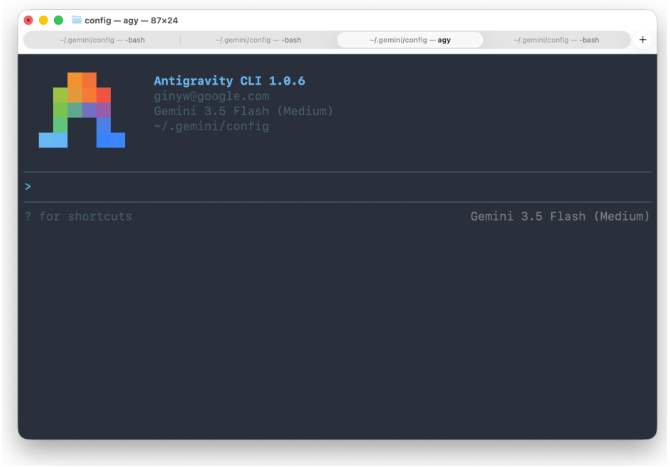
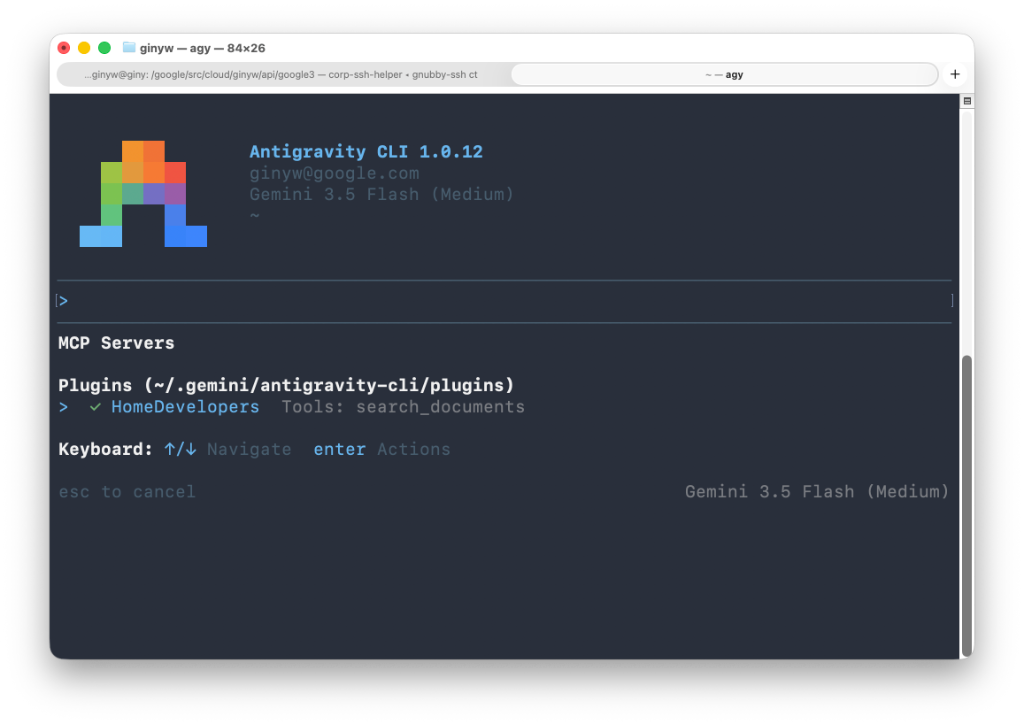
Execute the discovery checklist command to inspect active MCP servers:
/mcpConfirm that HomeDevelopers (or your chosen server name key) appears in the active connections list.
Ask a Google Home development question, for example:
How do I create an Automation using Home APIs?When Antigravity requests permission to call the Home Developer MCP server's
search_documentstool, select any of the Allow options to continue.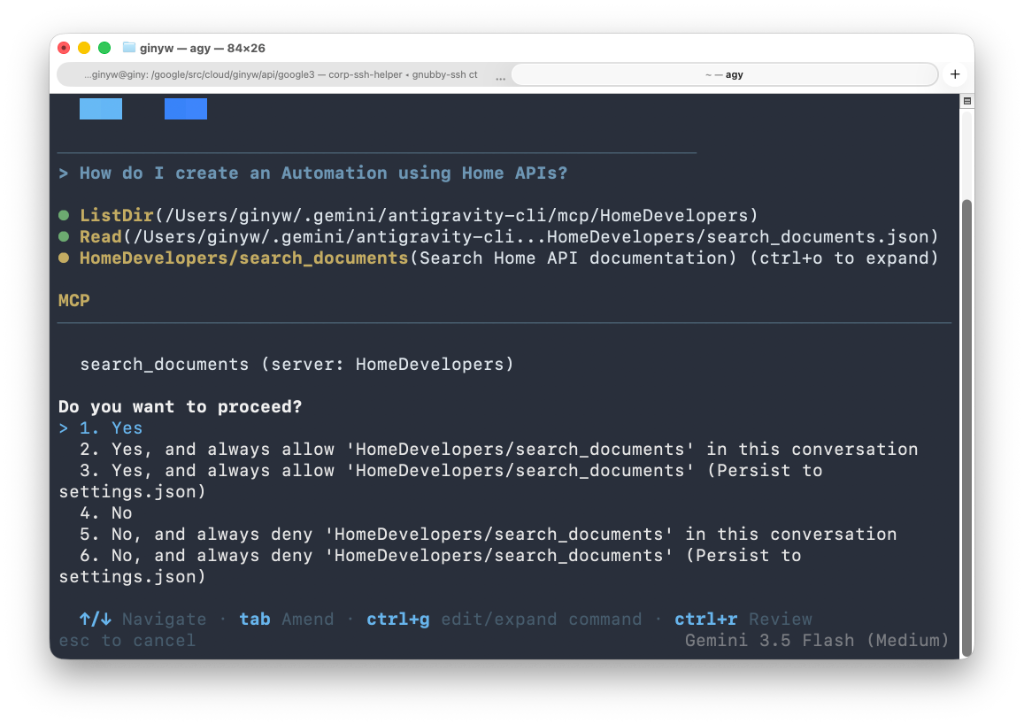
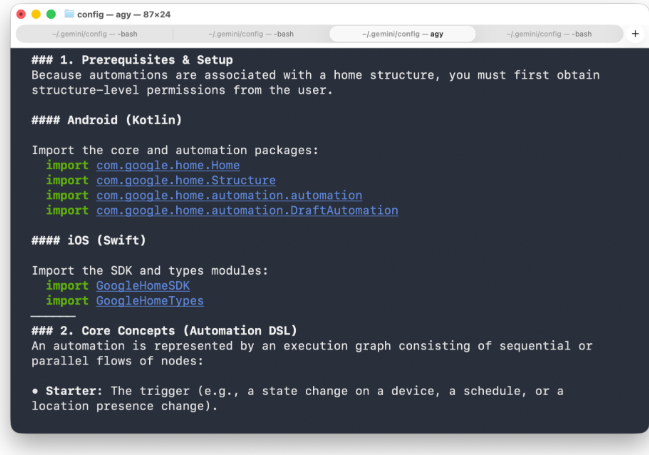
After calling the tool, Antigravity answers your query with a grounded response from the documentation.
Video tutorial
Watch the video for a step-by-step guide to installing the Home Developer MCP.
Test with direct HTTP curl requests
For pipeline testing outside of an AI client environment, you can send standard
JSON-RPC 2.0 payloads directly to https://homedevelopers.googleapis.com/mcp
using curl.
Discover active system tools
Use the tools/list method to inspect the tools exposed by the server:
curl --location "https://homedevelopers.googleapis.com/mcp" \
  --header 'Content-Type: application/json' \
  --header 'Accept: application/json, text/event-stream' \
  --data '{
      "jsonrpc": "2.0",
      "method": "tools/list",
      "id": 1
  }'
Execute a functional search query
Select a tab to test search_documents using
an API key
or an unauthenticated request:
API key
curl --location "https://homedevelopers.googleapis.com/mcp" \
  --header 'Content-Type: application/json' \
  --header 'Accept: application/json, text/event-stream' \
  --header "X-Goog-Api-Key: YOUR_API_KEY" \
  --data '{
      "jsonrpc": "2.0",
      "method": "tools/call",
      "id": 2,
      "params": {
          "name": "search_documents",
          "arguments": {
              "query": "How to create an automation?"
          }
      }
  }'
Unauthenticated
curl --location "https://homedevelopers.googleapis.com/mcp" \
  --header 'Content-Type: application/json' \
  --header 'Accept: application/json, text/event-stream' \
  --data '{
      "jsonrpc": "2.0",
      "method": "tools/call",
      "id": 2,
      "params": {
          "name": "search_documents",
          "arguments": {
              "query": "How to create an automation?"
          }
      }
  }'
Send feedback
Use our feedback form to submit your thoughts and suggestions about the Home Developer MCP or how we can improve your experience with the tool.