Before using any of the Home APIs for Android, the app must have permission to
access devices in the user's home, referred to in the API as *the structure*.
With the Permissions API, the user can, using their Google Account, grant Home
APIs apps access to devices in their home.
> [!NOTE]
> **Note:** Permission grants are made on a structure-by-structure basis.
The permission flow lets the user create a structure and assign its street
address if one hasn't already been set up, without having to use the
Google Home app (GHA).
## Integrate the Permissions API
Before continuing, make sure you have followed
[Initialize the home on Android](https://developers.home.google.com/apis/android/initialize.md.txt).
The `homeManager` instance from that step is used in all Permissions
examples here.
> [!TIP]
> **Tip:** See the Sample App for examples of Permissions API calls.
First, register an
[`ActivityResultCaller`](https://developer.android.com/reference/androidx/activity/result/ActivityResultCaller)
with the SDK. For example, this is how the Sample App handles it:
```kotlin
override fun onCreate(savedInstanceState: Bundle?) {
super.onCreate(savedInstanceState)
homeManager.registerActivityResultCallerForPermissions(this)
}
```
### Check for permissions
Prior to requesting permissions, we recommend you check to see whether the user
of the app has already granted consent to access the structure. To do so, call
the
[`hasPermissions()`](https://developers.home.google.com/reference/kotlin/com/google/home/Home.md.txt#hasPermissions())
method of the Home instance to obtain a `Flow` of
[`PermissionsState`](https://developers.home.google.com/reference/kotlin/com/google/home/PermissionsState.md.txt)
values:
```kotlin
val permissionsReadyState =
homeManager.hasPermissions().collect { state ->
when (state) {
PermissionsState.GRANTED -> println("Permissions granted, no need to request permissions")
PermissionsState.PERMISSIONS_STATE_UNAVAILABLE ->
println("Permissions state unavailable, request permissions")
PermissionsState.NOT_GRANTED ->
println("OAuth permission is enabled but not granted yet, request permissions")
PermissionsState.PERMISSIONS_STATE_UNINITIALIZED -> println(
"Permissions state is not initialized yet. Clients should wait for another status update"
)
else ->
throw IllegalStateException("""
HomeClient.hasPermissions state should be PermissionsState.GRANTED,
PermissionState.PERMISSIONS_STATE_UNINITIALIZED, or
PermissionsState.PERMISSIONS_STATE_UNAVAILABLE. Actual state: $state
""".trimIndent())
}
}
```
If the check returns a `PermissionsState` of `NOT_GRANTED` or
`PERMISSIONS_STATE_UNAVAILABLE`, it means that either the user or the
application lacks access to the structure.
If the check returns a `PermissionsState`
of `GRANTED` but a subsequent call to `structures()` returns no structures,
then either the user has revoked access
to the app through the GHA settings page, or the user
lacks the required access.
### Request permissions
Permission must be granted to your app in order to access structures and
devices within a given structure.
> [!NOTE]
> **Note:** An application can only be granted permission to one structure at any given time.
If the user has not already granted permissions, use the
[`requestPermissions()`](https://developers.home.google.com/reference/kotlin/com/google/home/Home.md.txt#requestPermissions())
method of the Home instance to launch the Permissions UI and process the result:
```kotlin
fun requestPermissions(scope: CoroutineScope, onShowSnackbar: (String) -> Unit) {
scope.launch {
val result =
try {
homeManager.requestPermissions()
} catch (e: HomeException) {
PermissionsResult(
PermissionsResultStatus.ERROR,
"Got HomeException with error: ${e.message}",
)
}
when (result.status) {
PermissionsResultStatus.SUCCESS -> {
Log.i(TAG, "Permissions successfully granted.")
}
PermissionsResultStatus.CANCELLED -> {
Log.i(TAG, "User cancelled Permissions flow.")
onShowSnackbar("User cancelled Permissions flow")
}
else -> {
Log.e(
TAG,
"Failed to grant permissions with error: ${result.status}, ${result.errorMessage}",
)
onShowSnackbar("Failed to grant permissions with error: ${result.errorMessage}")
}
}
}
}
```
> [!TIP]
> **Tip:** The [`PermissionsManager`](https://github.com/google-home/google-home-api-sample-app-android/blob/a4312a3b6226a0b49396a5285a5b0981087e4b93/app/src/main/java/com/example/googlehomeapisampleapp/PermissionsManager.kt) class in the Sample App illustrates how to handle the permission flow.
For the Permissions UI to properly launch, you must have already
[set up OAuth](https://developers.home.google.com/apis/android/oauth.md.txt) for your app.
The Permissions consent UI renders in the locale configured with
`HomeClient.setLocale()`, or defaults to the app or device locale if not set.
To display the consent screen in a specific language, call `setLocale()` on
your [`HomeClient`](https://developers.home.google.com/reference/kotlin/com/google/home/HomeClient) instance
before calling `requestPermissions()`. For more information, see
[Configure the app locale](https://developers.home.google.com/apis/android/initialize.md.txt#configure-locale).
## Grant permissions
Now you should be able to run your app and have a user grant permissions. The
type of users that can grant permission, and the device types that are available
to grant permissions for, will differ depending on whether you have
registered your app in the Google Home Developer Console.
Developer Console registration is required to publish an app using
the Home APIs. It is not required to test and use the Home APIs.
> [!WARNING]
> **Important:** The Google Home Developer Console is not yet available for registration.
**If an app is not registered in the Developer Console** , it will be in
an *unverified* state. This is recommended for testing use of the Home APIs:
- Only users [registered as test users in the OAuth
console](https://developers.home.google.com/apis/android/oauth#consent) can grant
permissions for the app. There is a limit of 100 test users for an unverified
app.
- An unverified app will have access to devices of any device types that are
supported by OAuth for the Home APIs (the list of device types in the
Developer Console). All devices in a structure will be granted.
**If
an app is registered in the Developer Console** and
has been approved for access to one or more device types, and [brand
verification has been completed for
OAuth](https://developers.google.com/identity/protocols/oauth2/production-readiness/brand-verification),
it will be in a *verified* state. This state is required for launching an app to
production:
- Test user limits no longer apply. Any user can grant permission to the app.
- The user can only grant permission to the device types that were approved in the Developer Console.
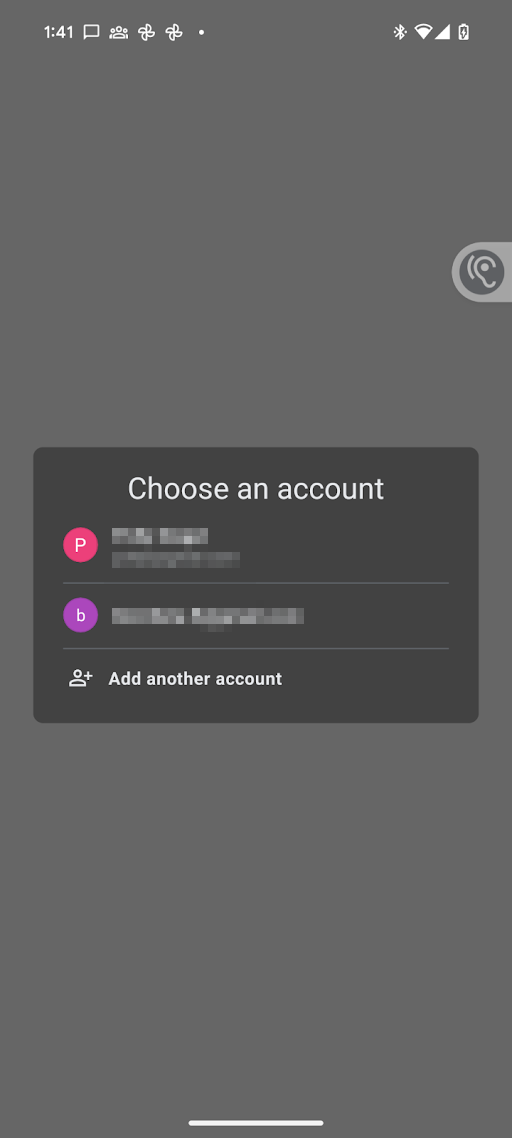
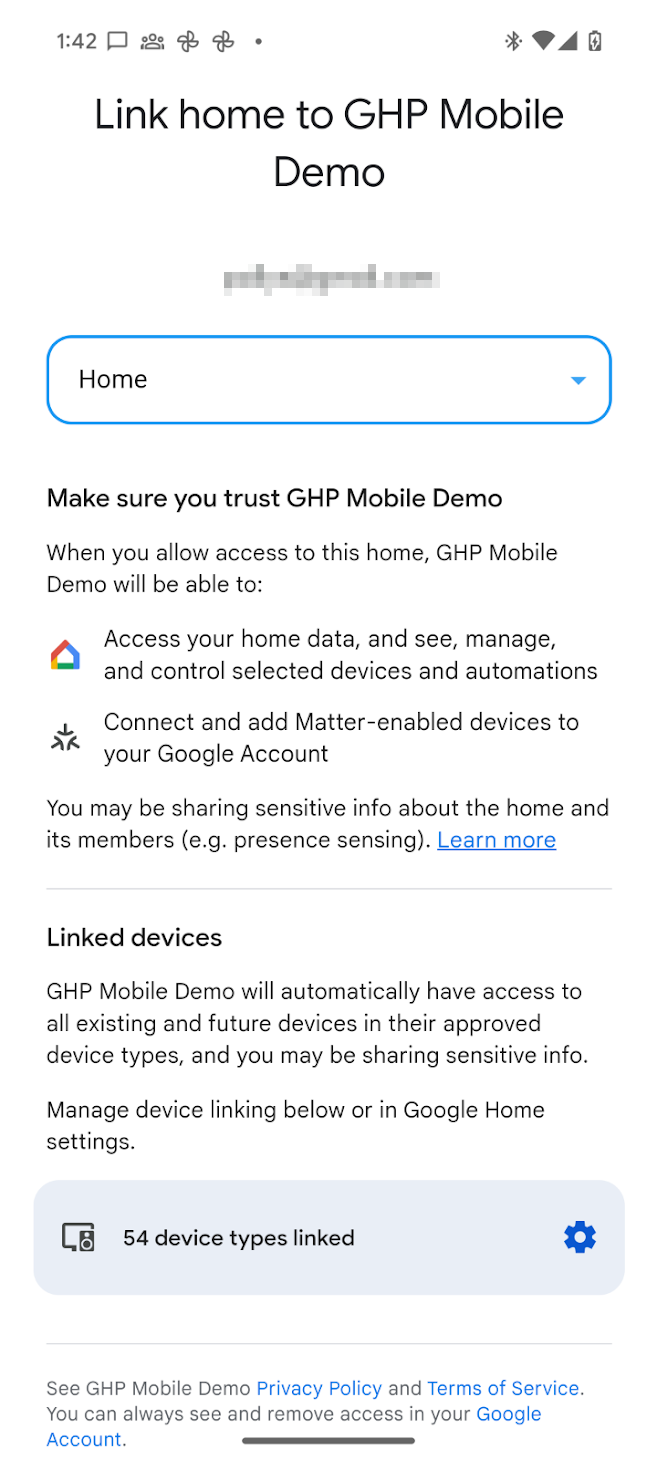
Now that OAuth is set up, the app's call to `requestPermissions()` triggers the
following dialogs:
1. The user is prompted to select the Google Account they want to use.
2. The user is prompted to select the structure they want to grant the app access to.
1. For an unverified app, all device types supported by the Home APIs are available to the app.
2. For a verified app, the user can grant permission to only the device types that have been approved in Developer Console.
3. For sensitive device types that the app has access to manage, the user can restrict access on a per-device basis. For example, if a user has three locks, they can grant access to only one of those locks.
- 
- 
- 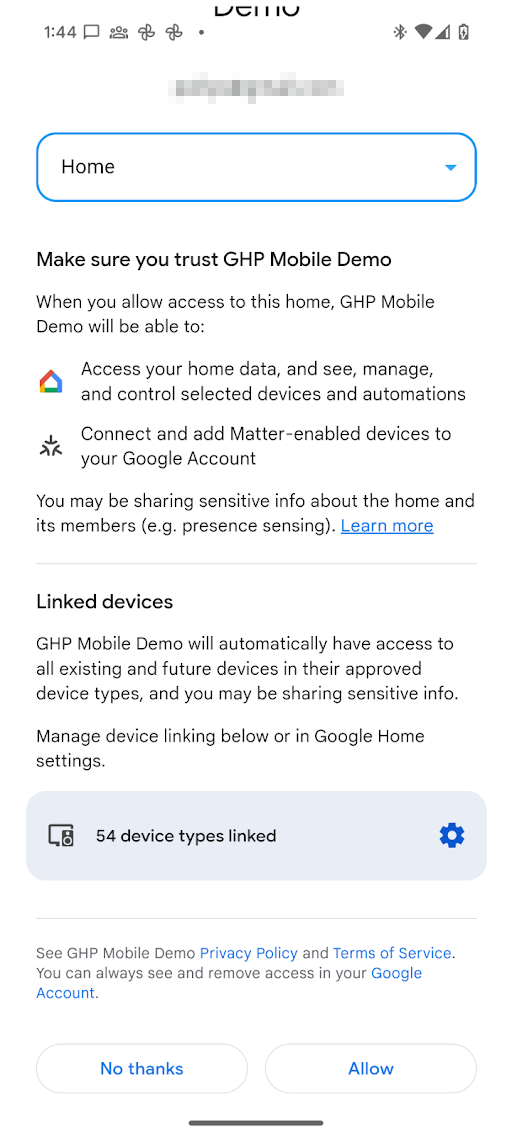
**Figure 1**: Example OAuth consent flow
Once permission has been granted, the app can use the Home APIs to read the
state of and control the devices in the structure. If the user doesn't grant
permission to the app for a particular device type or sensitive device, the app
won't be able to use the Home APIs to access, control, or automate it.
### Change permissions
To grant permission to access devices in a different structure, the account
picker can be launched to allow the user to pick the Google Account and
structure to switch to. During this process, the user will be presented with the
consent screen again, even if consent was granted previously.
This can be done by calling
[`requestPermissions()`](https://developers.home.google.com/reference/kotlin/com/google/home/Home.md.txt#requestPermissions(com.google.home.ForcePermissionFlow,com.google.home.ConsentScreenOptions))
again with `forcePermissionFlow` set to `ForcePermissionFlow.FORCE_LAUNCH`:
```kotlin
homeManager.requestPermissions(forcePermissionFlow = ForcePermissionFlow.FORCE_LAUNCH)
```
### Change permissions with structure hinting
Structure hinting allows an app to pre-select a specific structure, or restrict
the list of available structures, when requesting an incremental change to the
user's Home APIs permissions. By passing structure parameters into the
authorization request, the permissions dialog will automatically focus on the
chosen structure, reducing user friction and preventing configuration errors.
Structure hinting is managed using the
[`ConsentScreenOptions`](https://developers.home.google.com/reference/kotlin/com/google/home/ConsentScreenOptions.md.txt)
data class. The `ConsentScreenOptions` class accepts the following configuration
parameters:
- `structureId` --- The specific structure ID to pre-select in the permission dialog. Get this by checking the [structure
properties](https://developers.home.google.com/apis/android/structure#properties) for the structure being updated.
- `allowedStructureIds` --- A list of structure IDs. If provided, the permission dialog will filter the available structures to only show those in this list. This can be left unspecified in most cases, unless you want to ensure the user stays within an already-granted list of structures.
- `allowStructureChange` --- Determines whether the user is permitted to change the pre-selected structure. Set this to `true` if at least one of `allowedStructureIds` and `structureId` is specified in most cases to support natural behavior for the user.
Pass this object as an optional parameter in the `requestPermissions()` call,
with `forcePermissionFlow` set to `ForcePermissionFlow.FORCE_LAUNCH`:
```kotlin
import com.google.home.ConsentScreenOptions
// Create the ConsentScreenOptions class, allowing structure changes while
// ensuring the permissions dialog pre-selects the target structure on launch
val consentOptions = ConsentScreenOptions(
structureId = target-structure-id,
allowStructureChange = true
)
homeManager.requestPermissions(forcePermissionFlow = ForcePermissionFlow.FORCE_LAUNCH, consentScreenOptions = consentOptions)
```
The user will be presented with the consent screen already filtered to the
structure noted in the `ConsentScreenOptions` object.
#### Allow user to switch structures with structure hinting
If a user has multiple structures in an app and you want to pre-select one while
still allowing them to switch between their available structures, enable
structure changes with the `allowStructureChange` flag and provide a list of
structures in `allowedStructureIds`:
```kotlin
val consentOptions = ConsentScreenOptions(
structureId = target-structure-id,
allowedStructureIds = listOf(target-structure-id, another-structure-id),
allowStructureChange = true
)
```
### Revoke permissions
Users can revoke previously-granted access:
1. Through [Google Account
settings](https://myaccount.google.com/)
**\> Data \& privacy \> Third-party apps \& services**. This will revoke the
OAuth token that was issued when initial consent was granted, and
will revoke access to any instance of the app that the user was using across
all surfaces (phones) and structures.
The user may be directed with a deep link to the **Third-party apps \&
services** sub-page using the following URL scheme:
https://myaccount.google.com/connections/link?project_number=Cloud project_number
2. Through the **GHA \> Settings \> Linked Apps** page.
Clicking on in the
GHA will take you to
the **Settings** page. From there, click the **Linked Apps** tile which
takes you to a page that looks similar to the consent screen. From this page
the user can remove access to the app. The user can use this same page to
change which device types or specific sensitive devices are accessible to the
app.
### User data deletion and export
The platform automatically manages backend data deletion when a user deletes
their Google Account or leaves a structure:
- If the deleted user is the sole owner of a structure, the platform deletes the structure and its device associations.
- If other owners remain in a shared structure, the structure and its shared devices persist for the remaining members. The platform removes the departed user's membership and unlinks any third-party Cloud-to-cloud devices connected solely through that user's credentials.
- Account deletion immediately and permanently removes the user's structure data and application permissions. Even if the user later recovers their Google Account, their structures and permissions are not restored.
The Home APIs do not provide endpoints to export or delete a user's Google
Account data. Direct users with a Google Account to
[Google Takeout](https://takeout.google.com/) to
export their Google Home data and to their [Google Account
settings](https://myaccount.google.com/) to manage
account deletion.
## View the device types a user has granted permissions for
In the Google Home ecosystem, for most device types, users can grant permissions
for all devices of that type at once. For sensitive or restricted device types,
such as locks, cameras, or doorbells, users must grant permission to them
individually.
To determine whether a user has granted permission to access a sensitive or
restricted device type, use the Structure-level `consentedDeviceTypes()`
function:
```kotlin
import com.google.home.Structure
import com.google.home.DeviceType
import com.google.home.DeviceTypeFactory
import com.google.home.consentedDeviceTypes // Extension function from the SDK
import kotlinx.coroutines.flow.Flow
import kotlinx.coroutines.flow.collect
import kotlinx.coroutines.launch
/**
* Example of how an app may monitor which device types have been granted access by a user.
*/
fun monitorDeviceConsent(structure: Structure, myScope: CoroutineScope) {
// Obtain the flow of consented device type factories
val consentedTypesFlow: Flow>> =
structure.consentedDeviceTypes()
myScope.launch {
consentedTypesFlow.collect { consentedSet ->
// Check if the user has consented to share a specific restricted
// type, such as a Doorbell or Camera.
val hasCameraAccess = consentedSet.any {
it.toString() == "matter.google.type.GoogleDoorbellDevice"
}
if (hasCameraAccess) {
// Enable features that require camera access
} else {
// Inform the user or disable camera-specific features
}
}
}
}
```
## OkGoogle permissions
The
[`okGoogle`](https://developers.home.google.com/reference/kotlin/com/google/home/google/AssistantFulfillmentTrait.OkGoogleCommand.md.txt)
command is a device-level command and can be used to automate any device in the
structure. However, a Home APIs app may not have access to every device. The
following table describes how permissions are enforced in such cases.
| Automation | Trait | Permissions enforcement |
|:---:|:---:|:---:|
| At 10:00pm, broadcast "Bedtime" on bedroom speaker. | ` AssistantBroadcastTrait ` on device. | **Automation creation** : - The broadcast device must be an Assistant device. - The app and user must have access to the device on which the broadcast occurs. **Automation execution** : - The app and user must have access to the device on which the broadcast occurs. |
| At 10:00pm, broadcast "Bedtime" on all devices | ` AssistantBroadcastTrait ` on structure. | **Automation creation** : - There must be at least one Assistant device in the structure that the app and user have access to. - The app and user must have access to the structure. **Automation execution** : - The app and user must have access to the structure. |
| At 10:00pm, "play some music" | ` AssistantFulfillmentTrait.OkGoogleCommand ` | **Automation creation** : - The app and user must have access to the devices to which the automation issues commands. **Automation execution** : - The app and user must have access to the devices to which the the automation issues commands. |
| Whenever someone says "play some music" | ` VoiceStarterTrait.OkGoogleEvent ` | **Automation creation** : - The app and user must have access to the structure. An Automation doesn't require an Assistant device to pass validation or to run, because any user with access to the structure may use their phone (using the same Google Account) to engage with Assistant and trigger the VoiceStarter. **Automation execution** : - The app doesn't require permission to access the device which starts the automation. - The app and user must have permission to access the device on which the action occurs. |
## Guidance if user revokes full permissions
If the user revokes full permissions, all existing automations will
stop working. Also, if the user revokes access to specific devices, then
starters, conditions, and actions associated with those devices will
stop working.
**Each time the app starts, be sure to check that the permissions
are still in effect. If they have been revoked, then be sure that all previous
data are removed, including any data cached in the application.**
When structure access is revoked, a
[`StructureAccessRevokedEvent`](https://developers.home.google.com/partners/services/camera/cloud-events#structure_grants)
is delivered to your cloud backend. Refer to
[Structure grants](https://developers.home.google.com/partners/services/camera/cloud-events#structure_grants) for
the end-to-end partner cloud and mobile app revocation workflow.